Difficulty: Beginner
What Happens When Your Laptop Boots?
To understand a laptop slow boot fix, it helps to know what happens when you power on your laptop.
When you press the power button, your system must:
- Load the operating system (Windows)
- Start system services
- Launch background programs
- Initialize hardware like Wi-Fi, graphics, and storage
If too many things start at once, the laptop becomes overwhelmed and startup takes much longer.
Think of it like a restaurant kitchen:
If 20 orders arrive at the same time, everything slows down.
Common Reasons Your Laptop Boots Slowly
Here are the most common causes behind slow startup.
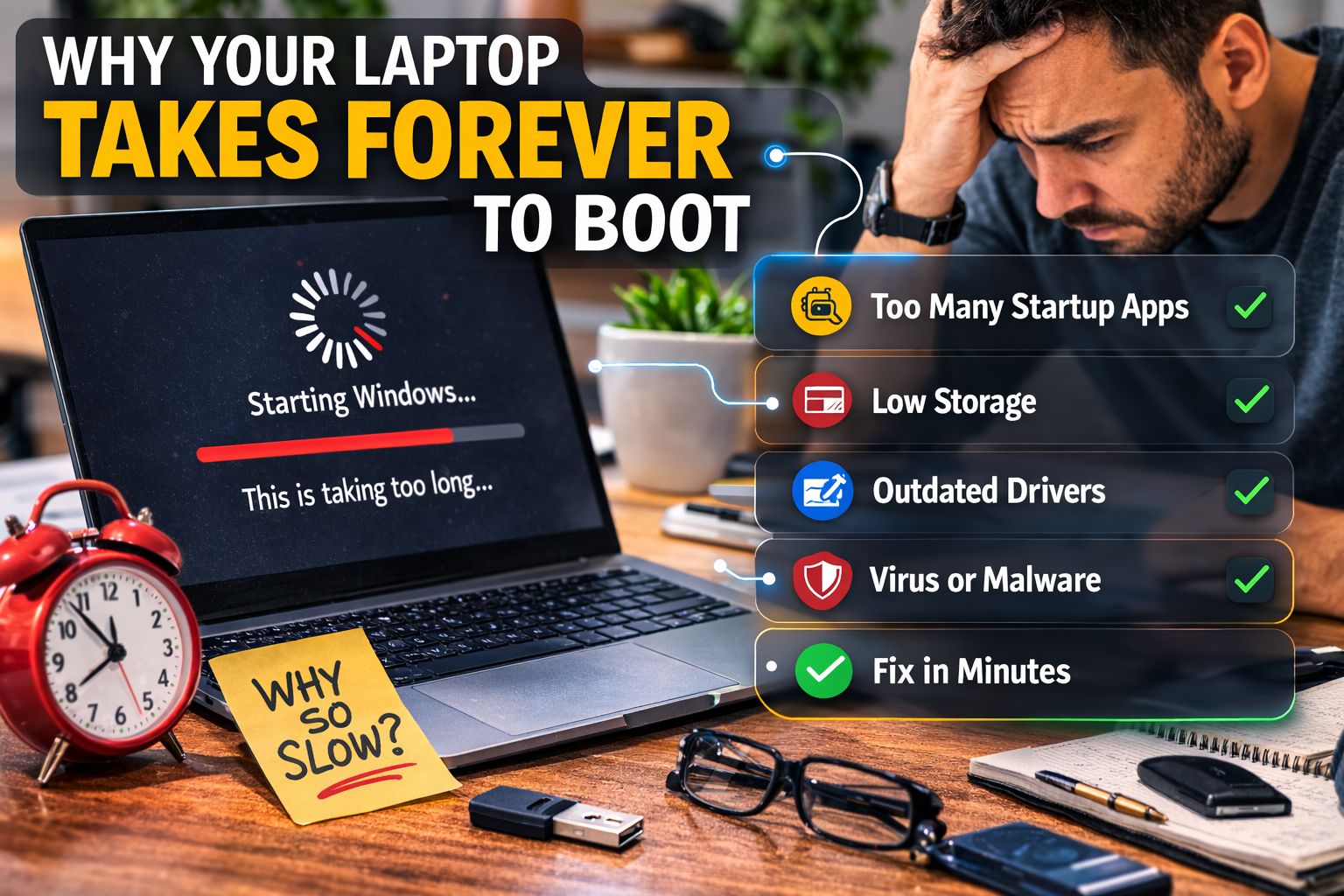
Too Many Startup Programs
Many apps automatically start when Windows boots.
Examples include:
- Messaging apps
- Cloud storage tools
- Update services
- Game launchers
Each program adds extra loading time.
Slow Hard Drive (HDD)
Older laptops often use traditional hard drives instead of solid-state drives.
Hard drives read data much slower.
According to storage performance data from major hardware manufacturers, SSDs can load operating systems up to 10 times faster than traditional hard drives.
Windows Updates Running in Background
Sometimes Windows performs updates during startup, which can temporarily slow down boot time.
Outdated Drivers
Drivers help Windows communicate with hardware. If drivers are outdated or corrupted, startup delays may occur.
Too Many Background Services
Even if you don’t see them, dozens of services run during startup.
If the system launches too many at once, it slows everything down.
⚡ Quick Fix Box
If your laptop boots slowly, try these first:
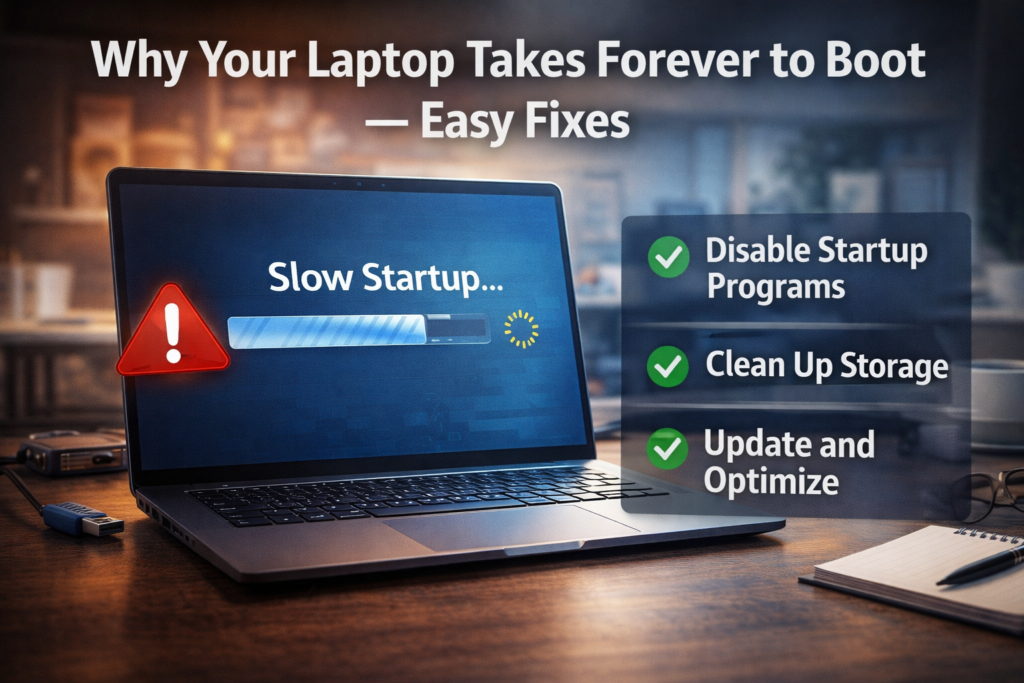
✔ Disable unnecessary startup apps
✔ Restart your computer regularly
✔ Update Windows and drivers
✔ Check disk performance
These simple fixes resolve most slow boot issues.
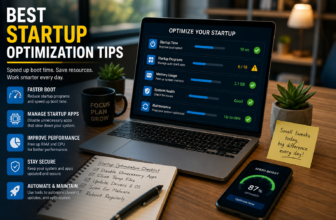
Fix #1: Disable Startup Programs
This is the most effective laptop slow boot fix.
Steps (Windows 11)
- Press Ctrl + Shift + Esc
- Open Task Manager
- Click Startup Apps
- Disable apps you don’t need at startup
Focus on programs marked High Impact.
Examples to disable safely:
- Spotify
- Adobe updater
- Discord
- Game launchers
Your apps will still work — they just won’t start automatically.
Fix #2: Check Your Storage Drive
Your storage type greatly affects startup speed.
HDD vs SSD
| Storage Type | Boot Speed |
|---|---|
| HDD | Slow |
| SSD | Very fast |
If your laptop still uses an HDD, upgrading to SSD is the single biggest improvement you can make.
Many users see boot time drop from 2–3 minutes to under 20 seconds.
Fix #3: Turn Off Fast Startup (Sometimes Helps)
Ironically, Windows Fast Startup can sometimes cause boot problems.
How to Disable
- Open Control Panel
- Go to Power Options
- Select Choose what the power buttons do
- Click Change settings currently unavailable
- Disable Fast Startup
Restart and test.
Fix #4: Update Windows and Drivers
Keeping your system updated ensures compatibility and performance improvements.
Steps
- Go to Settings → Windows Update
- Install all updates
- Restart the system
Also update:
- Graphics drivers
- Chipset drivers
- BIOS (if necessary)
Manufacturers like Intel and AMD frequently release performance improvements through driver updates.
Fix #5: Remove Unnecessary Programs
Some programs install services that run automatically.
Check Installed Apps
- Open Settings → Apps → Installed Apps
- Sort by size or install date
- Remove apps you no longer use
Fewer apps mean fewer startup processes.
Fix #6: Check for Malware
Malware can secretly run processes during startup.
Use Windows Security to run a full scan.
If you notice:
- Unknown programs launching
- High CPU usage at boot
- Browser pop-ups
A malware scan is essential.
Fix #7: Free Up Storage Space
If your storage drive is nearly full, Windows slows down.
Aim to keep at least 20% free space.
Delete:
- Temporary files
- Old downloads
- Large unused programs
You can use Disk Cleanup for this.
🛠️ Key Takeaway Box
Most slow boot issues are caused by startup overload — not broken hardware.
Reducing startup apps and using SSD storage dramatically improves boot speed.
Real-World Example
A laptop user reported their system took 4 minutes to boot.
Investigation showed:
- 18 startup apps
- Nearly full hard drive
- Several background updaters
After disabling startup apps and cleaning storage, boot time dropped to 30 seconds.
When Is It a Hardware Problem?
Your laptop slow boot fix might require hardware upgrade if:
- Laptop still uses HDD
- RAM is below 8GB
- CPU is very old
- Storage drive health is failing
Upgrading to SSD + 16GB RAM usually transforms performance.
Prevent Slow Boot in the Future
Follow these habits:
- Keep startup apps under 5
- Restart weekly
- Maintain free storage space
- Avoid installing unnecessary utilities
- Update drivers regularly
Preventive maintenance keeps your laptop responsive.
Frequently Asked Questions (FAQ)
1. Why does my laptop take so long to boot?
Usually because too many programs launch at startup or the system uses a slow hard drive.
2. How long should a laptop take to boot?
Most modern laptops boot within 10–30 seconds.
3. Does SSD improve boot time?
Yes. SSD is the biggest improvement you can make to startup speed.
4. Is it safe to disable startup apps?
Yes. Most apps do not need to start automatically.
5. Should I reset Windows to fix slow startup?
Only as a last resort after trying other troubleshooting steps.