Difficulty: Beginner
Why File Explorer Becomes Slow in Windows 11
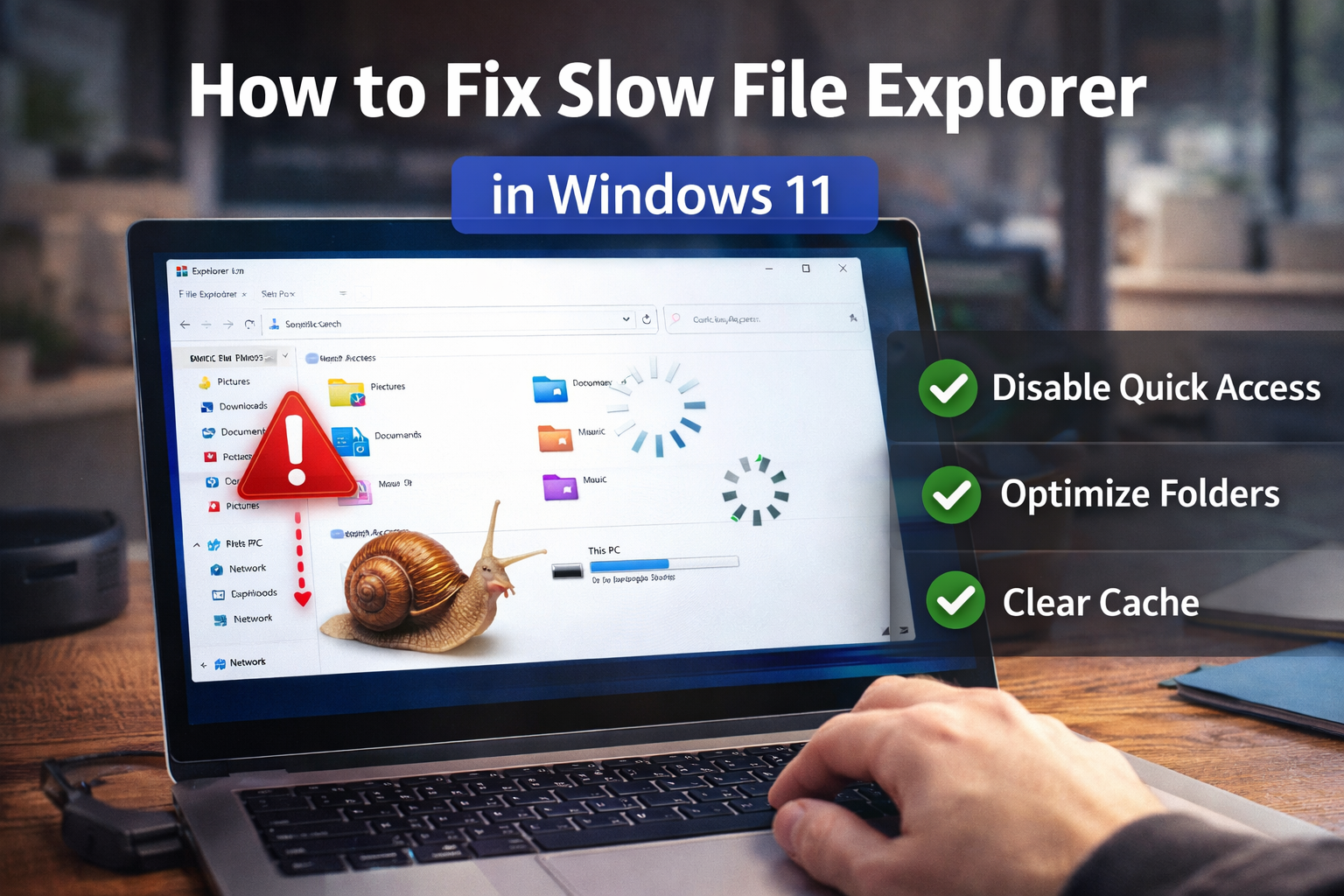
To understand slow File Explorer Windows 11, imagine File Explorer like a librarian searching for books. When the “library” (your files and folders) becomes too cluttered or the catalog system becomes overloaded, finding things takes longer.
Common causes include:
- Too many files in Quick Access
- Broken search indexing
- Corrupted Explorer cache
- Slow storage drive
- Background apps consuming resources
According to Microsoft support documentation, indexing problems and folder cache overload are among the most frequent reasons File Explorer performance drops.
Step 1: Restart File Explorer (Quick Fix)
Sometimes File Explorer simply needs a reset.
How to do it:
- Press Ctrl + Shift + Esc
- Open Task Manager
- Find Windows Explorer
- Right-click it
- Click Restart
Think of this like restarting a frozen app on your phone.
In many cases, this immediately resolves slow File Explorer Windows 11 problems.
⚡ Quick Fix Box
If File Explorer is slow, try these first:
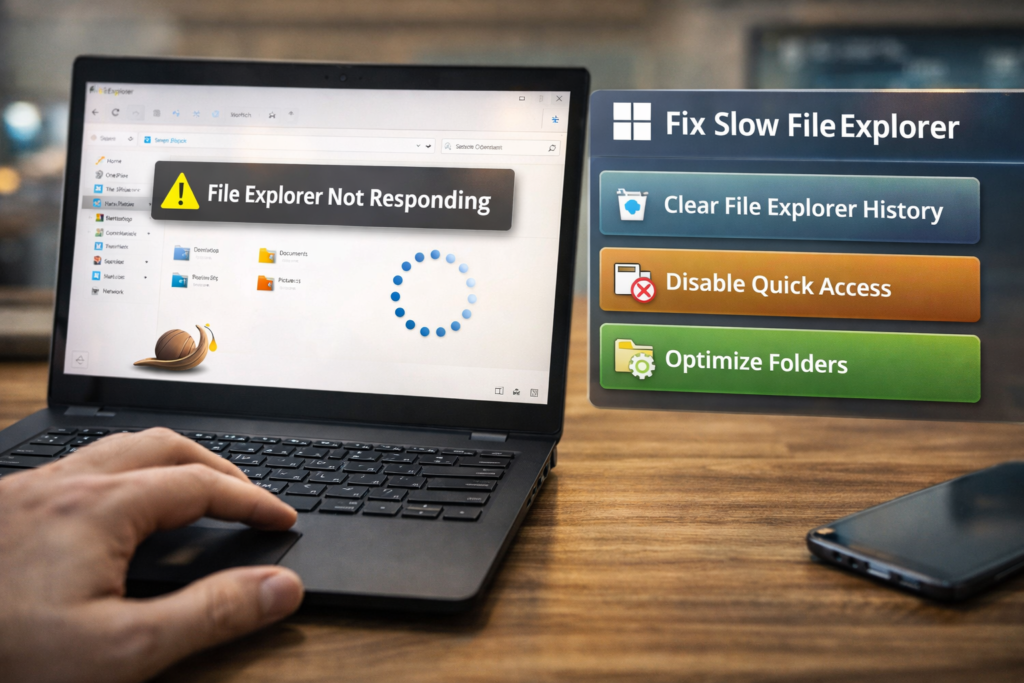
✔ Restart Windows Explorer
✔ Clear File Explorer history
✔ Disable Quick Access loading
✔ Restart your computer
These steps solve most performance issues.
Step 2: Clear File Explorer History
Windows keeps a history of frequently opened files and folders.
Over time, this history can slow things down.
How to clear it:
- Open File Explorer
- Click the three dots (⋯) in the toolbar
- Select Options
- Under Privacy
- Click Clear
Now restart File Explorer.
This is one of the most effective fixes for slow File Explorer Windows 11.
Step 3: Disable Quick Access Loading
Quick Access shows frequently used files automatically, but loading them can delay File Explorer.
Change this setting:
- Open File Explorer Options
- Under Open File Explorer to
- Select This PC instead of Quick Access
Now File Explorer opens faster.
Step 4: Optimize Folder Type
Windows tries to automatically guess folder type:
- Pictures
- Videos
- Documents
Sometimes it guesses wrong and loads extra previews.
Fix it:
- Right-click the slow folder
- Select Properties
- Go to Customize
- Set Optimize this folder for → General items
This reduces unnecessary file scanning.
Step 5: Rebuild Windows Search Index
Search indexing helps Windows find files quickly. But if the index becomes corrupted, it slows File Explorer.
Rebuild the index:
- Open Control Panel
- Go to Indexing Options
- Click Advanced
- Select Rebuild
Windows will recreate the search database.
This often fixes slow File Explorer Windows 11 issues during file searches.
Step 6: Disable File Thumbnails
Thumbnail previews require extra processing.
Disable them:
- Press Win + R
- Type:
sysdm.cpl
- Go to Advanced → Performance Settings
- Uncheck Show thumbnails instead of icons
This reduces File Explorer loading time, especially for folders with many images or videos.
Step 7: Check Storage Drive Speed
If your computer uses a traditional HDD, File Explorer will naturally feel slower.
Why?
Hard drives read data mechanically, while SSDs read data electronically.
According to storage performance benchmarks, SSDs can launch file directories up to 10 times faster than HDD drives.
If your system still uses HDD, upgrading to SSD dramatically improves File Explorer performance.
Step 8: Run System File Checker
Corrupted system files can slow Windows components.
Run this repair tool:
- Open Command Prompt (Admin)
- Run:
sfc /scannow
This scans and repairs damaged Windows files.
Step 9: Update Windows
Performance bugs sometimes get fixed in Windows updates.
Check updates:
- Open Settings
- Go to Windows Update
- Click Check for updates
Installing updates may resolve slow File Explorer Windows 11 issues automatically.
Step 10: Reduce Startup Programs
Too many background apps can affect File Explorer performance.
Check startup apps:
- Open Task Manager
- Go to Startup Apps
- Disable unnecessary programs
Fewer background processes means faster system response.
🧠 Definition Box
File Explorer:
The Windows tool that lets you browse files, folders, drives, and connected storage devices.
Real-World Example
A user complained that File Explorer took 15 seconds to open folders.
The fix involved:
- Clearing Explorer history
- Changing Quick Access to “This PC”
- Restarting Explorer
After that, folders opened instantly.
How to Prevent File Explorer From Slowing Down
To keep File Explorer fast:
- Clear Explorer history monthly
- Avoid storing thousands of files in one folder
- Keep Windows updated
- Maintain 20% free disk space
- Restart your PC regularly
Preventive maintenance keeps slow File Explorer Windows 11 from returning.
Frequently Asked Questions (FAQ)
1. Why is File Explorer slow in Windows 11?
Common reasons include Quick Access overload, corrupted search index, or slow storage drives.
2. Does restarting Windows Explorer fix the issue?
Yes. Restarting Explorer resets the process and often restores speed.
3. Will upgrading to SSD improve File Explorer speed?
Yes. SSD storage significantly reduces file loading times.
4. Why does File Explorer freeze when opening folders?
Large folders, corrupted thumbnails, or indexing problems can cause freezing.
5. Should I reset Windows to fix slow File Explorer?
Resetting Windows should be a last resort after trying simpler fixes.