Difficulty: Beginner
What Is Stalkerware?
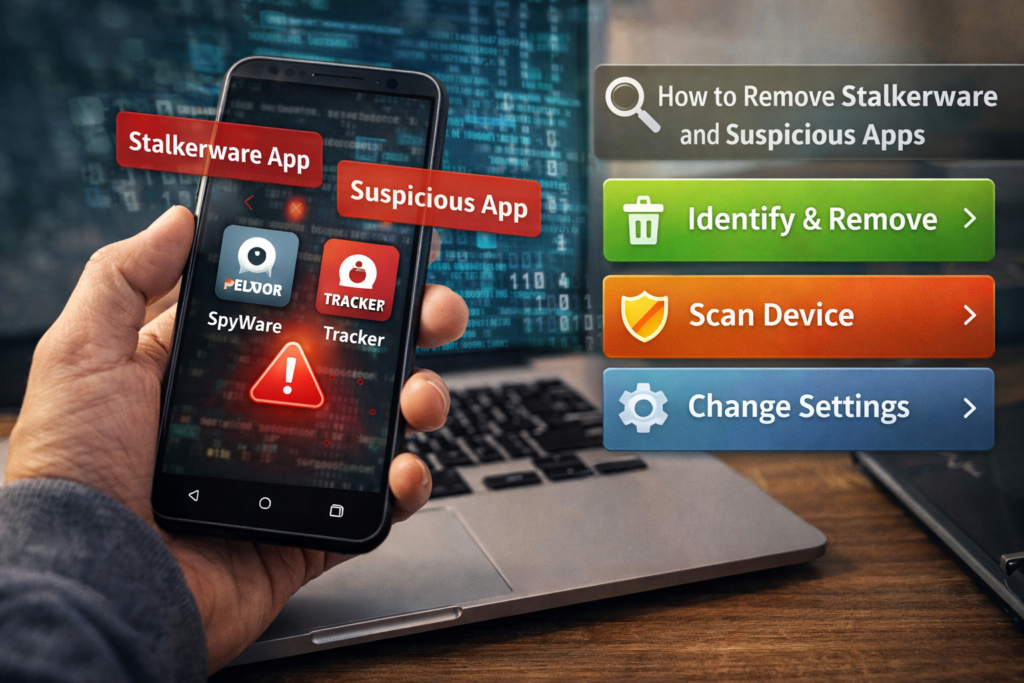
Stalkerware is software designed to secretly track someone’s phone activity.
Think of it like a hidden surveillance tool inside your phone.
Once installed, stalkerware can monitor:
- Phone calls
- Messages
- GPS location
- Social media activity
- Photos and files
Some stalkerware even records microphone audio or screenshots.
According to cybersecurity research groups and organizations like the Electronic Frontier Foundation, stalkerware is commonly used in cases of harassment, domestic abuse, and privacy violations.
Signs Your Phone Might Have Stalkerware
Before performing stalkerware removal safely, check for these warning signs.
1. Battery Drains Very Quickly
Spy apps run constantly in the background, which consumes battery.
If your phone suddenly loses battery much faster than usual, spyware may be running silently.
2. Phone Gets Unusually Hot
If your phone heats up even when you’re not using it, hidden apps may be transmitting data.
3. Data Usage Suddenly Increases
Spyware often sends your information to external servers.
Check data usage in your phone settings.
4. Unknown Apps Installed
Many stalkerware tools hide behind innocent names like:
- System service
- Device monitor
- Backup tool
If you don’t remember installing an app, investigate it.
5. Someone Knows Your Private Information
If someone seems to know:
- Your location
- Messages you sent
- Calls you made
It may indicate phone monitoring.
🔎 Definition Box
Stalkerware:
A type of spyware secretly installed on a device to monitor someone’s activity, location, and communications without their consent.
Step-by-Step Guide for Stalkerware Removal Safely
Follow these steps carefully to remove suspicious apps without losing important data.
Step 1: Check Installed Apps
Start by reviewing all installed applications.
On Android
- Open Settings
- Tap Apps
- Select See all apps
Look for:
- Apps you don’t recognize
- Apps with strange names
- Apps installed recently without your knowledge
Research suspicious apps before deleting them.
Step 2: Review App Permissions
Some spyware hides behind excessive permissions.
Check if an app has access to:
- Microphone
- Location
- Camera
- SMS messages
To check permissions:
- Open Settings
- Go to Privacy
- Tap Permission Manager
If a suspicious app has powerful permissions, remove it immediately.
Step 3: Disable Device Administrator Apps
Some stalkerware prevents deletion by enabling administrator privileges.
Think of this like giving an app “boss-level control” over your phone.
How to check:
- Open Settings
- Go to Security
- Tap Device admin apps
If a suspicious app appears, disable it.
Once disabled, it can be uninstalled.
Step 4: Uninstall Suspicious Apps
Now remove the app.
- Go to Settings → Apps
- Select the suspicious app
- Tap Uninstall
If uninstall fails, reboot your phone and try again.
Step 5: Run a Security Scan
Install a trusted security scanner.
Examples include reputable antivirus or mobile security apps.
A security scan can detect hidden spyware files or monitoring services.
Step 6: Update Your Phone
Updating your phone helps close security gaps.
To update:
- Go to Settings
- Tap Software Update
- Install the latest updates
Operating system updates often patch vulnerabilities exploited by spyware.
⚠️ Quick Safety Tip
If you suspect the stalker may have physical access to your phone, consider backing up your data and performing a full factory reset.
Step 7: Change Important Passwords
After stalkerware removal safely, update all critical accounts:
- Banking
- Social media
- Cloud storage
Use strong, unique passwords.
If possible, enable two-factor authentication.
Step 8: Check Your Google or Apple Account Security
Attackers may also monitor your device through account access.
Check login activity and remove unknown devices.
🛡️ Key Takeaway Box
Stalkerware removal safely requires checking suspicious apps, removing admin permissions, scanning your phone, and securing your accounts afterward.
When to Perform a Factory Reset
If spyware keeps returning or you cannot remove suspicious apps, the safest option is a reset.
Factory Reset Steps
- Backup photos and contacts
- Go to Settings → System
- Tap Reset options
- Choose Erase all data
This wipes the phone completely.
Important: Only restore apps you trust after resetting.
How to Prevent Stalkerware in the Future
Follow these simple precautions.
Keep Your Phone Locked
Use:
- PIN
- Password
- Biometrics
Never leave your phone unlocked around others.
Avoid Installing Unknown Apps
Download apps only from official stores.
Regularly Check Installed Apps
Make it a habit to review apps every few months.
Enable Google Play Protect or iOS Security Features
These systems scan for malicious apps automatically.
Real-World Example
A user noticed their partner always knew their location and private messages.
After checking installed apps, they found a hidden “system monitor” app with GPS and microphone permissions.
Once removed and passwords changed, the monitoring stopped immediately.
Frequently Asked Questions (FAQ)
1. Can stalkerware be hidden on a phone?
Yes. Many spyware apps disguise themselves as system tools or utilities.
2. Is stalkerware illegal?
In many countries, secretly monitoring someone’s device without consent is illegal.
3. Can antivirus detect stalkerware?
Some security apps can detect known spyware, but manual checks are still important.
4. Does factory reset remove spyware?
Yes. A full factory reset usually removes stalkerware completely.
5. Can someone install stalkerware remotely?
Most stalkerware requires physical access to the phone initially.