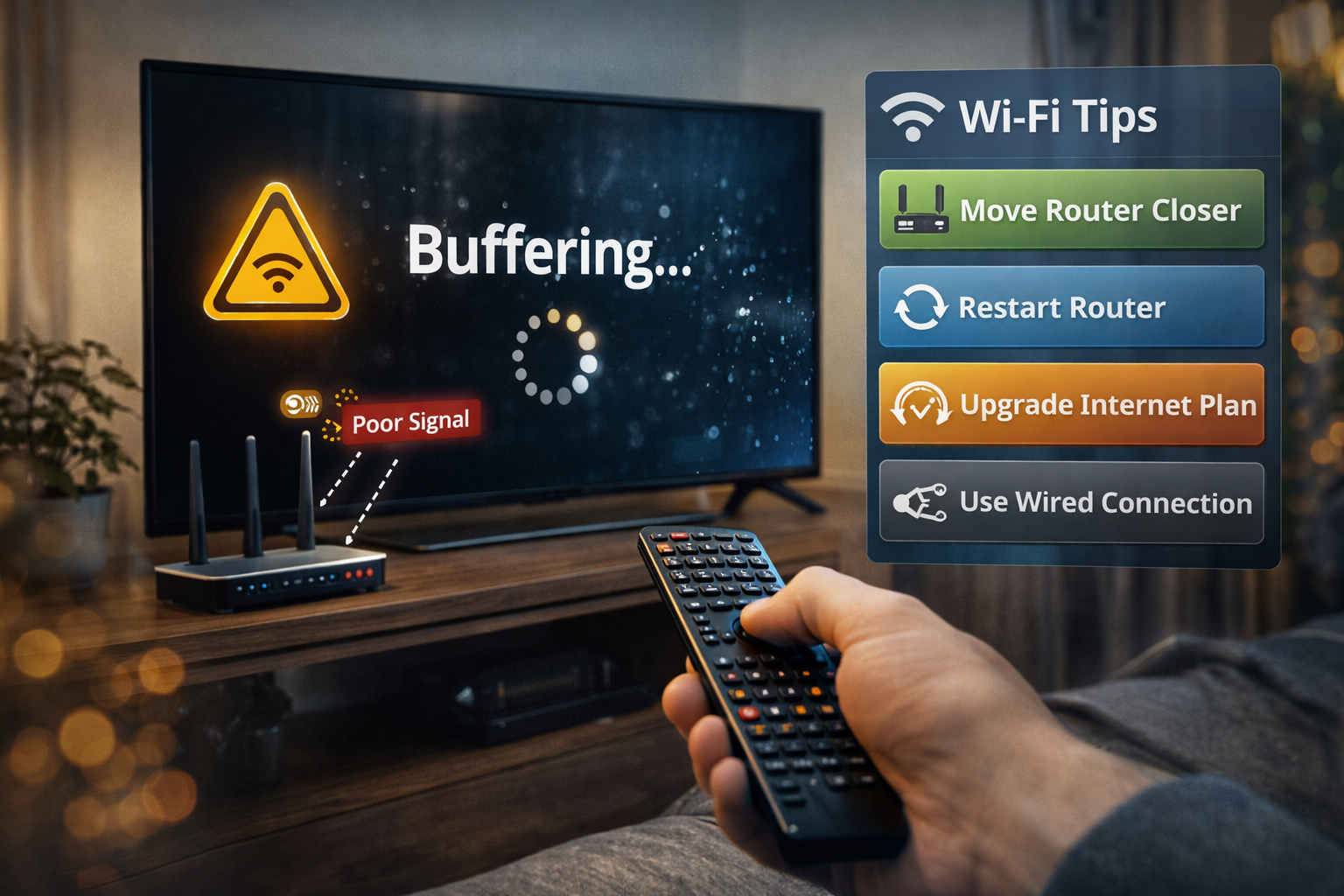
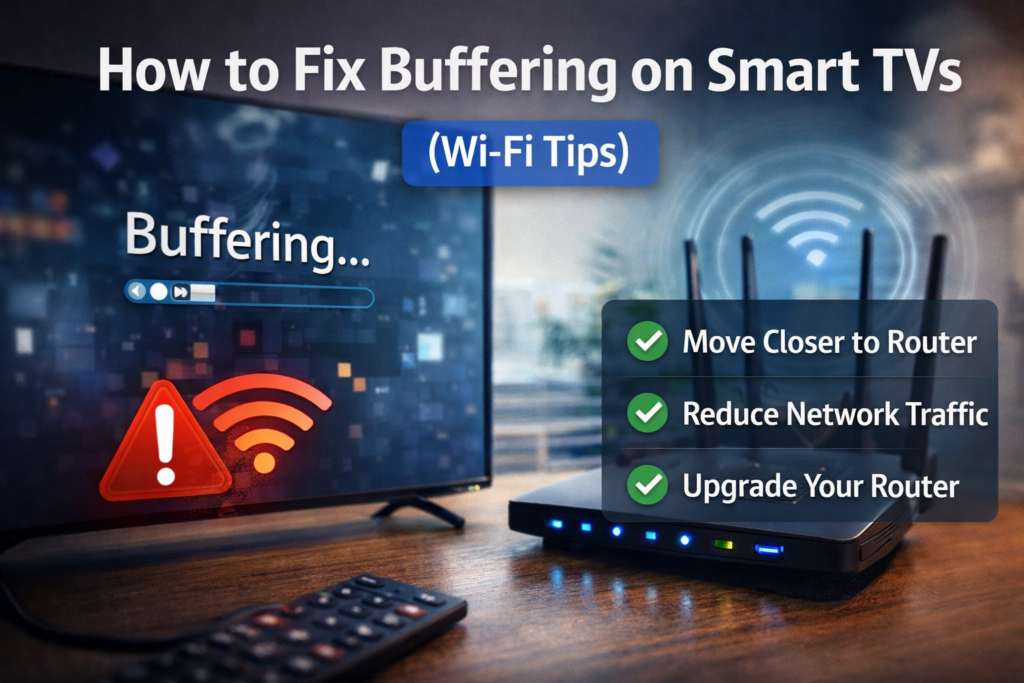
Why Smart TVs Buffer During Streaming
To understand a smart TV buffering fix Wi-Fi, think of your internet like a water pipe.
If the pipe is too small or too many people use it at the same time, the flow slows down.
Streaming video requires continuous data flow. If your Wi-Fi connection can’t keep up, the video pauses to load more data — that’s buffering.
Common causes include:
- Weak Wi-Fi signal
- Router too far from TV
- Network congestion
- Slow internet speed
- Outdated router
According to streaming data published by Netflix, stable internet speeds of at least 15–25 Mbps are recommended for smooth 4K streaming.
Quick Check: Is Your Internet Speed Fast Enough?
Before changing anything, run a speed test on your phone or laptop.
Minimum recommended speeds:
| Streaming Quality | Required Speed |
|---|---|
| HD (1080p) | 5–10 Mbps |
| 4K Streaming | 15–25 Mbps |
| Multiple Devices | 50+ Mbps |
If your internet speed is already slow, Wi-Fi tweaks alone won’t fully solve buffering.
📺 Quick Fix Box
Try these first before deeper troubleshooting:
✔ Restart your router
✔ Restart your Smart TV
✔ Move the router closer to the TV
✔ Disconnect unused devices from Wi-Fi
These simple steps solve many buffering problems.
Step 1: Restart Your Router and TV
Many buffering issues happen because network memory becomes overloaded.
Restart both devices:
- Turn off the Smart TV
- Unplug the router for 30 seconds
- Plug the router back in
- Turn the TV on again
This resets the connection and clears temporary network errors.
Step 2: Move the Router Closer to the TV
Wi-Fi signal weakens with distance and obstacles.
Things that weaken Wi-Fi:
- Thick walls
- Cabinets
- Metal objects
- Floors between levels
For a reliable smart TV buffering fix Wi-Fi, place your router:
- In an open area
- Elevated position
- Within line-of-sight of the TV if possible
Think of Wi-Fi like a light bulb — the farther away you go, the dimmer it becomes.
Step 3: Switch to the 5 GHz Wi-Fi Band
Most modern routers broadcast two networks:
- 2.4 GHz (longer range but slower)
- 5 GHz (faster but shorter range)
If your Smart TV supports it, connect to 5 GHz for smoother streaming.
This band is less crowded and provides higher speeds.
Step 4: Reduce Wi-Fi Network Congestion
Your Wi-Fi bandwidth is shared among all devices.
Devices that consume bandwidth:
- Phones
- Tablets
- Laptops
- Gaming consoles
- Security cameras
If multiple people stream video at the same time, buffering may occur.
Simple solution:
Pause downloads or streaming on other devices while watching TV.
Step 5: Use Ethernet Cable (Best Solution)
If possible, connect your Smart TV directly to the router using an Ethernet cable.
Benefits:
- More stable connection
- Lower latency
- No wireless interference
For many households, this is the most reliable smart TV buffering fix Wi-Fi alternative.
Step 6: Update Your Router
Older routers struggle with modern streaming demands.
Signs your router may be outdated:
- Over 5 years old
- Supports only Wi-Fi 4 or Wi-Fi 5
- Frequent connection drops
Newer routers with Wi-Fi 6 or Wi-Fi 6E manage multiple devices much better.
Step 7: Restart Your Streaming App
Sometimes the issue is not the Wi-Fi but the app.
Try:
- Close the streaming app
- Reopen it
- Sign out and sign back in if needed
App glitches can cause buffering even with good internet speed.
Step 8: Lower Video Streaming Quality
If buffering continues, reduce the video resolution.
Example:
- Switch from 4K → 1080p
Lower quality uses less bandwidth and streams more smoothly.
🧠 Definition Box
Buffering:
The temporary loading of video data before playback. When the connection slows down, the video pauses while more data downloads.
When the Problem Is Your Internet Provider
Sometimes buffering is caused by ISP congestion.
Signs include:
- Fast speeds during the day
- Slow speeds at night
- Multiple devices buffering simultaneously
In this case, upgrading your internet plan or changing providers may help.
Real-World Example
A family noticed Netflix buffering every evening.
Problem discovered:
- Router placed inside a cabinet
- Smart TV connected to 2.4 GHz band
Fix applied:
- Router moved to open area
- TV switched to 5 GHz
Result: buffering disappeared.
🛡️ Key Takeaway
Most Smart TV buffering issues are caused by weak Wi-Fi signals or network congestion — not the TV itself.
Prevent Future Buffering
Simple habits that improve streaming performance:
- Restart router once a week
- Keep router in open space
- Limit simultaneous heavy downloads
- Upgrade router every 4–5 years
Frequently Asked Questions (FAQ)
1. Why does my Smart TV buffer even with fast internet?
Your Wi-Fi signal may be weak or congested even if your internet speed is fast.
2. Is Ethernet better than Wi-Fi for Smart TVs?
Yes. Ethernet provides a more stable connection and prevents wireless interference.
3. Why does buffering happen more at night?
More people in your area may be using the internet, causing network congestion.
4. Does upgrading my router help streaming?
Yes. Newer routers handle multiple devices and streaming traffic more efficiently.
5. Can Smart TVs cause buffering themselves?
Sometimes. Outdated firmware or streaming apps may cause playback issues.