Difficulty: Beginner
Why Apps Stop Opening in Windows 11
Think of Windows like a busy office. Every app depends on files, permissions, memory, and background services working correctly. If even one part gets interrupted, the app may fail to launch.
Common causes include:
- Corrupted app files
- Windows update bugs
- Low RAM or storage
- Broken Microsoft Store cache
- Antivirus conflicts
- Damaged system files
- Background apps interfering
- Outdated drivers
Sometimes the issue affects only one app. Other times, almost every app stops working.
Quick Fix Box
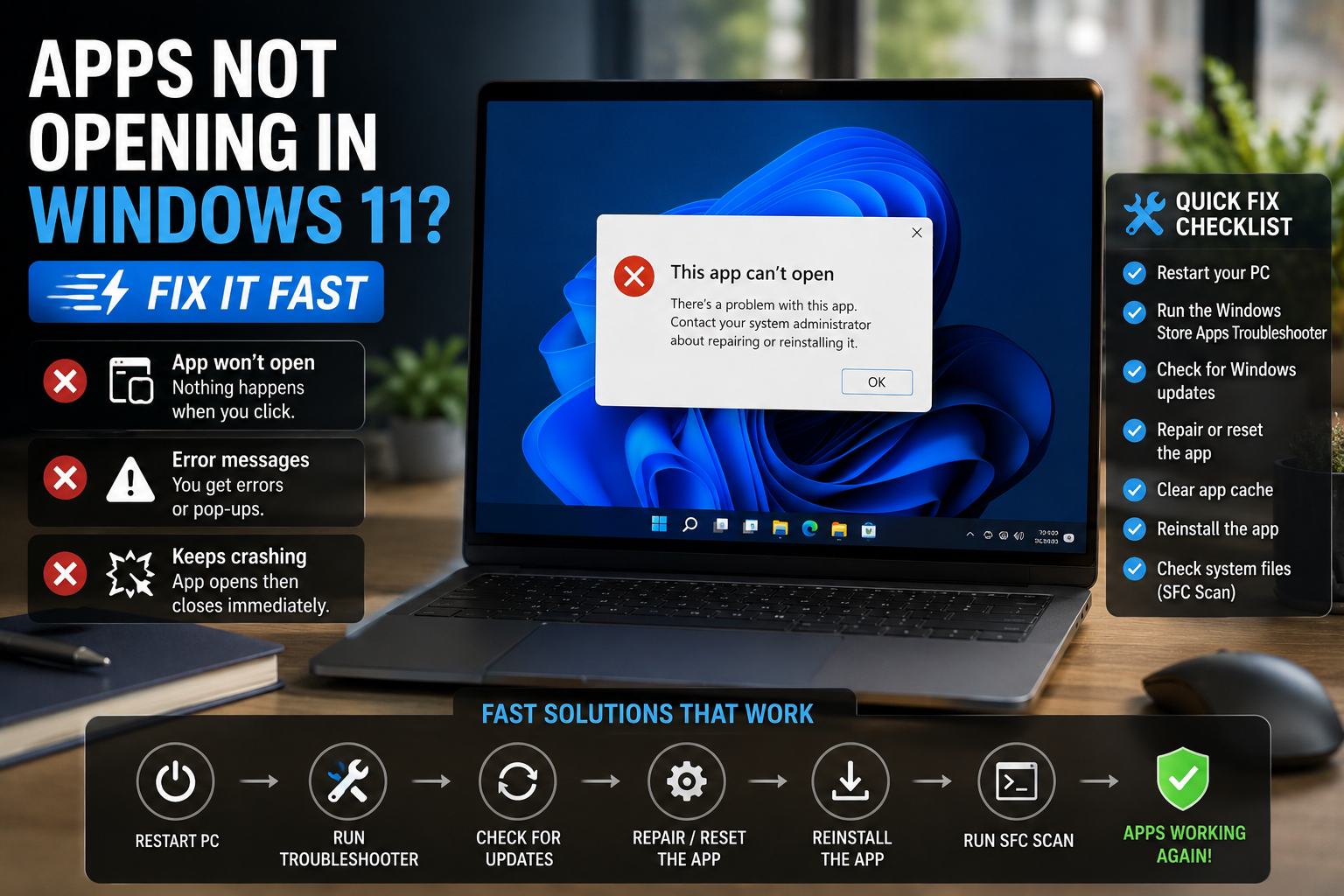
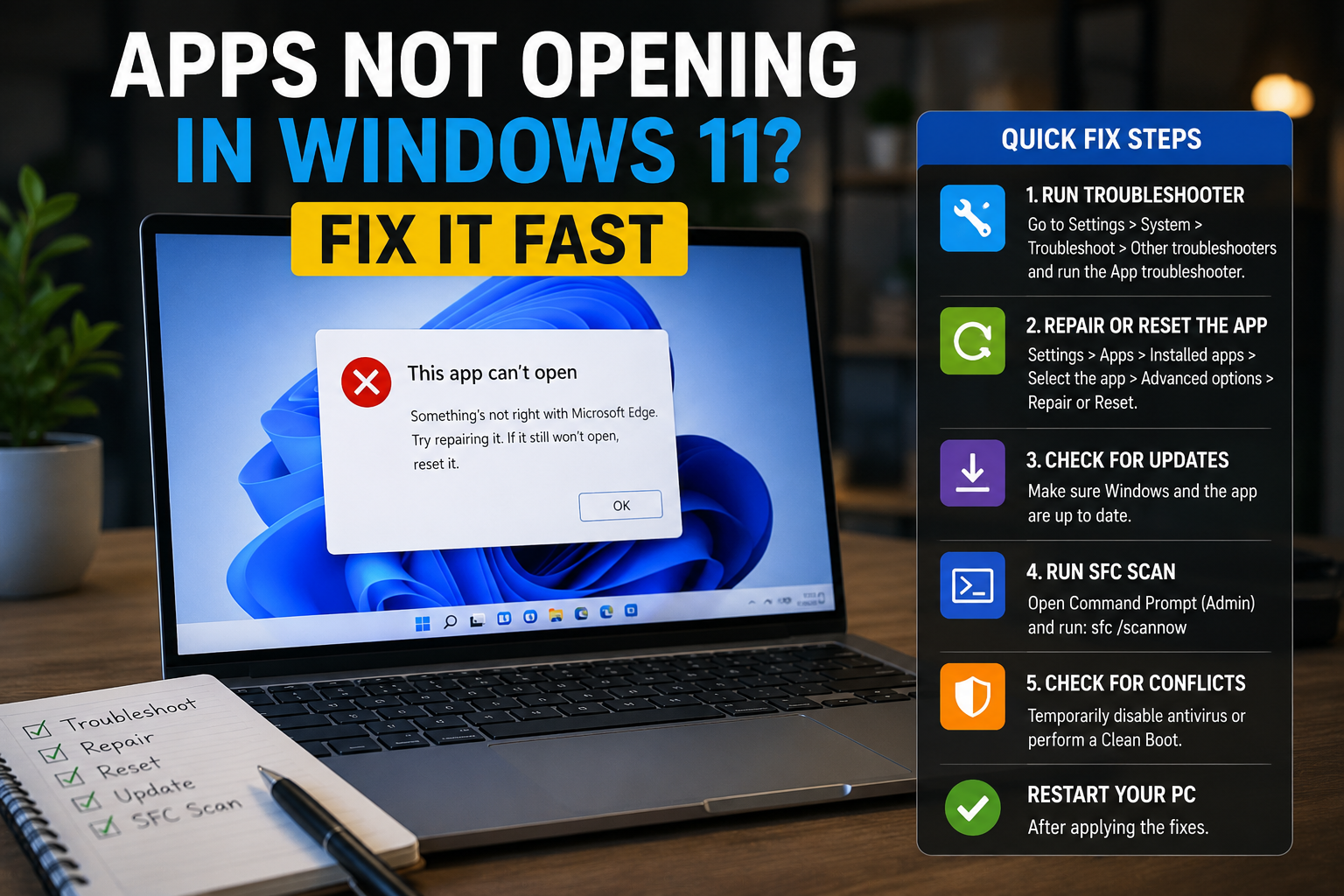
Quick Fix Checklist
Try these first before moving into deeper troubleshooting:
- Restart your PC
- Check Windows Update
- Run the app as Administrator
- Repair the app
- Free up storage space
- Restart Windows Explorer
- Scan for corrupted system files
These simple steps solve many Windows 11 app launch problems.
Restart Your Computer First
This sounds obvious, but it works surprisingly often.
Windows sometimes gets stuck processes running in the background. Restarting clears temporary memory problems and reloads Windows services properly.
How to Restart Properly
- Click the Start Menu
- Select the Power icon
- Click Restart
Avoid using “Shut Down” repeatedly if Fast Startup is enabled because Windows may partially preserve old sessions.
Check If Only One App Is Affected
Before trying major fixes, check whether:
- One app fails to open
- Multiple apps fail
- Only Microsoft Store apps fail
This helps narrow down the real problem.
For example:
| Situation | Likely Cause |
|---|---|
| One app broken | Corrupted app |
| All apps affected | Windows system issue |
| Store apps broken | Microsoft Store cache issue |
Repair the Problem App
Windows 11 includes a built-in repair tool for apps.
Think of it like repairing damaged files without reinstalling the entire program.
Steps to Repair an App
- Open Settings
- Go to Apps → Installed Apps
- Find the broken app
- Click the three dots
- Select Advanced Options
- Click Repair
If Repair doesn’t work, try:
- Reset
Be aware that Reset may erase app settings.
Update Windows 11
Microsoft regularly fixes bugs that can stop apps from launching properly.
To Check for Updates
- Open Settings
- Go to Windows Update
- Click Check for Updates
- Install all pending updates
- Restart your PC
According to Microsoft Support, keeping Windows updated helps prevent software compatibility and stability problems.
Restart Windows Explorer
Sometimes the issue is not the app itself but Windows Explorer becoming unstable.
How to Restart Explorer
- Press:
- Ctrl + Shift + Esc
- Open Task Manager
- Find:
- Windows Explorer
- Right-click it
- Select Restart
Your screen may flicker briefly. That’s normal.
Run the App as Administrator
Some apps need elevated permissions to start correctly.
To Do This
- Right-click the app
- Select:
- Run as administrator
If the app suddenly works, permission issues may be the problem.
Check Your Storage Space
Low storage can stop apps from opening properly.
Windows needs free space for:
- Temporary files
- Virtual memory
- App updates
- Background processes
Recommended Free Space
Try to keep at least:
- 15–20 GB free
To Check Storage
- Open Settings
- Go to System → Storage
Delete:
- Temporary files
- Old downloads
- Unused apps
Clear Microsoft Store Cache
If Microsoft Store apps refuse to open, the Store cache may be corrupted.
Fix It Using WSReset
- Press:
- Windows + R
- Type:
- wsreset.exe
- Press Enter
A blank command window will appear briefly.
Windows will automatically reset the Store cache.
Run System File Checker (SFC)
Windows includes a repair tool that scans and restores damaged system files.
Think of it like Windows repairing its own internal blueprint.
Steps
- Open Start
- Search:
- Command Prompt
- Right-click → Run as administrator
- Type:
sfc /scannow- Press Enter
The scan may take several minutes.
If corrupted files are found, Windows will attempt to repair them automatically.
Use DISM Repair Tool
If SFC cannot fix the issue, DISM is the next step.
DISM repairs the Windows image itself.
Run These Commands
Open Command Prompt as Administrator and enter:
DISM /Online /Cleanup-Image /RestoreHealthWait for completion.
Then restart your computer.
Disable Antivirus Temporarily
Sometimes antivirus software mistakenly blocks apps from launching.
This can happen after updates or aggressive security rule changes.
Test Carefully
Temporarily disable:
- Third-party antivirus
- Security suites
- App protection modules
Then try opening the app again.
If it works afterward, your security software may need updated rules or exclusions.
Check for Background Software Conflicts
Apps like:
- RGB software
- Overlay tools
- Recording software
- GPU tuning utilities
can interfere with applications.
Examples include:
- MSI Afterburner
- Discord overlays
- Screen recording tools
Try a Clean Boot
A clean boot starts Windows with minimal services.
Steps
- Press:
- Windows + R
- Type:
- msconfig
- Go to Services
- Check:
- Hide all Microsoft services
- Click:
- Disable all
- Restart the PC
If apps work afterward, another background program is likely causing the issue.
Reinstall the Problem App
If nothing else works, reinstalling may solve corrupted installation files.
Recommended Method
- Uninstall the app
- Restart the PC
- Download the latest version
- Install fresh
Avoid reinstalling from old installers if possible.
Create a New Windows User Account
Sometimes the user profile itself becomes corrupted.
Testing another account helps confirm this.
Create a New Account
- Open Settings
- Go to Accounts
- Select Family & Other Users
- Add another user
Then test the app there.
If apps work normally, your original profile may be damaged.
When Apps Still Won’t Open
If multiple apps still refuse to launch after all fixes:
- Windows itself may be corrupted
- Drivers may be broken
- Malware could be involved
At this stage, consider:
- System Restore
- Windows repair install
- Resetting Windows 11
Backup important files first.
Key Takeaway Box
Most Windows 11 app launch problems are caused by:
- Corrupted app files
- Broken Windows services
- Microsoft Store cache issues
- Damaged system files
- Background conflicts
Start with simple fixes like restarting, repairing apps, and running SFC before considering a full Windows reset.
FAQs
Why are apps suddenly not opening in Windows 11?
Usually because of corrupted files, Windows update problems, low memory, or software conflicts running in the background.
Why do apps open briefly then close?
This often happens due to damaged app files, missing permissions, or antivirus interference.
Does resetting an app delete data?
Sometimes yes. Repair keeps data intact, but Reset may erase app settings and stored information.
Can low RAM stop apps from opening?
Yes. If your system runs out of memory, Windows may fail to launch apps properly.
What does SFC /scannow actually do?
It scans Windows system files and replaces corrupted versions with clean copies.
Should I reinstall Windows if apps won’t open?
Only as a last resort after trying repairs, updates, and system scans first.