Best Startup Optimization Tips to Make Your PC Feel Faster

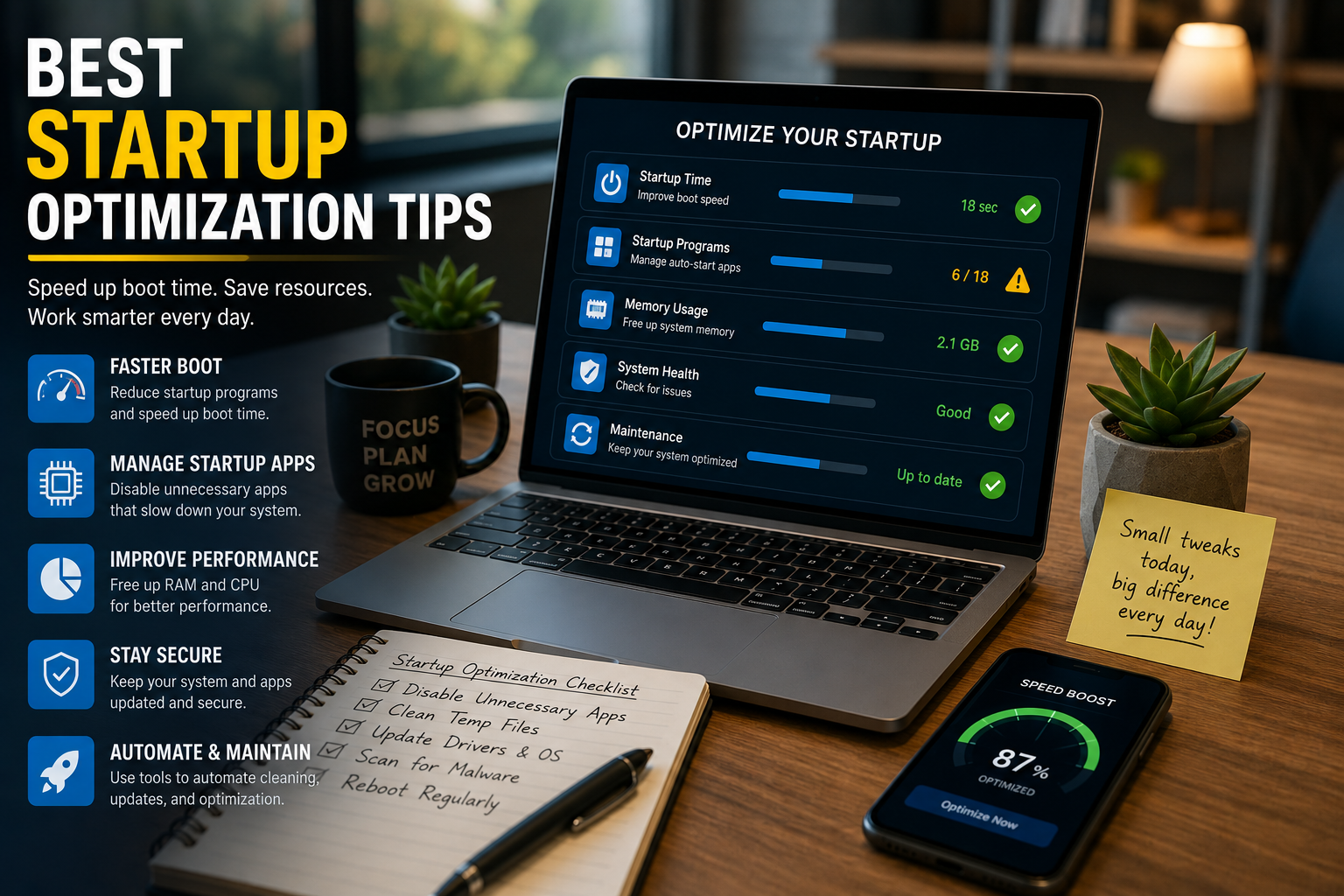
f your PC feels slow right after turning it on, these startup optimization tips can help you fix one of the most common causes: too many apps trying to open at the same time.
Think of your computer like a small shop opening in the morning. If one person unlocks the door, turns on the lights, checks the cashier, cleans the floor, answers calls, and makes coffee all at once, everything feels slow. Your PC works the same way. When Windows starts, some apps automatically wake up too. A few are useful. Too many can make your computer feel heavy before you even open your browser.
The good news? You usually do not need to buy a new laptop just to make startup faster. You just need to clean up what runs in the background.
Key Takeaway Box
The best startup optimization tip is simple: stop unnecessary apps from opening automatically. Keep security, drivers, and important sync tools enabled, but disable chat apps, game launchers, update helpers, and tools you rarely use.
Why Your PC Is Slow When It Starts
A slow startup usually happens because Windows is loading too many things at once.
Some startup apps are useful, such as antivirus protection, touchpad drivers, cloud backup, or company security tools. Others are just convenience apps. They open automatically so they are ready before you need them.
Common examples include:
- Chat apps
- Game launchers
- Printer tools
- Cloud storage apps
- Screenshot tools
- Music apps
- Vendor update assistants
- Browser helpers
- RGB lighting software
- Video meeting apps
One or two of these may not be a problem. Ten or fifteen can make startup painful.
According to Microsoft, Task Manager shows startup apps and lets users disable them, while also showing each app’s startup impact based on CPU and disk usage during startup.
That means Windows already gives you a built-in way to spot apps that may be slowing things down.
Best Startup Optimization Tips for Windows
The easiest way to improve startup speed is to begin with apps, not deep system settings.
Do not start by editing the Registry, downloading random “PC booster” tools, or deleting system files. That is like trying to fix a noisy fan by smashing the whole air conditioner.
Start with the safe steps first.
1. Check Startup Apps in Windows Settings
On Windows 11, you can check startup apps through Settings.
Go to:
Settings → Apps → Startup
You will see a list of apps that can start automatically when you sign in. You can turn apps on or off from there.
Look for apps marked with higher startup impact or apps you clearly do not need immediately after login.
Good candidates to disable include:
- Spotify
- Steam
- Epic Games Launcher
- Discord, if you do not need it at startup
- Zoom, if you open it manually
- Teams personal version, if unused
- Adobe helpers
- Printer monitoring tools
- Phone companion apps
- Updater tools from apps you rarely use
Keep important tools enabled if you rely on them daily.
For example, if you use OneDrive for work files, disabling it may stop files from syncing automatically. If your company uses endpoint protection, VPN, or device management software, leave those alone unless IT tells you otherwise.
2. Use Task Manager to Find High-Impact Apps
Task Manager gives a more detailed view.
Press:
Ctrl + Shift + Esc
Then go to:
Startup apps
Here, you can see apps that run when Windows starts. You can also see whether their startup impact is high, medium, low, or not measured.
A simple rule:
| Startup Impact | What It Means | What You Should Do |
|---|---|---|
| High | Uses more resources during startup | Review first |
| Medium | Some impact | Disable if not needed |
| Low | Small effect | Optional |
| Not measured | Windows has not calculated it yet | Judge manually |
You do not need to disable everything. Focus on apps with high impact that you do not use immediately.
For example, a game launcher does not need to open every morning if you only play games at night. A printer helper does not need to run all day if you print once a month.
3. Restart and Test After Changes
After disabling startup apps, restart your PC.
Do not judge the result immediately from one boot only. Windows sometimes performs updates, indexing, or background maintenance. Test your startup speed over two or three restarts.
Ask yourself:
- Does the desktop appear faster?
- Can I open Chrome, Edge, or File Explorer sooner?
- Does the taskbar respond faster?
- Is the fan quieter after login?
- Are fewer pop-ups appearing?
If yes, your changes helped.
If something important stops working automatically, you can turn that app back on.
This is the nice thing about startup optimization: most changes are reversible.
Startup Optimization Tips You Should Not Ignore
Disabling startup apps is the main fix, but there are other simple improvements that can help too.
4. Uninstall Apps You No Longer Use
Disabling startup is useful, but uninstalling unused apps is even cleaner.
If you installed trial software, old printer tools, browser extensions, launchers, or apps you no longer use, remove them.
Go to:
Settings → Apps → Installed apps
Then uninstall what you clearly do not need.
Be careful with:
- Microsoft system components
- Drivers
- Security tools
- Company software
- Apps you do not recognize
If you are unsure what an app is, search its name first before removing it.
5. Keep Your Storage From Getting Too Full
A nearly full drive can make your PC feel slower, especially during startup, updates, and app launching.
Try to keep at least some free space on your main Windows drive.
You can clean up space by removing:
- Old downloads
- Temporary files
- Unused apps
- Large videos
- Duplicate installers
- Old ZIP files
- Recycle Bin items
Use Windows built-in cleanup tools before using third-party cleaners.
Go to:
Settings → System → Storage
Then review temporary files and storage recommendations.
6. Avoid Too Many “Helper” Apps
Many apps install extra tools that run in the background.
Examples include:
- Auto updaters
- Quick launchers
- Tray icons
- Browser helpers
- Device monitors
- Notification tools
These helpers are not always bad, but they add up.
Think of them like people waiting at your front door every morning. One person asking a question is fine. Twenty people asking at once is chaos.
When installing new apps, always look for options like:
- Launch at startup
- Start with Windows
- Run in background
- Keep app open in system tray
Turn these off unless you really need them.
7. Update Windows and Drivers
Sometimes startup problems happen because of bugs, outdated drivers, or incomplete updates.
Keep Windows updated, especially if you recently noticed slow boot times after a failed update or driver issue.
Also update important drivers from trusted sources, such as:
- Your laptop manufacturer
- Your motherboard manufacturer
- Windows Update
- Your graphics card provider
Avoid random driver updater tools. Many of them are unnecessary and may install the wrong drivers.
What Startup Apps Should You Keep Enabled?
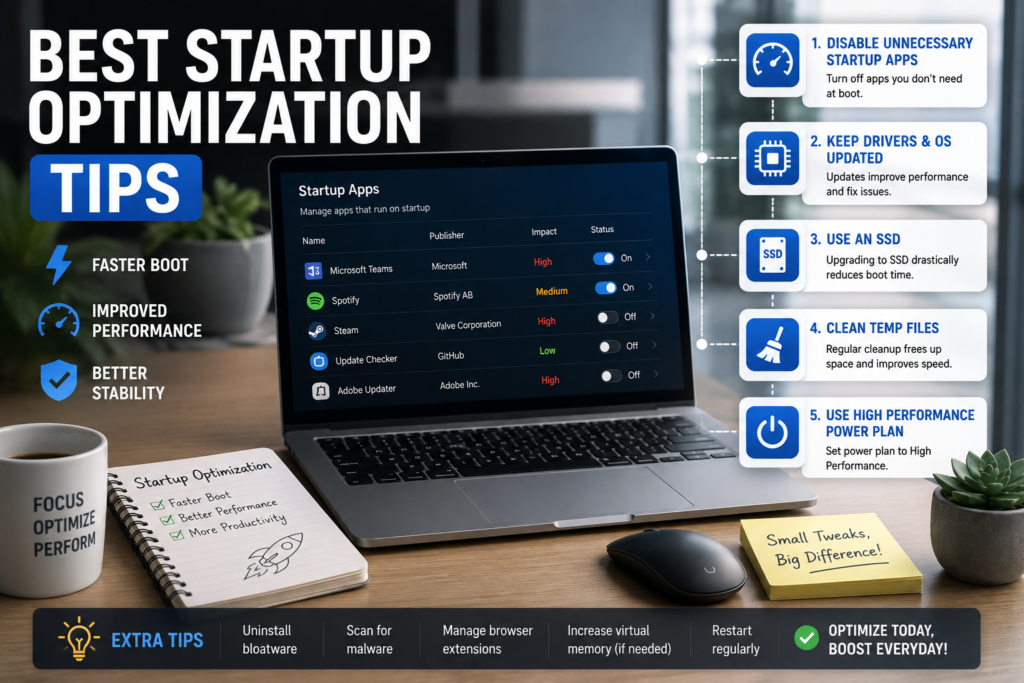
Not everything should be disabled.
Keep startup apps enabled if they are important for security, hardware, syncing, or daily work.
Usually safe to keep:
- Antivirus or endpoint protection
- Touchpad or keyboard drivers
- Audio driver tools, if needed
- OneDrive, Google Drive, or Dropbox if you rely on sync
- VPN software, if required for work
- Password manager helper, if you use it daily
- Company management or security agents
Usually safe to disable:
- Game launchers
- Music apps
- Shopping apps
- News widgets
- Printer status tools
- Screenshot tools
- Video meeting apps you open manually
- Phone companion apps
- App update assistants
- RGB lighting tools, if not needed
The goal is not to make Windows empty. The goal is to make startup useful.
Advanced Startup Optimization Tips
Once you have handled the simple fixes, you can move to deeper troubleshooting.
8. Use Clean Boot for Troubleshooting
If your PC is still slow or behaves strangely, a clean boot can help identify whether a background app or service is causing the issue.
Microsoft explains that a clean boot starts Windows with only essential drivers and startup programs, making it easier to troubleshoot software conflicts.
This is useful when:
- Windows starts slowly even after disabling apps
- Apps crash after startup
- Your PC freezes after login
- You suspect one background service is causing problems
- A new app made your computer slower
Clean boot is more advanced than disabling normal startup apps. Follow Microsoft’s steps carefully and keep track of what you disable so you can restore normal startup later.
9. Do Not Randomly Edit the Registry
Some online guides suggest editing the Windows Registry to remove startup entries.
The Registry is like the control room of Windows. Changing the wrong thing can cause unexpected problems.
Microsoft notes that startup apps can be stored in specific Registry locations, but also warns that editing the Registry can have unexpected consequences and should be done carefully with a backup.
For most users, Task Manager and Settings are safer.
Only touch the Registry if:
- You know exactly what you are changing
- You have a backup
- You are following trusted instructions
- Normal startup settings do not solve the issue
For everyday users, Registry editing should be the last option, not the first.
10. Replace an Old Hard Drive With an SSD
If your computer still uses an old mechanical hard drive, startup optimization will only help so much.
A hard drive has moving parts. It is slower when opening Windows, loading apps, and reading many small files.
An SSD has no spinning disk and can make an older laptop feel much faster.
If your PC takes several minutes to start and still has a traditional hard drive, upgrading to an SSD may be the biggest improvement.
This is especially true for:
- Older laptops
- Office PCs
- Budget desktops
- Computers that freeze during startup
- Devices with high disk usage after login
If your PC already has an SSD, focus more on startup apps, storage space, updates, and background services.
Quick Fix Checklist
Use this simple checklist when your PC feels slow after turning on.
- Open Task Manager
- Go to Startup apps
- Sort by Startup impact
- Disable high-impact apps you do not need
- Check Windows Settings → Apps → Startup
- Uninstall apps you no longer use
- Clear temporary files
- Restart your PC
- Test for two or three startups
- Re-enable anything important that stopped working
Quick Fix Box
Start with five apps: disable one game launcher, one chat app, one music app, one printer tool, and one updater you do not need daily. Restart your PC and check whether startup feels lighter.
Common Mistakes to Avoid
Disabling Security Software
Do not disable antivirus, endpoint protection, firewall tools, or company security software just to make startup faster.
Security tools may use resources, but they protect your device. If they cause major slowdowns, update them or ask IT for help instead of turning them off blindly.
Installing PC Booster Apps
Many “one-click speed booster” tools promise big results but may create more problems.
Some remove useful files, change settings aggressively, show scary warnings, or push paid upgrades.
Use Windows built-in tools first.
Disabling Everything at Once
If you disable too many items at the same time, you may not know which change caused a problem.
Disable apps in small groups. Restart. Test. Then continue.
This makes troubleshooting easier.
Ignoring Malware
If your PC suddenly becomes slow at startup, shows strange pop-ups, opens unknown apps, or your browser redirects to odd websites, it may not be a normal startup issue.
Run a trusted security scan.
Startup optimization helps performance, but malware removal is a different job.
Best Startup Optimization Tips for Everyday Users
For most people, the best approach is simple:
- Disable unnecessary startup apps.
- Remove apps you no longer use.
- Keep enough free storage.
- Avoid too many background helpers.
- Keep Windows updated.
- Use clean boot only for deeper troubleshooting.
- Upgrade to SSD if your PC still uses an old hard drive.
You do not need to be an IT expert. You just need to be selective about what gets permission to wake up with Windows.
Your PC should not feel exhausted before you even start working.
FAQ
What are startup apps?
Startup apps are programs that automatically open when you turn on your PC and sign in to Windows. Some are useful, but too many can slow down startup.
Is it safe to disable startup apps?
Yes, it is usually safe to disable normal third-party startup apps like game launchers, music apps, and chat apps. Avoid disabling security tools, drivers, or company-managed software unless you know what they do.
Will disabling startup apps delete the app?
No. Disabling a startup app does not uninstall it. It only stops the app from opening automatically. You can still open it manually whenever you need it.
Why is my PC still slow after disabling startup apps?
Your PC may still be slow because of low storage, outdated drivers, malware, Windows updates, old hardware, or a traditional hard drive. Startup apps are only one part of performance.
Should I use a PC cleaner app?
Most users should start with Windows built-in tools first. Many cleaner apps are unnecessary, and some can cause problems by removing files or changing settings too aggressively.
How often should I check startup apps?
Check startup apps every few months, especially after installing new software. Many apps quietly add themselves to startup during installation.