
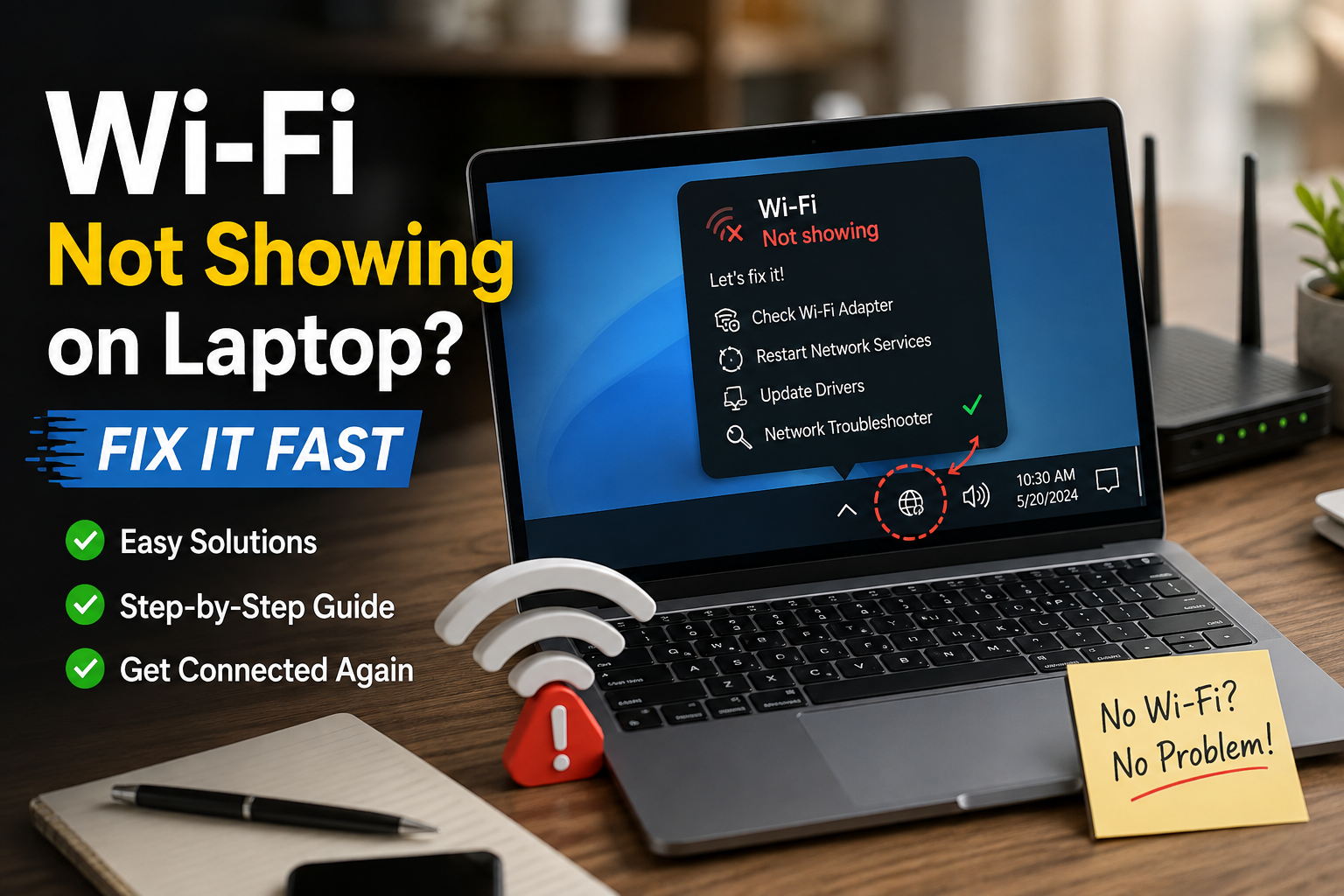
When your laptop suddenly cannot find Wi-Fi, it feels like the internet has disappeared from the room. Your phone can see the network, your router is blinking normally, but your laptop shows nothing. No Wi-Fi name. No available networks. Sometimes the Wi-Fi button itself is missing.
The good news is this problem is often fixable without being an IT expert. In many cases, Wi-Fi not showing is caused by a small setting, a sleeping network adapter, or a driver that needs restarting.
Think of your laptop’s Wi-Fi like a radio. Your router is broadcasting the signal, but your laptop needs the right “radio receiver” switched on to hear it. If the receiver is turned off, outdated, confused, or damaged, the network may not appear.
Quick Fix Box
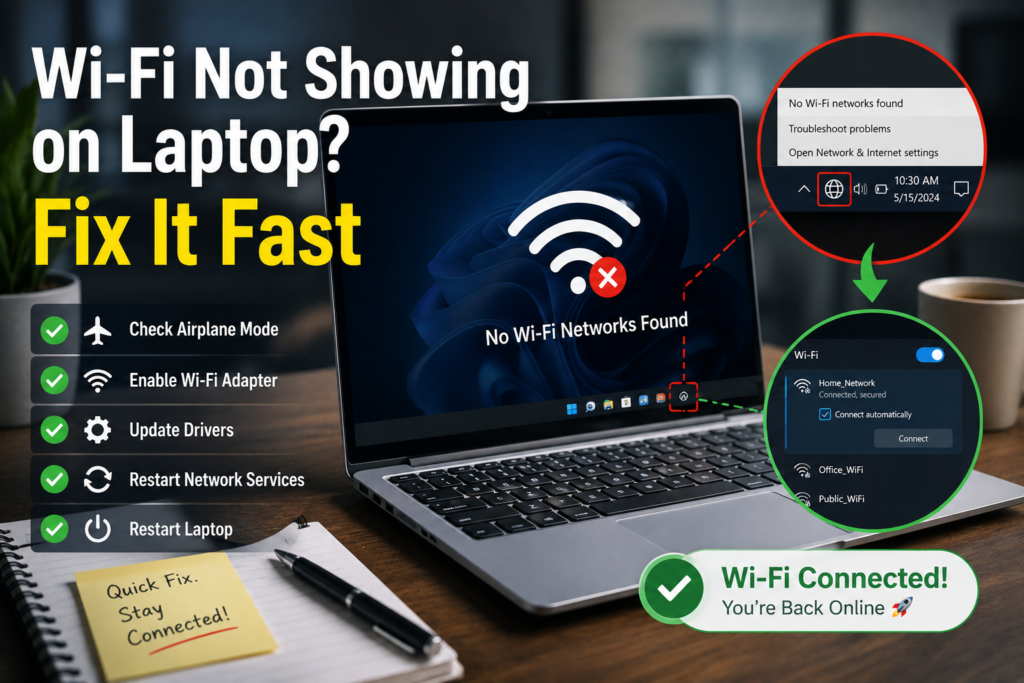
If your laptop cannot see Wi-Fi, first restart your laptop, turn airplane mode off, make sure Wi-Fi is enabled, restart your router, and check Device Manager for the wireless adapter. These simple steps solve many cases before you need deeper fixes.
Why Is Wi-Fi Not Showing on Laptop?
There are two common versions of this problem:
- Your Wi-Fi network name is missing, but other networks appear.
- No Wi-Fi networks appear at all, or the Wi-Fi option is missing.
These two situations have different meanings.
If only your home Wi-Fi is missing, the issue may be with your router, Wi-Fi band, signal range, or network name settings.
If all Wi-Fi networks are missing, your laptop may have a disabled adapter, driver problem, airplane mode issue, Windows service issue, or hardware fault.
According to Microsoft Support, Windows Wi-Fi issues can involve airplane mode, network adapter detection, modem/router restarts, driver problems, and adapter compatibility with the frequency your network broadcasts on.
Check This First When Wi-Fi Not Showing
Before changing advanced settings, start with the boring fixes. Yes, they sound too simple. No, you should not skip them. Computers love being dramatic over tiny problems.
Restart Your Laptop
Restarting your laptop reloads Windows, the Wi-Fi adapter, and background network services.
Do not just close the lid. Do a proper restart:
- Click Start.
- Click Power.
- Select Restart.
- Wait for Windows to fully load.
- Check the Wi-Fi list again.
This is useful because your wireless adapter may be stuck in a bad state after sleep mode, an update, or a battery-saving event.
Turn Airplane Mode Off
Airplane mode disables wireless communication such as Wi-Fi and Bluetooth.
On Windows 11:
- Click the network, sound, or battery icon near the clock.
- Look for Airplane mode.
- Make sure it is turned off.
- Make sure Wi-Fi is turned on.
You can also check:
Settings > Network & internet > Airplane mode
Microsoft lists airplane mode as one of the settings to check when troubleshooting Wi-Fi connection problems in Windows.
Make Sure Wi-Fi Is Enabled
Sometimes Wi-Fi is simply switched off.
Check these places:
- Windows quick settings
- Laptop keyboard shortcut
- Physical wireless switch, if your laptop has one
- Network adapter settings
Some laptops use function keys like Fn + F2, Fn + F5, or a key with a wireless symbol. The exact key depends on the brand.
Look carefully at the top row of your keyboard. If you see a small antenna or wireless icon, press it together with the Fn key.
Fix 1: Restart Your Router and Modem
If your laptop sees other networks but not your home Wi-Fi, the router may be the problem.
Restart it properly:
- Turn off the router.
- Turn off the modem if separate.
- Wait around 30 seconds.
- Turn the modem back on first.
- Wait until the lights become stable.
- Turn the router back on.
- Wait a few minutes.
- Check your laptop again.
Microsoft recommends restarting the modem and wireless router as part of Windows Wi-Fi troubleshooting.
This helps because routers can freeze, fail to broadcast properly, or temporarily stop showing one Wi-Fi band.
Fix 2: Move Closer to the Router
Wi-Fi is wireless, but it is not magic. Walls, floors, mirrors, cabinets, distance, and electrical devices can weaken the signal.
If your laptop is far from the router, move closer and check whether the Wi-Fi name appears.
Also test with your phone:
- If your phone also cannot see the Wi-Fi, the router may not be broadcasting.
- If your phone can see it but your laptop cannot, the laptop is more likely the issue.
This simple comparison helps you avoid wasting time fixing the wrong device.
Fix 3: Check if the Wi-Fi Adapter Is Missing
The Wi-Fi adapter is the hardware inside your laptop that allows it to connect to wireless networks.
Think of it like the laptop’s Wi-Fi antenna and receiver. If Windows cannot detect it, Wi-Fi may disappear completely.
To check:
- Right-click Start.
- Select Device Manager.
- Expand Network adapters.
- Look for words like:
- Wireless
- Wi-Fi
- WLAN
- Intel Wireless
- Realtek Wireless
- MediaTek Wi-Fi
- Qualcomm Atheros
If you only see Ethernet, Bluetooth, or VPN adapters, Windows may not be detecting your Wi-Fi hardware.
Microsoft notes that if the wireless network adapter is not listed in Device Manager, Windows does not detect it.
Fix 4: Enable the Wireless Adapter
Sometimes the adapter exists but is disabled.
In Device Manager:
- Right-click your wireless adapter.
- If you see Enable device, click it.
- Wait a few seconds.
- Check the Wi-Fi list again.
If you see Disable device, that means it is already enabled. Do not disable it unless you are intentionally restarting the adapter.
You can also check from Control Panel:
- Press Windows + R.
- Type
ncpa.cpl. - Press Enter.
- Look for Wi-Fi.
- If it is greyed out, right-click and select Enable.
This is one of the most common reasons Wi-Fi disappears after updates, driver changes, or accidental settings changes.
Fix 5: Disable and Re-enable the Wi-Fi Adapter
If the adapter is already enabled but still not working, restart just the adapter.
In Device Manager:
- Right-click the wireless adapter.
- Select Disable device.
- Wait 10 seconds.
- Right-click it again.
- Select Enable device.
This is like turning the Wi-Fi hardware off and on without restarting the whole laptop.
Use this when the adapter is visible but the laptop still cannot find networks.
Fix 6: Update the Wi-Fi Driver
A driver is the small software that helps Windows communicate with your laptop hardware.
Think of it like a translator. Windows speaks one language, your Wi-Fi adapter speaks another, and the driver helps them understand each other.
If the driver is broken, outdated, or incompatible after a Windows update, Wi-Fi may stop showing.
To update it:
- Right-click Start.
- Open Device Manager.
- Expand Network adapters.
- Right-click your wireless adapter.
- Select Update driver.
- Choose Search automatically for drivers.
If Windows does not find anything, go to your laptop manufacturer’s support website and download the Wi-Fi driver for your exact model.
Common laptop brands include:
- Dell
- HP
- Lenovo
- ASUS
- Acer
- MSI
- Microsoft Surface
Be careful not to download random “driver updater” tools from unknown websites. They often create more problems than they solve.
Fix 7: Uninstall and Reinstall the Wi-Fi Driver
If updating does not work, reinstalling the adapter may help.
This sounds scary, but Windows can usually reinstall the driver automatically after restart.
Steps:
- Open Device Manager.
- Expand Network adapters.
- Right-click your wireless adapter.
- Select Uninstall device.
- Do not tick any driver deletion box unless you already have the correct driver ready.
- Click Uninstall.
- Restart the laptop.
After restart, Windows should detect the adapter again. Microsoft Support notes that after a PC restarts, Windows automatically looks for and installs the network adapter driver.
If Wi-Fi still does not appear, download the official driver using another device and transfer it with a USB drive.
Fix 8: Check 2.4GHz and 5GHz Compatibility
Some routers broadcast Wi-Fi using different bands, mainly 2.4GHz and 5GHz. Newer routers may also support 6GHz.
In simple terms:
- 2.4GHz reaches farther but may be slower.
- 5GHz is faster but has shorter range.
- 6GHz is newer and requires compatible devices.
If your router only shows a 5GHz or 6GHz network, an older laptop may not detect it.
Microsoft mentions that your adapter may not support the frequency your network is broadcasting on.
To fix this:
- Log in to your router settings.
- Make sure 2.4GHz Wi-Fi is enabled.
- Give 2.4GHz and 5GHz separate names if needed.
- Try connecting the laptop to the 2.4GHz network.
For example:
- HomeWiFi-2G
- HomeWiFi-5G
This makes it easier to know which one your laptop can see.
Fix 9: Forget and Reconnect to the Network
If your laptop used to connect to the network but now it is acting weird, forget the saved Wi-Fi profile.
A Wi-Fi profile is like your laptop’s saved memory of that network. If the saved information becomes outdated, the laptop may fail to reconnect properly.
Steps:
- Go to Settings.
- Select Network & internet.
- Open Wi-Fi.
- Click Manage known networks.
- Select your Wi-Fi name.
- Click Forget.
- Search for the network again.
- Re-enter the password.
This is especially useful after changing your router password, router name, or security settings.
Fix 10: Run Windows Network Troubleshooter
Windows has built-in troubleshooting tools that can detect common network problems.
On Windows 11:
- Open Settings.
- Go to System.
- Select Troubleshoot.
- Open Other troubleshooters.
- Run Network and Internet or Network Adapter.
Microsoft’s Surface Wi-Fi troubleshooting guidance also includes running the Network Adapter troubleshooter and checking airplane mode when wireless networks are not appearing.
The troubleshooter may restart the adapter, fix configuration issues, or show a useful error message.
Fix 11: Perform a Network Reset
Use network reset only after trying the easier fixes.
A network reset removes and reinstalls network adapters and resets network settings back to default. This can help if Windows networking is badly confused, but you may need to reconnect to Wi-Fi networks afterward.
Steps:
- Open Settings.
- Go to Network & internet.
- Select Advanced network settings.
- Choose Network reset.
- Click Reset now.
- Restart your laptop.
Microsoft includes network reset as one of the Windows troubleshooting options for connection issues.
Before doing this, make sure you know your Wi-Fi password.
When Wi-Fi Not Showing Means Hardware Problem
Sometimes the issue is not Windows. It may be the actual Wi-Fi card inside the laptop.
Possible signs of hardware failure include:
- Wi-Fi adapter disappears from Device Manager.
- Wi-Fi works only after many restarts.
- Wi-Fi disappears when the laptop gets hot.
- Bluetooth also stops working.
- The laptop was dropped or repaired recently.
- Wi-Fi works with a USB adapter but not the built-in adapter.
If this happens, you have a few options:
- Use a USB Wi-Fi adapter.
- Ask a technician to reseat or replace the internal Wi-Fi card.
- Check warranty support from the laptop manufacturer.
- Use Ethernet temporarily if your laptop has a LAN port.
A USB Wi-Fi adapter is often the fastest low-cost workaround. Plug it in, install the driver if needed, and connect to Wi-Fi again.
Common Mistakes to Avoid
Resetting Everything Too Early
Do not jump straight to full network reset or Windows reinstall. Most Wi-Fi problems are smaller than that.
Start with:
- Restart laptop.
- Check airplane mode.
- Enable Wi-Fi.
- Restart router.
- Check Device Manager.
- Update driver.
Downloading Random Driver Tools
Avoid unknown driver websites. They may install unwanted software or incorrect drivers.
Use:
- Windows Update
- Laptop manufacturer website
- Wi-Fi chip manufacturer website, if you know the exact model
Ignoring the Router
If other devices also cannot see the Wi-Fi, stop blaming the laptop. The router may be the real problem.
Restart it, check the Wi-Fi broadcast settings, and confirm that the network name is not hidden.
Forgetting About Keyboard Shortcuts
Many laptops have a shortcut that disables wireless. It is easy to press accidentally.
Look for the wireless icon on your keyboard before doing complicated fixes.
Simple Fix Order for Beginners
If you want the fastest path, follow this order:
| Step | What to Check | Why It Helps |
|---|---|---|
| 1 | Restart laptop | Reloads Wi-Fi services |
| 2 | Turn off airplane mode | Re-enables wireless functions |
| 3 | Turn Wi-Fi on | Fixes accidental disable setting |
| 4 | Restart router | Fixes router broadcast issues |
| 5 | Move closer to router | Rules out weak signal |
| 6 | Check Device Manager | Confirms adapter detection |
| 7 | Update driver | Fixes software communication issue |
| 8 | Network reset | Restores Windows network settings |
| 9 | Try USB Wi-Fi adapter | Tests possible hardware failure |
This order keeps you from doing risky fixes before checking the easy things.
FAQ
Why is my laptop not showing any Wi-Fi networks?
Your laptop may have airplane mode enabled, Wi-Fi turned off, a disabled wireless adapter, a bad driver, or a hardware issue. Start by restarting the laptop, checking airplane mode, and looking for the wireless adapter in Device Manager.
Why does my phone show Wi-Fi but my laptop does not?
Your phone may support a Wi-Fi band that your laptop does not, or your laptop’s Wi-Fi adapter may be disabled or having driver problems. Try enabling 2.4GHz on the router and updating your laptop’s wireless driver.
How do I get my Wi-Fi icon back on my laptop?
Check airplane mode, make sure Wi-Fi is enabled, and confirm the wireless adapter appears in Device Manager. If the adapter is missing, restart the laptop or reinstall the Wi-Fi driver.
Should I reset network settings?
Only do a network reset after basic fixes fail. It can solve deeper Windows networking issues, but it may remove saved Wi-Fi networks, VPN settings, and adapter configurations.
Can a Windows update cause Wi-Fi to disappear?
Yes, sometimes a Windows update can affect drivers or adapter settings. Updating or reinstalling the Wi-Fi driver from the laptop manufacturer’s website often helps.
Is my laptop Wi-Fi card broken?
It may be broken if the Wi-Fi adapter disappears from Device Manager, keeps disconnecting, or does not return after driver reinstall. Testing with a USB Wi-Fi adapter can help confirm whether the built-in adapter is the problem.
Final Takeaway
If Wi-Fi not showing on your laptop, do not panic and do not reinstall Windows immediately. Most of the time, the issue is caused by a disabled setting, stuck adapter, router problem, or driver issue.
Start with the simple fixes: restart your laptop, turn off airplane mode, enable Wi-Fi, restart your router, and check Device Manager. If that does not work, update or reinstall the Wi-Fi driver.
If Windows cannot detect the wireless adapter at all, then you may be dealing with a hardware issue. In that case, a USB Wi-Fi adapter can be a quick temporary fix while you decide whether to repair the laptop.