Difficulty: Beginner
What Is Laptop Lid Closed Mode?
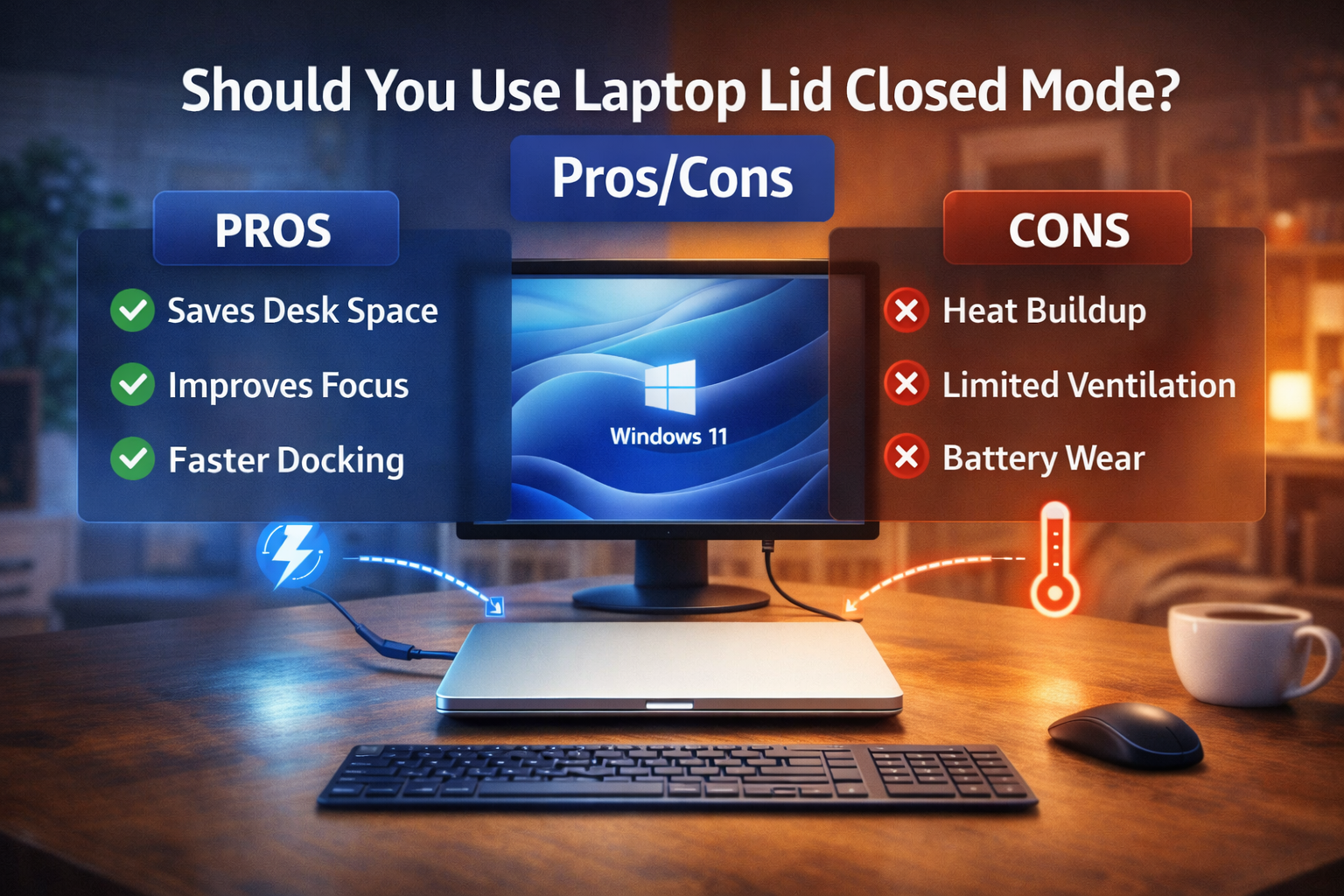
Laptop lid closed mode (also called clamshell mode) allows your laptop to continue running even when the screen is shut.
Normally, closing the lid triggers sleep mode. However, in Windows 11 or macOS, you can configure it to:
- Do nothing when lid closes
- Continue operating while connected to power
- Output display only to external monitor
This setup is common for:
- Home offices
- Docking station users
- Minimalist desk setups
How to Enable Lid Closed Mode (Windows 11)
Before discussing laptop lid closed mode pros and cons, here’s how to enable it:
- Open Control Panel
- Go to Power Options
- Click Choose what closing the lid does
- Set:
- On battery → Do nothing
- Plugged in → Do nothing
- Save changes
Now your laptop stays active when the lid is closed.
✅ Pros of Laptop Lid Closed Mode
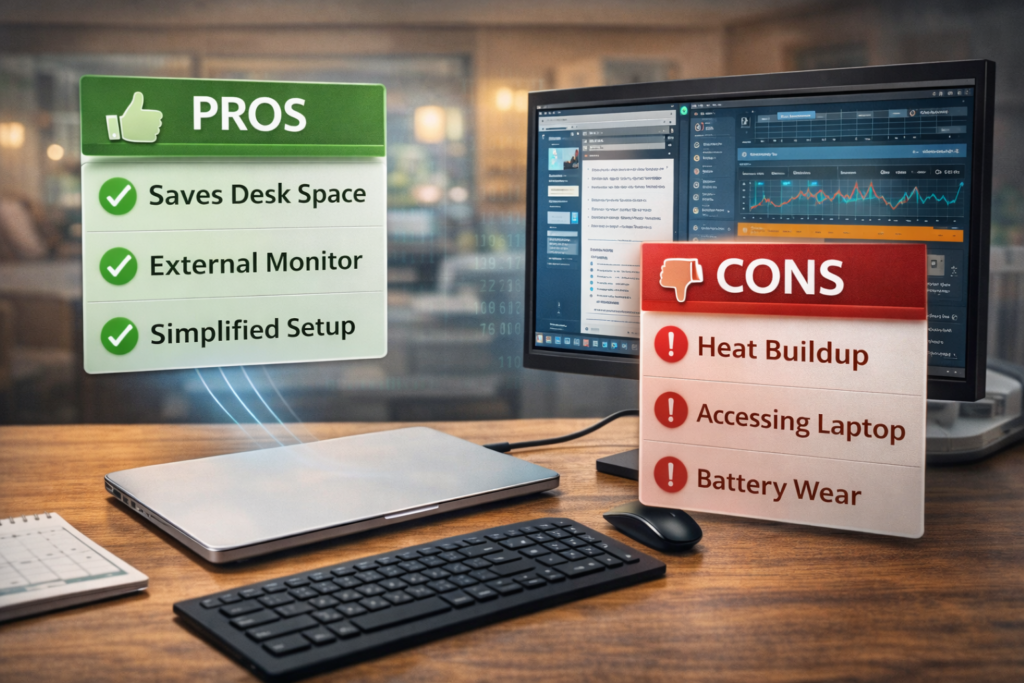
1️⃣ Cleaner, Professional Desk Setup
Closing the lid removes visual clutter and creates a cleaner workspace — especially if you’re using:
- Dual monitors
- Docking station
- External keyboard and mouse
For remote professionals, this improves workspace ergonomics.
2️⃣ Better Focus on Larger Screen
Using a larger external monitor:
- Reduces eye strain
- Improves multitasking
- Increases productivity
Many productivity studies suggest larger screens improve workflow efficiency.
3️⃣ Reduced Dust on Keyboard & Screen
Closing the lid protects:
- Keyboard
- Touchpad
- Internal display
It acts as a physical barrier against dust and spills.
4️⃣ Prevents Accidental Screen Touch or Damage
Especially useful in shared office environments.
❌ Cons of Laptop Lid Closed Mode
1️⃣ Potential Overheating Risk
This is the biggest concern.
Many laptops use the keyboard area or top chassis for heat dissipation. When closed:
- Airflow may reduce
- Heat may accumulate
If your device already runs warm, lid closed mode may increase thermal stress.
According to thermal design guidelines from major laptop manufacturers, proper airflow is critical for sustained performance.
2️⃣ Battery Degradation (If Always Plugged In)
If you use lid closed mode constantly while plugged in:
- Battery remains at 100% charge
- Long-term battery wear increases
Modern laptops have battery protection features, but not all models manage charging intelligently.
3️⃣ Sleep/Wake Conflicts
Sometimes, Windows power settings conflict and cause:
- Black screen issues
- External monitor not detected
- System failing to wake
This creates frustration if power settings are not configured properly.
4️⃣ Reduced Secondary Display Use
If your laptop screen is high-quality, closing it removes the ability to use it as a second monitor.
🔎 Quick Risk Assessment Box
Safe to use lid closed mode if:
✔️ Laptop is on hard flat surface
✔️ Ventilation openings are not blocked
✔️ Device does not overheat
✔️ Power settings are correctly configured
Avoid if:
❌ Laptop runs hot
❌ You place it on soft surfaces
❌ Fans become excessively loud
Does Lid Closed Mode Damage Your Laptop?
This is the most common question in the laptop lid closed mode pros and cons discussion.
Short answer:
No — if airflow is sufficient and thermal limits are respected.
Modern CPUs (Intel & AMD) include:
- Thermal throttling
- Auto shutdown protection
If temperatures rise too high, performance reduces automatically.
However, long-term high heat can shorten component lifespan.
Best Practices for Safe Use
If you want to use lid closed mode safely:
1️⃣ Use a Laptop Stand
Keeps airflow clear underneath.
2️⃣ Avoid Soft Surfaces
Never use on:
- Bed
- Couch
- Pillow
These trap heat.
3️⃣ Monitor Temperatures
Use tools like:
- Task Manager
- Hardware monitoring apps
If CPU stays above 85–90°C constantly, reconsider setup.
4️⃣ Enable Battery Care Mode (If Available)
Some brands allow limiting charge to:
- 80%
- 85%
This preserves battery lifespan.
Real-World Scenario
A remote worker connects their laptop daily to:
- 27” external monitor
- USB-C dock
- External keyboard
They keep the lid closed 8 hours daily.
Result:
- Cleaner workspace
- Better posture
- No overheating (because device is elevated on stand)
In this case, laptop lid closed mode pros and cons favor productivity.
When Should You Avoid Lid Closed Mode?
Avoid if:
- Gaming heavily
- Rendering video
- Running high CPU workloads
- Laptop feels hot to touch
Open lid improves natural heat dissipation.
🛡️ Key Takeaway Box
Laptop lid closed mode is safe for most users if ventilation is not restricted and power settings are properly configured.
Laptop Lid Closed Mode vs Open Lid Setup
| Factor | Lid Closed | Lid Open |
|---|---|---|
| Desk Appearance | Cleaner | More cluttered |
| Heat Dissipation | Slightly Reduced | Better airflow |
| Productivity | Focused | Multi-screen flexibility |
| Battery Wear | Higher (if always plugged) | Normal |
Should You Use It?
Recommended For:
- Office workers
- Docking station users
- External monitor setups
Not Ideal For:
- Gamers
- Heavy content creators
- Overheating-prone laptops
Frequently Asked Questions (FAQ)
1. Is it bad to use laptop with lid closed all the time?
Not necessarily, but ensure proper airflow and battery care.
2. Does lid closed mode cause overheating?
It can increase temperature slightly, especially under heavy load.
3. Will my battery get damaged if always plugged in?
Over time, yes — unless battery protection mode is enabled.
4. Why does my laptop sleep when I close the lid?
Power settings default to sleep mode. Change it in Power Options.
5. Can I use my laptop screen as a second monitor while lid closed?
No. The screen is disabled when fully closed.