

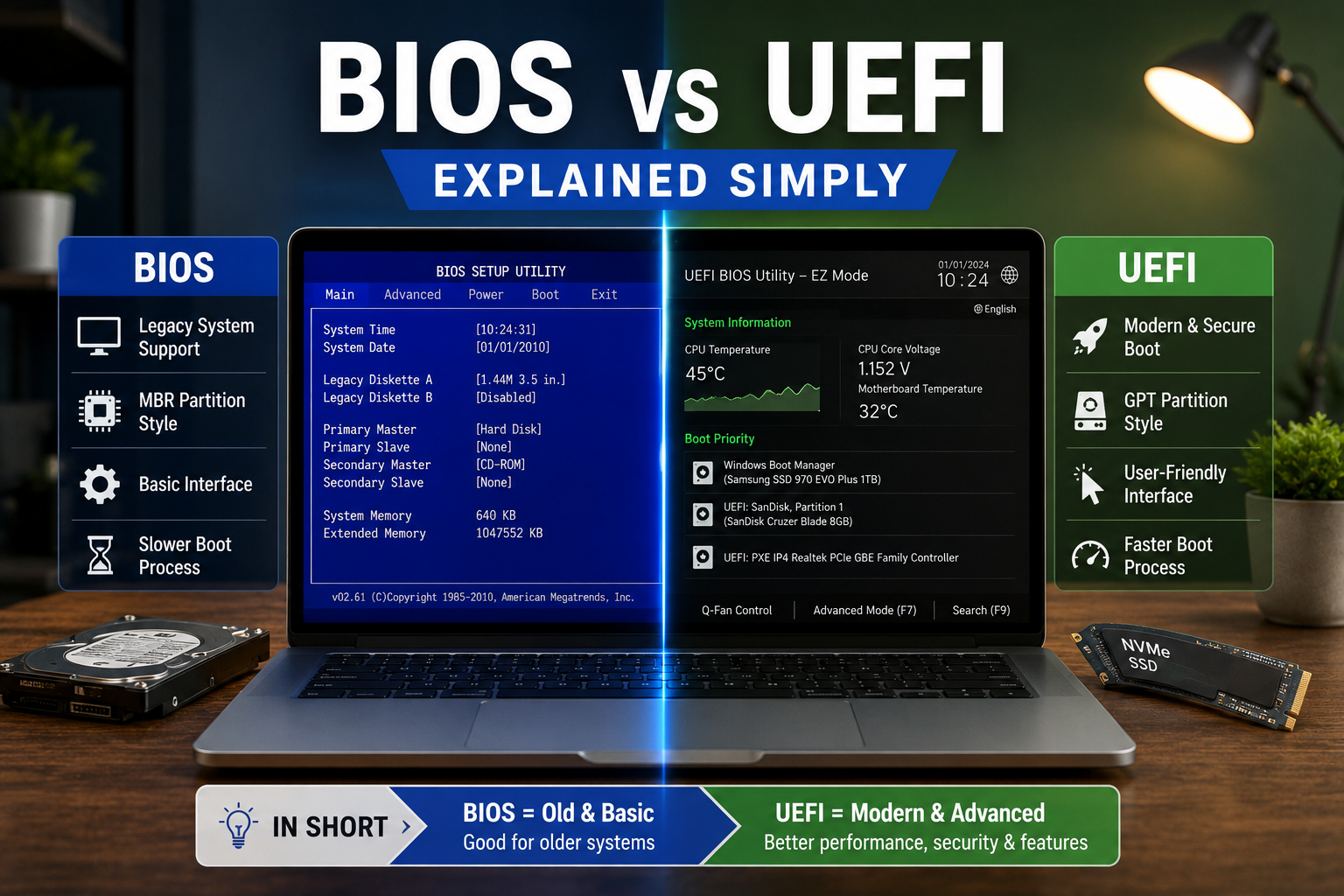
If you have ever entered your computer’s startup settings, changed boot order, enabled Secure Boot, or installed Windows from a USB drive, you have probably seen the terms BIOS vs UEFI.
For many people, these words sound technical and intimidating. But the idea is actually simple: BIOS and UEFI are the systems that run before Windows starts.
Think of them like the “morning routine” for your computer. Before your PC can open Windows, it must first check that the keyboard, memory, storage drive, processor, and other important parts are ready. BIOS or UEFI handles that early startup job.
The big difference is this: BIOS is the older startup system, while UEFI is the newer and more capable version used by most modern computers.
What Is BIOS?
BIOS stands for Basic Input/Output System.
It is older firmware that helps your computer start. Firmware is software built into a hardware chip on your motherboard. It sits between your hardware and your operating system.
In simple words, BIOS is the small built-in program that tells your computer:
- “Check the hardware.”
- “Find the storage drive.”
- “Look for Windows.”
- “Start the operating system.”
BIOS has been around for decades. It was designed when computers were much simpler than today. It worked well for older PCs, but modern computers now need more advanced startup features.
Think of BIOS Like an Old Security Guard
Imagine an old office building with a security guard at the front door.
The guard checks who is entering, opens the door, and lets people in. That is useful, but the process is basic.
BIOS works in a similar way. It checks the essential hardware, finds the boot drive, and lets the operating system start.
It gets the job done, but it does not have many modern features.
What Is UEFI?
UEFI stands for Unified Extensible Firmware Interface.
That sounds complicated, but here is the plain-English version:
UEFI is the modern system that replaced traditional BIOS on newer computers.
It does the same main job as BIOS—starting your computer—but it does it in a more modern, flexible, and secure way.
According to the UEFI Forum, UEFI specifications define the interface between platform firmware and an operating system, which is why UEFI is now the standard foundation for many modern PCs.
Think of UEFI Like a Modern Smart Reception Desk
If BIOS is an old security guard, UEFI is a modern reception desk with:
- Digital check-in
- Security verification
- Faster processing
- Better records
- More flexible controls
- Support for newer systems
UEFI is not just “BIOS with a new name.” It is a newer design built for modern computers.
Definition Box
BIOS is the older startup firmware used by traditional PCs. UEFI is the newer startup firmware used by most modern PCs. Both help your computer start, but UEFI supports newer features like Secure Boot, larger drives, and faster startup.
BIOS vs UEFI: The Simple Difference
The easiest way to understand BIOS vs UEFI is this:
| Feature | BIOS | UEFI |
|---|---|---|
| Age | Older system | Modern replacement |
| Interface | Usually keyboard-only | Often supports mouse and graphics |
| Boot speed | Usually slower | Usually faster |
| Drive support | Commonly uses MBR | Commonly uses GPT |
| Large drive support | Limited compared to UEFI | Better support for large drives |
| Security | Basic | Supports Secure Boot |
| Modern Windows support | Limited for newer requirements | Better suited for Windows 10/11 |
| User experience | Plain, old-style menus | Cleaner and easier on many PCs |
BIOS is like an old manual system. UEFI is like a newer digital system.
Both can start a computer, but UEFI is designed for today’s hardware.
Why UEFI Replaced BIOS
BIOS was created for a different era of computing.
Older computers had smaller storage drives, simpler hardware, and fewer security concerns. Today, computers need to handle fast SSDs, larger drives, encryption, remote management, security checks, and modern operating systems.
UEFI replaced BIOS because it can support these newer needs better.
UEFI Can Support Modern Storage Better
Many older BIOS systems use MBR, which stands for Master Boot Record.
MBR is an older way of organizing a storage drive. It works, but it has limitations.
Modern UEFI systems commonly use GPT, which stands for GUID Partition Table.
GPT is newer and better suited for modern large drives. Microsoft’s MBR2GPT tool is designed to convert a disk from MBR to GPT without modifying or deleting the data on the disk, which shows how important GPT has become for modern Windows setups.
In simple terms:
- MBR = older drive layout
- GPT = newer drive layout
- BIOS usually goes with MBR
- UEFI usually goes with GPT
UEFI Can Start Faster
UEFI can often boot faster than old BIOS systems because it is designed for modern hardware and more efficient startup processes.
This does not mean every UEFI computer starts instantly. Startup speed still depends on:
- SSD or hard drive speed
- Windows startup apps
- Hardware age
- Firmware settings
- Driver issues
But in general, UEFI gives modern PCs a better startup foundation.

UEFI Supports Secure Boot
One of the biggest UEFI benefits is Secure Boot.
Secure Boot helps make sure that only trusted software starts during the boot process. This can help block certain types of malware that try to load before Windows starts.
Microsoft explains that Secure Boot is a security standard developed to help make sure a device boots using only software that is trusted by the PC manufacturer.
Think of Secure Boot like a nightclub bouncer checking the guest list before allowing anyone inside.
If something suspicious tries to start before Windows, Secure Boot can help stop it.
BIOS vs UEFI and Windows 11
This is where many users first hear about BIOS vs UEFI.
Windows 11 has stricter security requirements than older Windows versions. Many PCs need UEFI, Secure Boot capability, TPM 2.0, and GPT-style disk layout to meet modern Windows 11 requirements.
That is why some people see messages like:
- “This PC must support Secure Boot”
- “The disk must be GPT”
- “Windows cannot be installed to this disk”
- “Legacy boot is enabled”
- “UEFI mode required”
These errors usually happen when the PC is using older boot settings or the drive is formatted in an older style.
What This Means for Normal Users
If your computer is new, you are probably already using UEFI.
If your computer is older, it may still be using Legacy BIOS mode.
You do not always need to change anything. But if you are installing Windows 11, upgrading from an older system, or enabling Secure Boot, UEFI becomes important.
How to Check If Your PC Uses BIOS or UEFI
On Windows, you can check this without opening your computer.
Method 1: Use System Information
- Press Windows + R.
- Type msinfo32.
- Press Enter.
- Look for BIOS Mode.
You may see:
- UEFI
- Legacy
If it says UEFI, your PC is using the modern startup system.
If it says Legacy, your PC is using older BIOS-style boot mode.
Method 2: Check Disk Type
You can also check whether your main drive uses MBR or GPT.
- Right-click the Start button.
- Select Disk Management.
- Right-click your main disk.
- Select Properties.
- Open the Volumes tab.
- Look for Partition style.
You may see:
- Master Boot Record (MBR)
- GUID Partition Table (GPT)
For modern UEFI boot, GPT is usually preferred.
Should You Switch from BIOS to UEFI?
This depends on your situation.
You Should Consider UEFI If:
- You want to install or upgrade to Windows 11.
- You want to enable Secure Boot.
- Your PC supports UEFI but is still using Legacy mode.
- You are using a modern SSD.
- You want better compatibility with newer hardware.
- You are reinstalling Windows and want a cleaner modern setup.
You May Not Need to Change Anything If:
- Your PC works fine.
- You are not upgrading Windows.
- You are not changing boot settings.
- You are not comfortable with disk conversion.
- Your PC is old and does not fully support UEFI.
Changing from Legacy BIOS to UEFI can involve disk conversion from MBR to GPT. That can be safe when done properly, but mistakes can cause boot problems. Always back up important files first.
Pro Tip Box
Do not randomly change BIOS or UEFI boot settings just because you see them in a tutorial. Changing boot mode from Legacy to UEFI without preparing the drive correctly may stop Windows from starting.
Common BIOS and UEFI Settings Explained
When you enter your PC startup settings, you may see many confusing options. Here are the common ones explained simply.
Boot Order
Boot order tells your computer where to look first when starting.
For example:
- SSD
- USB drive
- Network boot
If you want to install Windows from a USB stick, you may need to place the USB drive first.
Secure Boot
Secure Boot helps block untrusted startup software.
For most normal users, Secure Boot should usually be enabled, especially on Windows 11 systems.
However, some older operating systems, custom tools, or Linux setups may require Secure Boot adjustments.
Legacy Boot
Legacy Boot means the computer is using older BIOS-style startup behavior.
Modern systems usually work better with UEFI mode.
CSM
CSM stands for Compatibility Support Module.
It allows some UEFI computers to behave like older BIOS systems for compatibility.
Think of it like a “classic mode” for older software or boot devices.
TPM
TPM stands for Trusted Platform Module.
It is a security chip or firmware feature that helps protect encryption keys and security functions. Windows 11 commonly requires TPM 2.0.
TPM is not the same as UEFI, but they are often discussed together because both are part of modern PC security.
BIOS vs UEFI: Which One Is Better?
For most users, UEFI is better.
It is newer, more secure, more flexible, and better suited for modern computers.
BIOS is not “bad,” but it is old. It belongs to an earlier generation of PCs.
Choose UEFI When Possible
UEFI is the better choice if your system supports it, especially if you are using Windows 10, Windows 11, a modern SSD, or newer hardware.
Keep BIOS/Legacy Only When Needed
Legacy BIOS mode may still be useful if:
- You use very old hardware.
- You run older operating systems.
- You have old boot tools that do not support UEFI.
- Your system was originally installed in Legacy mode and you do not want to change it.
For most home and office users, UEFI is the right direction.
Common Mistakes to Avoid
Changing Boot Mode Without Backup
This is a big one.
If Windows was installed in Legacy mode on an MBR disk, switching the firmware to UEFI mode may prevent the PC from booting.
Back up your data first.
Disabling Secure Boot Without Reason
Some tutorials tell users to disable Secure Boot. That may be necessary in specific cases, but it should not be done casually.
Secure Boot is there for protection.
Confusing UEFI with the Blue Settings Screen
Some people think UEFI only means a modern-looking graphical setup screen.
Not always.
Some UEFI systems still look plain and old-fashioned. The appearance of the menu does not always tell the full story.
Thinking BIOS Update Means Windows Update
A BIOS or UEFI firmware update is different from a normal Windows update.
Firmware updates come from your PC or motherboard manufacturer, such as Dell, HP, Lenovo, ASUS, MSI, Gigabyte, or Acer.
Do not install firmware updates from random websites.
FAQ
Is UEFI the same as BIOS?
No. UEFI is the modern replacement for traditional BIOS. People sometimes say “UEFI BIOS” because the startup settings feel similar, but technically UEFI and legacy BIOS are different systems.
Is UEFI better than BIOS?
Yes, for most modern computers. UEFI supports newer security features, modern drive layouts, larger storage support, and better compatibility with current operating systems.
Can I change BIOS to UEFI?
Sometimes, yes. If your motherboard supports UEFI, you may be able to switch from Legacy mode to UEFI mode. However, your Windows drive may also need to be converted from MBR to GPT first. Back up your files before attempting this.
Do I need UEFI for Windows 11?
Most Windows 11 systems require modern security features such as Secure Boot capability and TPM 2.0, which are commonly tied to UEFI-based systems. Older Legacy BIOS setups may not meet the requirements.
Will changing from BIOS to UEFI delete my files?
Simply entering UEFI settings does not delete files. But converting drive layout or reinstalling Windows can put data at risk if done incorrectly. Always back up important files first.
How do I know if my computer has UEFI?
On Windows, press Windows + R, type msinfo32, and check BIOS Mode. If it says UEFI, your PC is using UEFI. If it says Legacy, it is using older BIOS-style boot mode.
Final Thoughts
The easiest way to remember BIOS vs UEFI is this:
BIOS is the old startup system. UEFI is the modern startup system.
Both help your computer start, but UEFI is designed for today’s hardware, security needs, and operating systems. It supports features like Secure Boot, GPT drives, and better modern compatibility.
If your PC is already using UEFI, you usually do not need to do anything. If your PC is still using Legacy BIOS mode, switching to UEFI may be useful when upgrading to Windows 11, enabling Secure Boot, or modernizing your setup.
Just do not change boot settings blindly. Back up your files, check your system details, and follow your PC manufacturer’s instructions.