

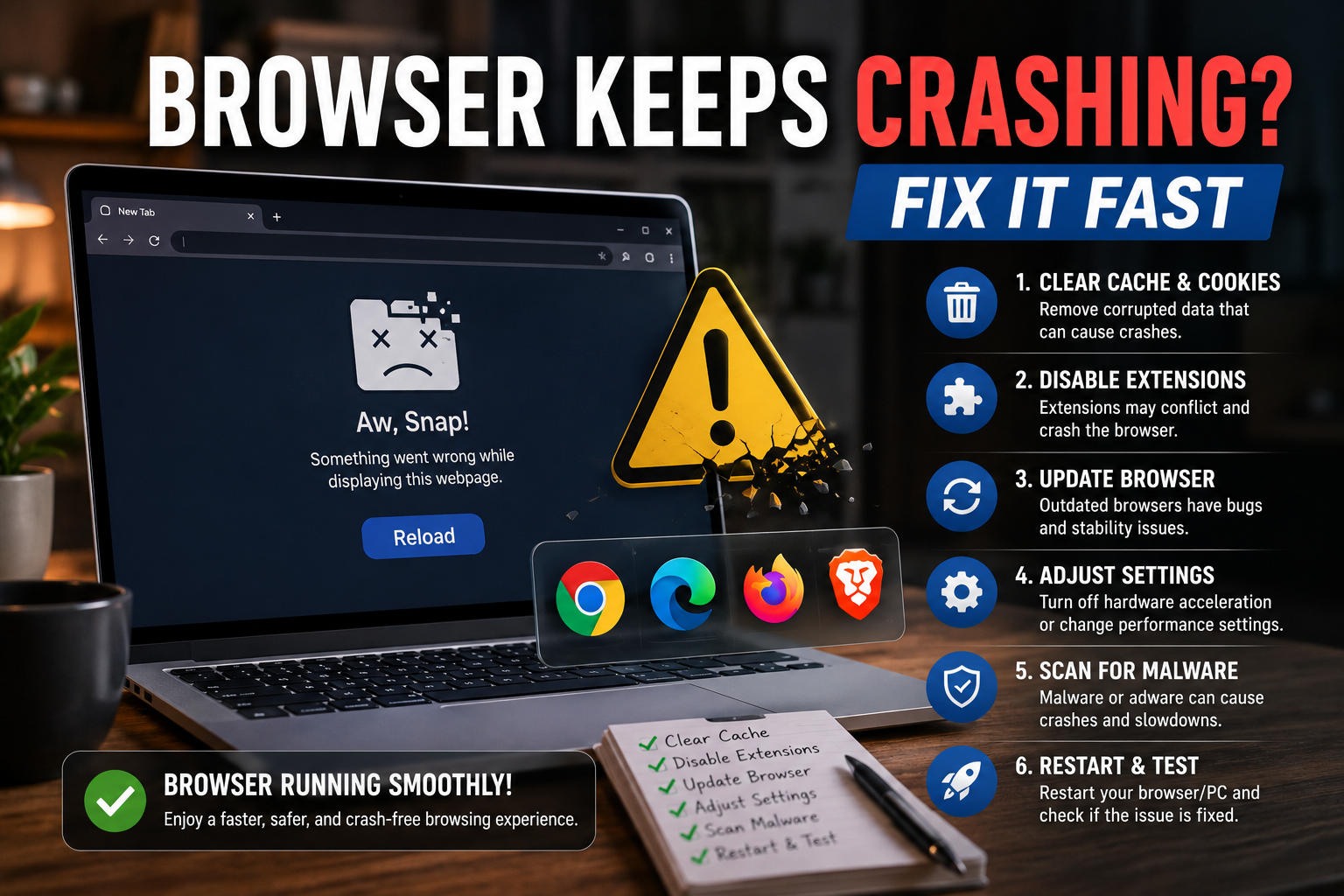
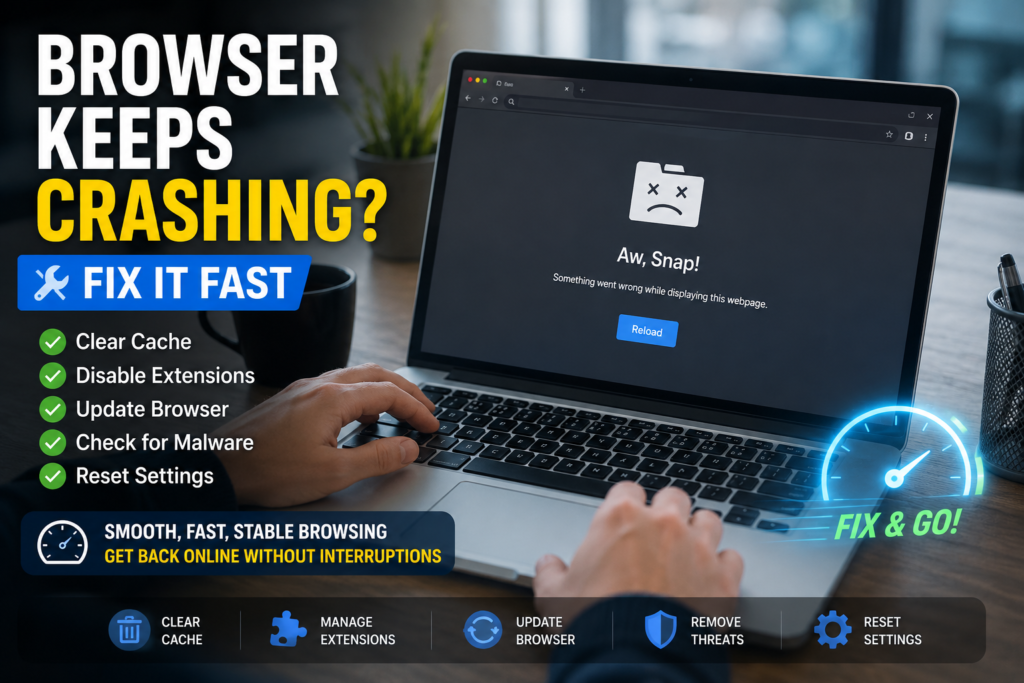
When your browser keeps crashing, it can feel like your whole computer is broken. You open Chrome, Edge, Firefox, or another browser, and suddenly it freezes, closes by itself, reloads tabs, or refuses to start at all.
The good news? Most browser crashes are fixable without needing to be an IT expert.
Think of your browser like a busy kitchen. Every tab is like one cooking station. Every extension is like an extra helper. Cache and cookies are like stored ingredients. If too many things pile up, one bad helper causes trouble, or old ingredients become messy, the kitchen slows down—or shuts down completely.
This guide explains why your browser crashes and how to fix it fast using beginner-friendly steps.
Quick Fix Box
If your browser keeps crashing, first close extra tabs, restart your computer, update the browser, disable extensions, and clear cache. These simple steps fix many browser problems before you need deeper troubleshooting.
Why Your Browser Keeps Crashing
A browser crash usually happens when the browser runs into something it cannot handle properly. That could be a broken website, too many open tabs, a bad extension, low memory, or a corrupted setting.
Here are the most common causes.
Too Many Tabs Are Open
Every browser tab uses memory. Some websites use very little. Others, like YouTube, Facebook, Canva, Gmail, Google Docs, web dashboards, and online games, can use a lot.
If you open too many tabs, your device may run out of available memory. When that happens, your browser may freeze, become slow, reload pages, or crash.
This is especially common on laptops with 4GB or 8GB RAM, older computers, or devices running many apps at the same time.
How to fix it
Close tabs you are not using. Keep only important tabs open. If you need to save pages for later, bookmark them instead of leaving everything open.
You can also use your browser’s built-in task manager.
In Chrome and Edge, press:
Shift + Esc
This shows which tabs or extensions are using the most memory. Select the heavy item and end it if needed.
Faulty Extensions Can Break Your Browser
Extensions are small add-ons that give your browser extra features. Examples include ad blockers, grammar checkers, password managers, screenshot tools, coupon tools, VPN extensions, and download managers.
Most extensions are useful, but one bad or outdated extension can make the whole browser unstable.
For example, if your browser crashes every time you open YouTube, Gmail, or a shopping site, one extension may be interfering with that page.
Google’s Chrome support recommends disabling extensions when troubleshooting certain Chrome loading problems, then turning them back on one by one to find the cause.
How to fix extension problems
Open your browser extension page:
| Browser | Extension Page |
|---|---|
| Chrome | chrome://extensions |
| Edge | edge://extensions |
| Firefox | about:addons |
Turn off all extensions first. Then restart your browser.
If the crashing stops, turn extensions back on one by one. After enabling each extension, use the browser for a while. When the crash returns, the last extension you enabled is likely the problem.
Extensions to check first
Pay close attention to:
- Free VPN extensions
- Unknown ad blockers
- Coupon extensions
- Video downloaders
- Screen recorders
- Extensions you installed recently
- Extensions with poor reviews
- Extensions that ask for too many permissions
If you do not recognise an extension, remove it.
Browser Keeps Crashing After an Update
Sometimes a browser starts crashing after an update. This does not always mean the update is bad. It may mean the new browser version no longer works well with an old extension, old graphics driver, damaged profile, or outdated operating system.
Microsoft’s Edge troubleshooting guidance recommends restarting Edge after each troubleshooting step and checking whether the problem is fixed before moving to the next step. It also notes that crash details can be checked using edge://crashes.
How to fix update-related crashes
Start with these steps:
- Restart your computer.
- Open the browser again.
- Check for another browser update.
- Disable extensions.
- Clear cache and cookies.
- Update Windows or macOS.
- Update your graphics driver.
- Reset browser settings if the issue continues.
Browser updates are meant to improve security and stability, but your whole system still needs to stay compatible.
Clear Cache and Cookies
Your browser stores temporary files to help websites load faster. This stored data is called cache.
Think of cache like a shortcut drawer. Instead of downloading the same images and page files again and again, your browser keeps copies. This usually makes browsing faster.
But over time, cached files can become outdated or messy. Cookies can also cause login or loading problems.
When this happens, websites may not load properly, pages may freeze, or your browser may crash.
How to clear cache
In most browsers, press:
Ctrl + Shift + Delete
Then select:
- Cached images and files
- Cookies and site data
Choose a time range such as All time if the problem has been happening for a while.
After clearing data, restart your browser.
Important note
Clearing cookies may sign you out of websites. Make sure you know your passwords or use a password manager before doing this.
Update Your Browser
An outdated browser may crash because it has bugs, security issues, or compatibility problems with modern websites.
Websites today are more advanced than before. They may use video, live chat, online payments, AI tools, interactive dashboards, and heavy scripts. Older browsers may struggle with these newer features.
How to update Chrome
Go to:
Menu → Help → About Google Chrome
Chrome will check for updates automatically.
How to update Edge
Go to:
Menu → Help and feedback → About Microsoft Edge
Edge will check for updates automatically.
How to update Firefox
Go to:
Menu → Help → About Firefox
Firefox will check for updates automatically.
Mozilla recommends updating software as part of troubleshooting Firefox crashes. If the issue continues, Mozilla also suggests testing whether the crash happens in Firefox Troubleshoot Mode.
Check for Malware or Suspicious Software
Malware is harmful software that can damage your system, steal data, show unwanted ads, or interfere with normal browser behaviour.
If your browser keeps crashing and you also notice pop-ups, strange search engines, random redirects, or unknown extensions, malware may be involved.
Warning signs of browser malware
Look for these symptoms:
- Homepage changed by itself
- Search engine changed without permission
- Random pop-up ads
- Browser opens unknown websites
- New toolbar appeared
- Extensions keep reinstalling
- Browser crashes on startup
- Computer becomes slow suddenly
How to fix it
Run a full scan using your security software. On Windows, you can use Windows Security:
Start → Windows Security → Virus & threat protection → Scan options → Full scan
Also remove any unknown apps from your computer.
On Windows:
Settings → Apps → Installed apps
Look for programs you do not recognise, especially ones installed around the time the problem started.
Reset Browser Settings
If your browser settings are damaged or changed by unwanted software, resetting the browser can help.
This does not usually delete your bookmarks, but it may disable extensions and reset startup pages, search engines, pinned tabs, and site permissions.
Microsoft Support includes reset and repair options among the steps for fixing Edge when it is not working, crashing, failing to open, or failing to load pages.
When to reset your browser
Reset your browser if:
- It crashes every day
- It opens strange pages
- Search results look suspicious
- Extensions keep causing trouble
- Clearing cache does not help
- The browser works badly even after updates
Reset Chrome
Go to:
Settings → Reset settings → Restore settings to their original defaults
Reset Edge
Go to:
Settings → Reset settings → Restore settings to their default values
Refresh Firefox
Go to:
Menu → Help → More troubleshooting information → Refresh Firefox
Browser Keeps Crashing on One Website Only
If your browser only crashes on one specific website, the browser itself may not be fully broken. The problem could be that website, a script on the page, a video player, an ad, or an extension interacting badly with that site.
For example, if your browser crashes only when opening a video site, the issue may involve hardware acceleration, graphics drivers, or a video-related extension.
Try these quick tests
Open the same website in private browsing mode:
| Browser | Private Mode Shortcut |
|---|---|
| Chrome | Ctrl + Shift + N |
| Edge | Ctrl + Shift + N |
| Firefox | Ctrl + Shift + P |
Private mode usually disables some stored site data and may disable certain extensions depending on your settings.
If the website works in private mode, the issue may be related to cookies, cache, or extensions.
Try another browser
If the website crashes in Chrome but works in Edge or Firefox, the issue is probably browser-specific.
If the website crashes in every browser, the problem may be the website itself, your internet connection, your device, or your security software.
Turn Off Hardware Acceleration
Hardware acceleration lets your browser use your graphics hardware to make video, animation, and visual effects smoother.
Most of the time, this is helpful. But on some computers, it can cause crashes, black screens, flickering, or frozen tabs—especially when the graphics driver is outdated or unstable.
Think of it like asking your graphics card to help carry heavy boxes. If the helper is strong, everything moves faster. If the helper is having problems, things become worse.
How to disable hardware acceleration in Chrome
Go to:
Settings → System → Use graphics acceleration when available
Turn it off, then restart Chrome.
How to disable hardware acceleration in Edge
Go to:
Settings → System and performance → Use graphics acceleration when available
Turn it off, then restart Edge.
How to disable hardware acceleration in Firefox
Go to:
Settings → General → Performance
Untick recommended performance settings, then untick hardware acceleration.
Restart Firefox.
Check Your Computer Memory and Storage
Sometimes your browser is only the messenger. The real problem may be your computer running out of resources.
If your device has very little free RAM or storage, apps may crash more often.
Signs your device is struggling
You may notice:
- Browser freezes when many tabs are open
- Laptop fan becomes very loud
- Computer feels hot
- Apps take a long time to open
- Videos lag
- Windows shows low memory warnings
- Downloads fail
- Browser crashes when uploading files
Simple fixes
Try these:
- Restart your computer
- Close unused apps
- Remove unnecessary startup programs
- Delete temporary files
- Keep at least 10–20GB free storage if possible
- Upgrade RAM if your device is old and supports it
For normal browsing today, 8GB RAM is usable, but 16GB feels much smoother if you often open many tabs.
Create a New Browser Profile
A browser profile stores your bookmarks, extensions, history, saved passwords, settings, and cookies.
If the profile becomes corrupted, your browser may keep crashing even after normal fixes.
Creating a new profile is like moving into a clean room while leaving the messy room untouched. You can test whether the browser works properly without deleting everything first.
How to test with a new profile
In Chrome or Edge:
- Click your profile icon.
- Choose Add profile.
- Create a new temporary profile.
- Use the browser without signing in first.
- Test whether it still crashes.
In Firefox, you can use Profile Manager or Refresh Firefox.
If the new profile works fine, your old profile may have a bad extension, damaged setting, or corrupted data.
Reinstall the Browser
Reinstalling should not be your first step, but it can help when the browser is badly damaged.
Google’s Chrome Help notes that uninstalling and reinstalling Chrome can fix problems with search engine changes, pop-ups, updates, or other issues preventing Chrome from opening properly.
Before reinstalling
Make sure your important data is synced or backed up:
- Bookmarks
- Saved passwords
- Important open tabs
- Browser profile data
- Extension list
If you use Chrome, Edge, or Firefox sync, confirm that sync is working before uninstalling.
Reinstall safely
Download the browser only from the official website or official app store. Avoid random download sites because they may bundle unwanted software.
Quick Troubleshooting Checklist
Use this checklist in order.
| Step | What to Do | Why It Helps |
|---|---|---|
| 1 | Restart browser | Clears temporary glitches |
| 2 | Restart computer | Frees memory and stops stuck processes |
| 3 | Close extra tabs | Reduces memory usage |
| 4 | Update browser | Fixes bugs and security issues |
| 5 | Disable extensions | Finds bad add-ons |
| 6 | Clear cache and cookies | Removes damaged website data |
| 7 | Turn off hardware acceleration | Fixes graphics-related crashes |
| 8 | Scan for malware | Removes suspicious software |
| 9 | Create new profile | Tests corrupted profile issues |
| 10 | Reinstall browser | Repairs broken browser installation |
Common Mistakes to Avoid
Installing more “browser booster” tools
Many browser cleaner or booster apps are unnecessary. Some may even make things worse.
Your browser already has built-in tools to clear cache, manage extensions, update itself, and reset settings.
Ignoring extensions
People often blame the browser, but extensions are one of the most common reasons browsers become unstable.
Always test with extensions turned off.
Keeping hundreds of tabs open
Tabs are not harmless. Each one uses memory. If you keep many tabs open for work, use bookmarks, reading lists, or tab groups instead.
Downloading browsers from unofficial sites
Always download browsers from official sources. Fake installers can include adware or malware.
Skipping system updates
Your browser depends on your operating system, drivers, and security components. If Windows, macOS, or your graphics driver is outdated, browser problems may continue.
FAQ
Why does my browser keep crashing randomly?
Your browser may crash randomly because of low memory, too many tabs, faulty extensions, outdated software, corrupted cache, malware, or graphics driver issues. Start by restarting your computer, updating the browser, disabling extensions, and clearing cache.
Why does Chrome keep closing by itself?
Chrome may close by itself because of a bad extension, damaged browser profile, low RAM, malware, or a failed update. Try opening Chrome with extensions disabled, clearing browser data, and checking for updates.
Why does Microsoft Edge keep crashing?
Microsoft Edge may crash because of corrupted browsing data, extension conflicts, outdated system files, or profile issues. Microsoft recommends testing fixes step by step and checking crash information through Edge’s crash page when deeper troubleshooting is needed.
Why does Firefox crash on startup?
Firefox may crash on startup because of a damaged profile, outdated software, incompatible add-ons, or system-level problems. Mozilla recommends updating software and using Troubleshoot Mode to test whether add-ons or settings are causing the crash.
Will clearing cache delete my passwords?
Usually, clearing cache alone does not delete saved passwords. However, clearing cookies can sign you out of websites. Be careful not to select saved passwords unless you really want to remove them.
Should I reinstall my browser if it keeps crashing?
Reinstall only after trying easier fixes first. Disable extensions, clear cache, update the browser, scan for malware, and test a new profile. If nothing works, reinstalling can repair damaged browser files.
Final Thoughts
If your browser keeps crashing, do not panic. Most crashes are caused by simple things: too many tabs, bad extensions, outdated software, corrupted cache, or low memory.
Start with the fastest fixes first. Restart the browser, reboot your computer, close unused tabs, update your browser, and disable extensions. Then move to deeper steps like clearing cache, turning off hardware acceleration, creating a new profile, scanning for malware, or reinstalling the browser.
The best fix is usually not the most complicated one. In many cases, one bad extension or overloaded tab is enough to make the browser feel broken.