
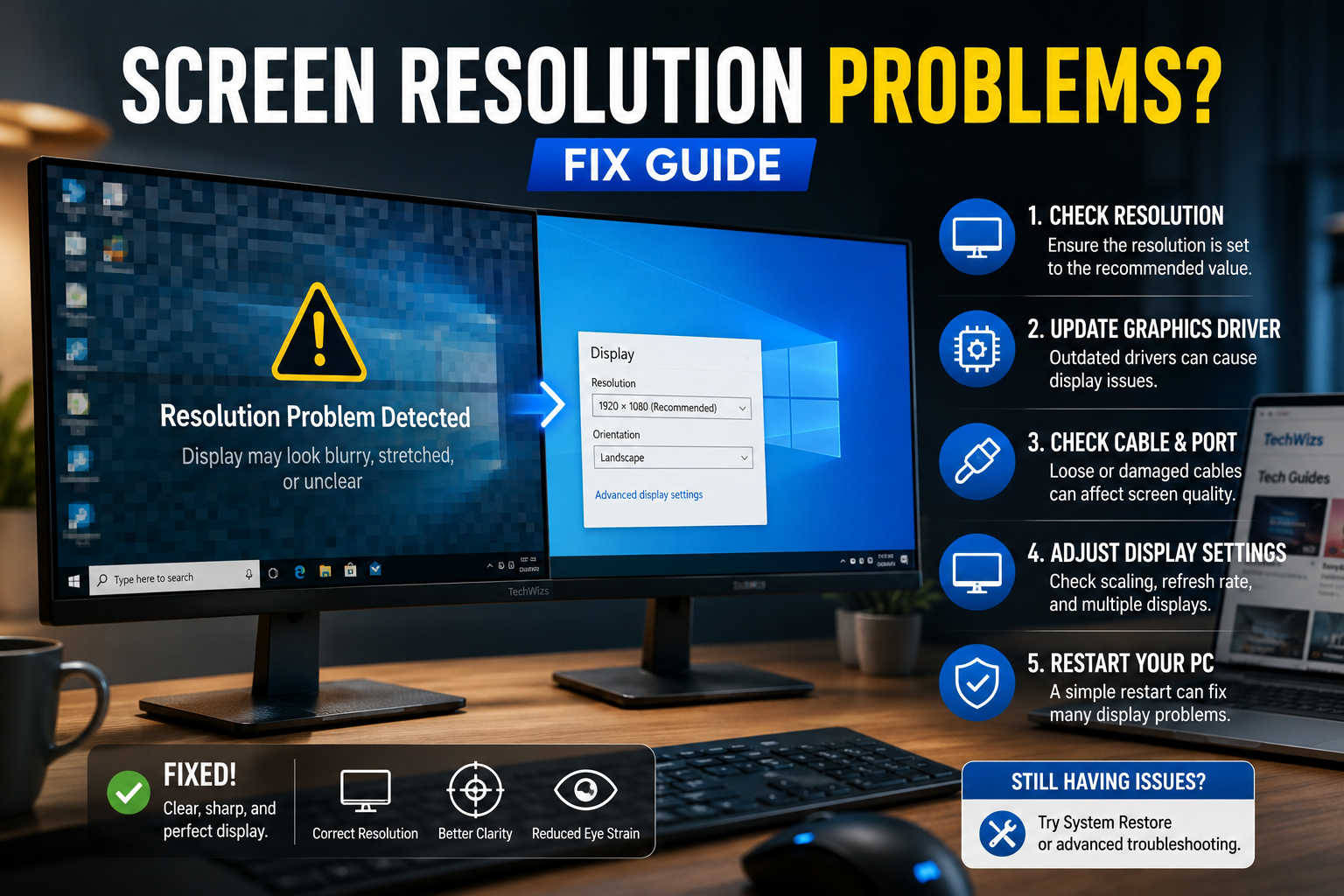
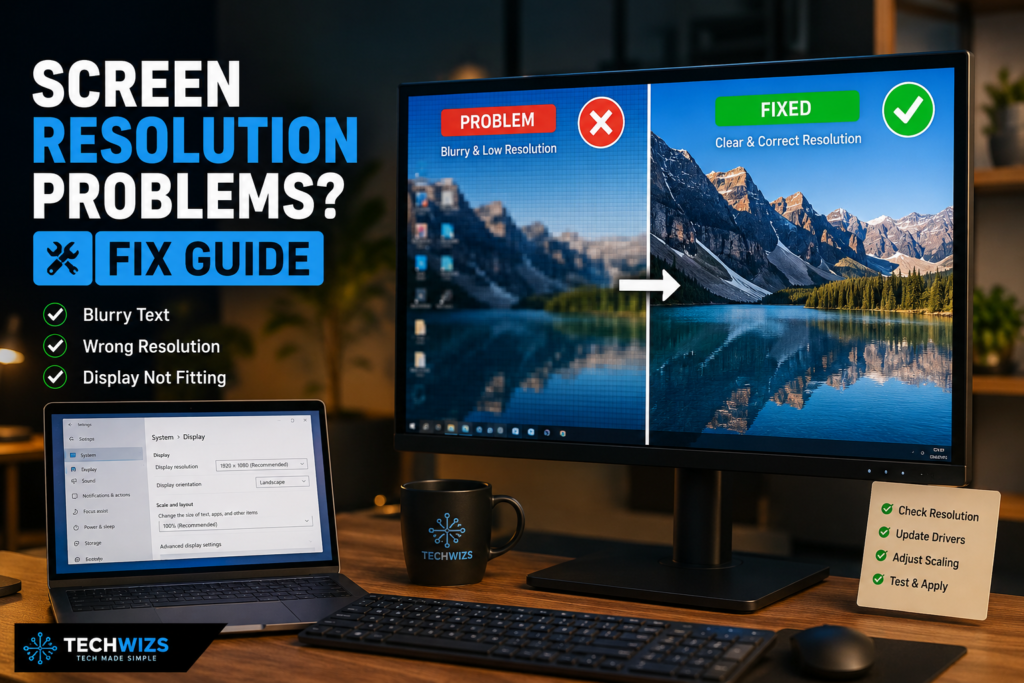
Screen resolution problems can make your computer feel broken even when nothing serious is wrong. Text may look blurry, icons may look too big, the screen may be stretched, or your monitor may show black borders around the desktop.
The good news? In many cases, this is a settings issue, not a hardware failure.
Think of screen resolution like choosing the right size photo frame. If the picture and frame do not match, the image may look stretched, squeezed, cropped, or unclear. Your computer and monitor need to agree on the best “frame size” so everything looks sharp and normal.
This guide explains what causes screen resolution problems, how to fix them on Windows and Mac, and what to check if you are using an external monitor, projector, TV, docking station, or multi-monitor setup.
Quick Fix Box
If your display looks wrong, first go to your display settings and choose the recommended screen resolution. Then check the display scale, restart the computer, and make sure your HDMI, DisplayPort, USB-C, or adapter connection is secure.
What Is Screen Resolution?
Screen resolution is the number of tiny dots, called pixels, that your screen uses to show images, text, and videos.
For example:
| Resolution | Common Name | What It Means |
|---|---|---|
| 1366 × 768 | HD | Basic laptop display |
| 1920 × 1080 | Full HD | Common monitor and laptop resolution |
| 2560 × 1440 | QHD / 2K | Sharper than Full HD |
| 3840 × 2160 | 4K UHD | Very sharp, common on premium monitors and TVs |
A pixel is like a tiny square of light. The more pixels your screen has, the more detail it can show.
But higher resolution does not always mean everything becomes easier to read. On a small laptop screen, 4K can make text and icons look tiny unless scaling is adjusted properly.
That is why modern operating systems often recommend a screen resolution and scaling combination that gives you the best balance between sharpness and readability.
According to Microsoft, Windows lets you change screen resolution and layout from Settings > System > Display, and the recommended resolution is usually the best choice for your screen.
Common Screen Resolution Problems and What They Mean
Screen resolution problems can appear in different ways. Knowing the symptom helps you find the right fix faster.
Text looks blurry
Blurry text usually happens because:
- The wrong resolution is selected
- Display scaling is not set properly
- The monitor is not running at its native resolution
- The display cable or adapter is causing signal issues
- The app does not handle high-DPI screens well
Native resolution means the real physical pixel layout of your display. For example, if your monitor is built for 1920 × 1080, it usually looks best at 1920 × 1080.
Using 1600 × 900 on that same monitor may work, but it can look soft or blurry because the screen has to stretch the image.
Icons and text are too big
This usually means the resolution is too low or scaling is too high.
For example, if your monitor supports 1920 × 1080 but Windows is set to 1280 × 720, everything becomes larger because fewer pixels are being used to display the desktop.
Scaling can also make things bigger. Scaling is a setting that increases the size of text, apps, and icons without changing the actual screen resolution.
Icons and text are too small
This often happens on high-resolution displays, especially 2K and 4K screens.
The screen may be very sharp, but everything looks tiny because the computer is showing more pixels in the same physical space.
The fix is usually not to lower the resolution. Instead, increase display scaling.
Screen looks stretched or squeezed
A stretched screen usually happens when the selected resolution does not match your monitor’s shape.
For example, most modern monitors use a widescreen ratio such as 16:9. If the computer sends an older 4:3 resolution, the image may stretch sideways.
Black borders appear around the screen
Black borders can happen when:
- The wrong resolution is selected
- The monitor is using the wrong display mode
- A TV overscan or underscan setting is active
- Graphics card scaling is set incorrectly
- The cable or adapter does not support the desired resolution
This is common when connecting a PC to a TV.
Second monitor has the wrong resolution
External monitor issues often come from:
- Weak or old cables
- USB-C adapters with limited display support
- Docking stations that cannot support the desired resolution
- Outdated graphics drivers
- Monitor not detected correctly
- Multi-monitor refresh rate limits
A monitor may support 4K, but your cable, adapter, docking station, or laptop port may not support 4K at the refresh rate you want.
How to Fix Screen Resolution Problems on Windows
Most Windows screen resolution problems can be fixed from Display settings.
Step 1: Open Display Settings
Right-click on an empty area of your desktop and select Display settings.
You can also go to:
Start > Settings > System > Display
This is where Windows lets you manage screen resolution, scaling, orientation, brightness, and multiple displays. Microsoft’s official support page also points users to this Display section when changing resolution and layout.
Step 2: Select the correct display
If you use more than one monitor, click the monitor you want to fix.
Windows usually shows each display as a numbered box, such as 1 and 2.
Click Identify if you are not sure which monitor is which. A number will appear on each screen.
Step 3: Choose the recommended resolution
Scroll to Display resolution.
Choose the option that says Recommended.
For example:
- 1920 × 1080 Recommended
- 2560 × 1440 Recommended
- 3840 × 2160 Recommended
This is usually the best resolution for your monitor.
Step 4: Adjust scaling
If the screen is sharp but text is too small or too large, adjust Scale.
Common scaling options include:
| Display Type | Common Scale Setting |
|---|---|
| 1080p laptop | 100% or 125% |
| 1440p monitor | 100% or 125% |
| 4K laptop | 150% or 200% |
| 4K monitor | 125%, 150%, or 175% |
Scaling is like zooming the interface without ruining the sharpness of the screen.
If text is too tiny, increase scaling. If everything is too large, reduce scaling.
Step 5: Check display orientation
If your screen is sideways or upside down, check Display orientation.
For normal use, choose Landscape.
Only choose Portrait if your monitor is physically rotated vertically.
Step 6: Restart your computer
This sounds basic, but it works surprisingly often.
Restarting can help Windows reload display settings, drivers, and monitor detection properly.
Step 7: Update your graphics driver
Your graphics driver is the software that helps Windows communicate with your graphics card or built-in display chip.
If the driver is outdated, broken, or missing, Windows may not show the correct resolution options.
To update it:
- Right-click the Start button.
- Select Device Manager.
- Expand Display adapters.
- Right-click your graphics device.
- Select Update driver.
- Choose Search automatically for drivers.
You can also get drivers from your laptop manufacturer, graphics card manufacturer, or Windows Update.
Common graphics brands include Intel, NVIDIA, and AMD.
Step 8: Reconnect the monitor cable
For external monitors, unplug and reconnect the cable.
Check both ends:
- Computer side
- Monitor side
- Docking station side
- Adapter side
A loose cable can cause wrong resolution, flickering, no signal, or blurry output.
If possible, test with another cable.
How to Fix Screen Resolution Problems on Mac
Mac display settings are usually simple, but issues can still happen with external monitors, adapters, or unusual display modes.
Step 1: Open Displays settings
Go to:
Apple menu > System Settings > Displays
Apple explains that macOS can automatically use the best resolution for the display, but you can manually choose another resolution if you want text and objects to appear larger or smaller.
Step 2: Select the display
If you have more than one screen, select the display you want to adjust.
This is important if your built-in MacBook display looks fine but your external monitor looks wrong.
Step 3: Choose the default or recommended option
In many cases, the default display setting gives the best result.
If the screen looks blurry or too large, try switching between the available display options.
Some Macs show display choices as visual tiles, such as:
- Larger Text
- Default
- More Space
For most users, Default is the safest option.
Step 4: Check the cable or adapter
Mac users often connect external displays through USB-C, Thunderbolt, HDMI, or adapters.
If the resolution is limited, the adapter may be the problem.
For example, a cheap USB-C to HDMI adapter may support 4K only at 30Hz, or may not support the full resolution of your monitor.
Step 5: Check your Mac’s external display limit
Not every Mac supports the same number of external displays or the same maximum resolution.
Apple notes that the number of displays you can use depends on the Mac model, display resolution, refresh rate, and the cable or adapter being used.
So if your second or third monitor is stuck at a low resolution, your Mac, dock, or adapter may have reached its limit.
Fixes for External Monitor Resolution Issues
External displays are where many screen resolution problems appear.
Use the correct cable
Not all cables are equal.
A monitor may support high resolution, but the cable may not.
| Cable Type | Common Use |
|---|---|
| HDMI | TVs, monitors, projectors |
| DisplayPort | Gaming and office monitors |
| USB-C | Modern laptops and portable monitors |
| Thunderbolt | High-end docks and Mac setups |
| VGA | Older projectors and monitors |
For modern monitors, HDMI, DisplayPort, USB-C, or Thunderbolt are usually better than VGA.
VGA is an old analog connection, and it can make the screen look blurry even when the resolution is technically correct.
Avoid very cheap adapters
Cheap adapters can cause:
- Low maximum resolution
- Flickering
- No signal
- Wrong refresh rate
- Monitor not detected
- Blurry display
If you use a docking station, check the dock’s display specifications. Some docks support one 4K monitor but not two. Others support dual monitors only at lower refresh rates.
Check the monitor input source
Your monitor may have multiple inputs, such as HDMI 1, HDMI 2, DisplayPort, and USB-C.
Make sure the monitor is set to the correct input.
Use the monitor’s menu button
Many monitors have physical buttons for settings.
Look for options like:
- Auto Adjust
- Aspect Ratio
- Display Mode
- Input Source
- Reset
- Overscan
- Sharpness
For TVs, turn off overscan if the desktop is cut off or too large.
Overscan means the TV slightly zooms into the image. It was useful for old video signals, but it can be annoying for computers.
Screen Resolution vs Scaling: Don’t Mix Them Up
Many people try to fix tiny text by lowering the resolution. That works, but it can make the screen blurry.
A better approach is:
- Keep the recommended resolution
- Adjust scaling instead
Think of resolution as the sharpness of the paper. Think of scaling as the size of the writing printed on that paper.
If you reduce the paper quality, everything becomes less clear. If you increase the writing size, things stay sharp but become easier to read.
This is especially important on 4K displays.
For example, a 27-inch 4K monitor may look too small at 100% scaling. Instead of changing the resolution to 1080p, try 150% scaling first.
Quick Troubleshooting Checklist
Use this checklist when you want a fast fix.
| Problem | Try This First |
|---|---|
| Screen looks blurry | Choose recommended resolution |
| Text too small | Increase display scaling |
| Text too big | Lower scaling or increase resolution |
| Screen stretched | Choose the monitor’s native resolution |
| Black borders | Check resolution, scaling, and monitor aspect ratio |
| External monitor stuck at low resolution | Change cable, adapter, or dock |
| Second monitor not detected | Reconnect cable and click Detect |
| Screen sideways | Set orientation to Landscape |
| 4K monitor only shows 30Hz | Check cable, adapter, and port support |
| TV cuts off desktop edges | Disable overscan on the TV |
When the Problem Might Be Hardware
Sometimes screen resolution problems are caused by hardware, not settings.
You may have a hardware issue if:
- The screen has lines or permanent distortion
- The monitor flickers even on another computer
- The cable works only when bent
- The laptop screen is cracked or damaged
- The graphics card is failing
- The monitor randomly loses signal
- The display is discolored or has burn-in marks
To test this, try:
- Connect the monitor to another computer.
- Use another cable.
- Try another port.
- Connect your computer to another monitor.
- Restart into Safe Mode if needed.
- Check if the issue appears before Windows or macOS loads.
If the problem appears even before the operating system starts, it may be related to the monitor, cable, port, graphics card, or laptop display panel.
Common Mistakes to Avoid
Choosing a random resolution
Do not simply choose the highest or lowest number.
Choose the recommended resolution first.
Ignoring scaling
If things are too small, scaling is usually the cleaner fix.
Lowering resolution may make the display look soft.
Using old VGA cables
VGA can still work, but it is not ideal for modern displays.
Use HDMI, DisplayPort, or USB-C when possible.
Assuming all HDMI cables support the same quality
Some older HDMI cables may not support higher resolutions or refresh rates properly.
For 4K displays, use a cable that supports the resolution and refresh rate you need.
Forgetting about dock limitations
A laptop may support high resolution, but the docking station may not.
Always check the dock’s display output limits.
Best Practical Recommendations
If you just want the simple answer, follow this order:
- Set the resolution to Recommended.
- Set scaling to a comfortable size.
- Restart the computer.
- Update the graphics driver.
- Check your cable.
- Try a different display port.
- Test another monitor.
- Check dock or adapter specifications.
- Reset monitor display settings.
- Check for hardware failure.
For most home and office users, this solves the majority of screen resolution problems without needing advanced troubleshooting.
FAQ
Why is my screen resolution wrong after restarting?
This can happen when Windows or macOS fails to detect the monitor properly during startup. It may also happen because of a loose cable, outdated graphics driver, docking station issue, or saved display profile problem.
Why does my monitor look blurry at 1920 × 1080?
If your monitor’s native resolution is higher than 1920 × 1080, using 1080p may look blurry. Keep the recommended resolution and adjust scaling instead.
Why is my 4K monitor showing only 1080p?
Your cable, adapter, dock, graphics card, or laptop port may not support 4K output. Try a better HDMI, DisplayPort, USB-C, or Thunderbolt connection and check your device specifications.
Should I use 100% scaling?
Not always. On a 1080p monitor, 100% scaling is often fine. On a 4K screen, 100% may make text too small. Use the scaling option that feels readable while keeping the recommended resolution.
Can a bad HDMI cable cause screen resolution problems?
Yes. A weak, damaged, old, or low-quality HDMI cable can cause low resolution, flickering, black screens, or refresh rate problems. Testing with another cable is one of the easiest checks.
Why does my screen look stretched?
Your computer may be using a resolution that does not match your monitor’s shape. Choose the recommended resolution and check the monitor’s aspect ratio setting.
Final Thoughts
Screen resolution problems can look scary, but they are usually fixable. Most of the time, the issue comes from the wrong resolution, incorrect scaling, outdated graphics drivers, weak cables, or display adapter limitations.
Start with the easiest fix: choose the recommended resolution. Then adjust scaling, restart your computer, update drivers, and check your monitor cable.
If you are using an external monitor, docking station, projector, or TV, remember that the whole display chain matters. Your computer, cable, adapter, dock, and monitor all need to support the resolution you want.
Once everything matches properly, your screen should look sharp, balanced, and comfortable to use again.