Difficulty: Beginner
Why Monitor Size Matters for Productivity
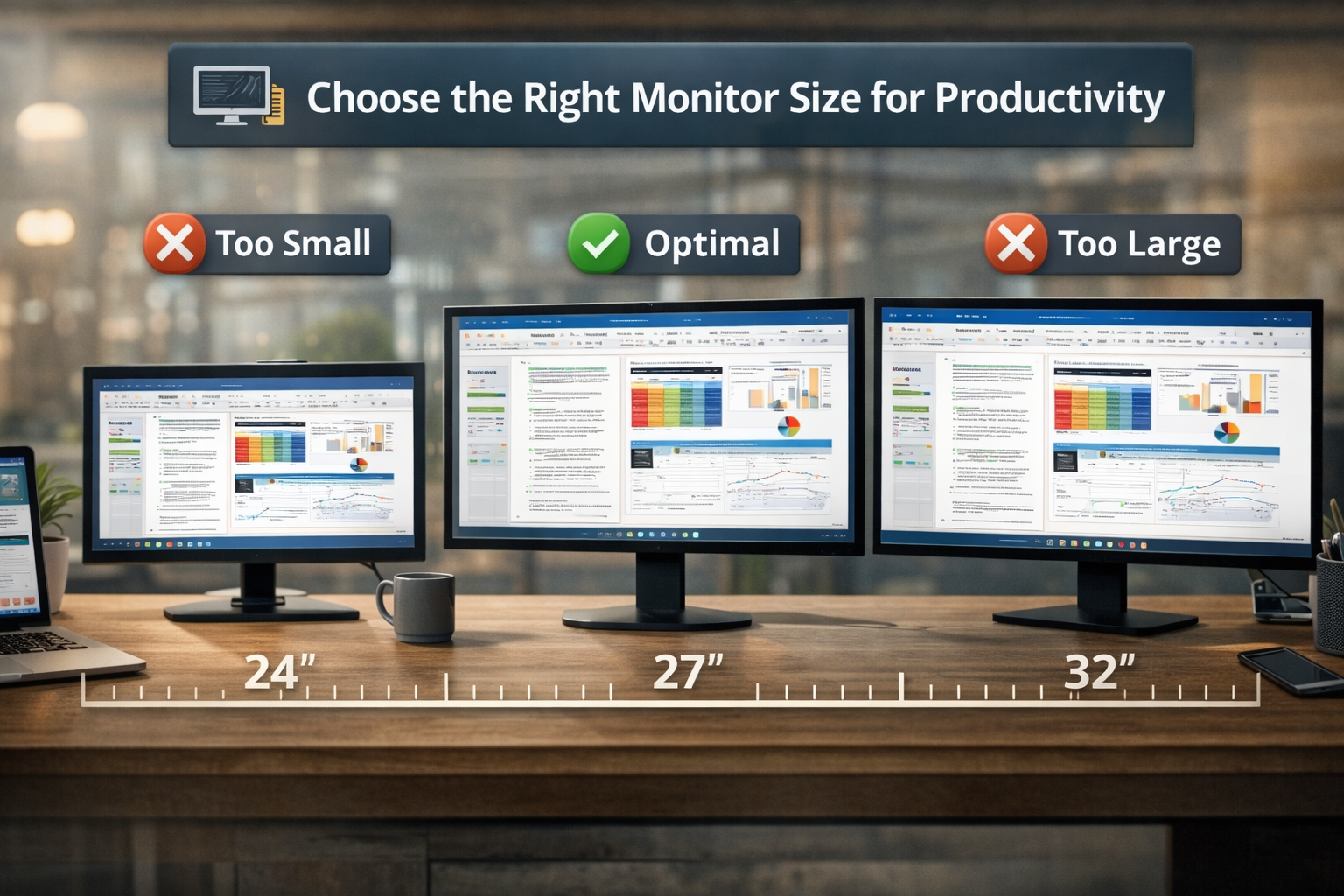
When your screen is too small, you constantly switch between windows. When it’s too large, you may move your head too much to see everything clearly.
The goal is to find a monitor size that allows you to:
- View multiple windows comfortably
- Read text easily without zooming
- Maintain good posture
- Reduce eye strain
According to display research referenced by organizations such as the Human Factors and Ergonomics Society, larger screens can improve productivity when they reduce the need for constant window switching.
But bigger is not always better — balance is key.
Understanding Monitor Sizes (Explained Simply)
Monitor sizes are measured diagonally from one corner of the screen to the opposite corner.
For example:
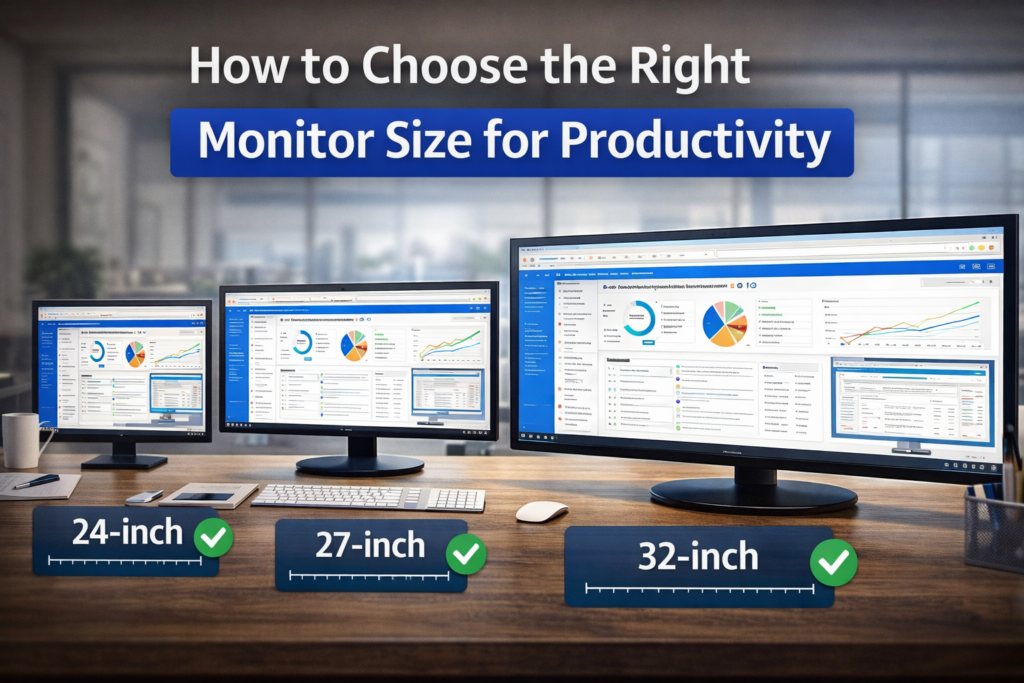
- 24-inch monitor → compact workspace monitor
- 27-inch monitor → most common productivity size
- 32-inch monitor → large workspace for multitasking
- 34-inch ultrawide → replaces dual monitors
Think of it like choosing a desk.
A small desk fits basic work, while a larger desk allows you to spread things out.
Common Monitor Sizes and Who They Are Best For
24-Inch Monitor
Best for:
- Small desks
- Basic office work
- Students
Advantages:
- Affordable
- Easy to fit anywhere
- Comfortable viewing distance
However, multitasking space is limited.
27-Inch Monitor (Most Popular)
Many professionals consider this the sweet spot when selecting the right monitor size productivity setup.
Best for:
- Office work
- Coding
- spreadsheets
- remote work
Advantages:
- More workspace without overwhelming your desk
- Comfortable for side-by-side windows
Most modern offices choose 27-inch monitors because they balance size and comfort well.
32-Inch Monitor
Best for:
- Designers
- video editors
- finance professionals
- multitaskers
Advantages:
- Large workspace
- Excellent for multiple applications
But on small desks, it may feel too close to your eyes.
Ultrawide Monitors (34-inch and above)
Ultrawide monitors replace two screens with one large curved display.
Best for:
- heavy multitasking
- trading dashboards
- editing timelines
- large spreadsheets
Instead of two monitors with a gap in the middle, you get one continuous screen.
📦 Definition Box
Screen Resolution:
Resolution refers to how many pixels appear on your screen. Higher resolution means sharper images and more workspace.
Example:
- Full HD → 1920 × 1080
- QHD → 2560 × 1440
- 4K → 3840 × 2160
Higher resolution allows larger monitors to remain sharp.
Monitor Size vs Resolution (Important!)
A large monitor with low resolution can look blurry.
Here’s a simple guideline:
| Monitor Size | Recommended Resolution |
|---|---|
| 24-inch | 1080p (Full HD) |
| 27-inch | 1440p (QHD) |
| 32-inch | 1440p or 4K |
| Ultrawide | 3440×1440 |
Choosing the right monitor size productivity setup requires matching the screen size with the correct resolution.
Viewing Distance Matters Too
A monitor that is too close can cause eye strain.
Recommended viewing distances:
- 24-inch: about 50–60 cm
- 27-inch: about 60–70 cm
- 32-inch: about 70–90 cm
Think of it like watching TV — sitting too close makes it uncomfortable.
Single Monitor vs Dual Monitors
Many people struggle deciding between one large monitor or two smaller monitors.
Dual Monitor Setup
Pros:
- Easy multitasking
- Separate apps clearly
Cons:
- Large desk space needed
- Gap between screens
Large Single Monitor / Ultrawide
Pros:
- Seamless viewing
- Cleaner desk setup
Cons:
- Higher cost
For most users choosing the right monitor size productivity setup, either option works depending on workflow.
🧠 Key Takeaway Box
The best monitor size for productivity is usually 27 inches, because it provides enough workspace without overwhelming your desk.
Real-World Example
Imagine three professionals:
Accountant
- Uses spreadsheets and email
- Ideal monitor: 27-inch
Graphic Designer
- Needs large visual workspace
- Ideal monitor: 32-inch or ultrawide
Student
- Browsing, documents, video calls
- Ideal monitor: 24-inch
Different work styles require different screen sizes.
Ergonomics Tips for Productivity
Regardless of size, proper positioning matters.
Follow these rules:
- Top of monitor at eye level
- Screen about arm’s length away
- Avoid glare from windows
- Use adjustable monitor stands
Good ergonomics improve long-term productivity and comfort.
When Bigger Is NOT Better
Some people assume bigger monitors always increase productivity.
But problems can occur if:
- Desk space is limited
- Resolution is too low
- You must turn your head frequently
The right monitor size productivity choice should match both your desk and workflow.
Future Trends: Larger Workspaces
With remote work and multitasking increasing, larger displays are becoming more popular.
Industry reports from display manufacturers show increasing demand for:
- 27-inch monitors
- Ultrawide displays
- Dual-monitor productivity setups
As digital work grows, screen workspace becomes more important.
Frequently Asked Questions (FAQ)
1. What monitor size is best for productivity?
For most people, a 27-inch monitor offers the best balance between screen space and comfort.
2. Is a 32-inch monitor too big for office work?
Not necessarily, but it requires more viewing distance and desk space.
3. Are ultrawide monitors better than dual monitors?
Ultrawide monitors offer a seamless workspace, while dual monitors provide more flexibility.
4. Does resolution matter more than monitor size?
Both matter. A larger monitor requires higher resolution to remain sharp.
5. Is a 24-inch monitor enough for productivity?
Yes, especially for basic tasks like browsing, documents, and video calls.