Difficulty: Beginner
What Causes Laptop Screen Flickering? (Simple Explanation)
Think of your screen like a light bulb connected to a controller.
If:
- The power is unstable
- The controller sends wrong signals
- Or the connection is loose
👉 The screen flickers.
Common causes include:
- Display driver problems
- Incorrect refresh rate
- Loose display cable
- Faulty apps
- GPU issues
According to Microsoft support guidance, display driver conflicts and incompatible apps are among the most common causes of flickering in Windows systems.
⚡ Quick Fix Box (Try This First)
Before going through all steps:
✔ Restart your laptop
✔ Update Windows
✔ Close unnecessary apps
These simple actions solve many flickering cases instantly.
Fix 1: Check If It’s an App or System Problem
This helps you identify the root cause.
How to Test:
- Press Ctrl + Shift + Esc to open Task Manager
- Observe the screen
👉 If Task Manager flickers → system issue
👉 If only apps flicker → app problem
This step helps narrow down your laptop screen flickering fix quickly.
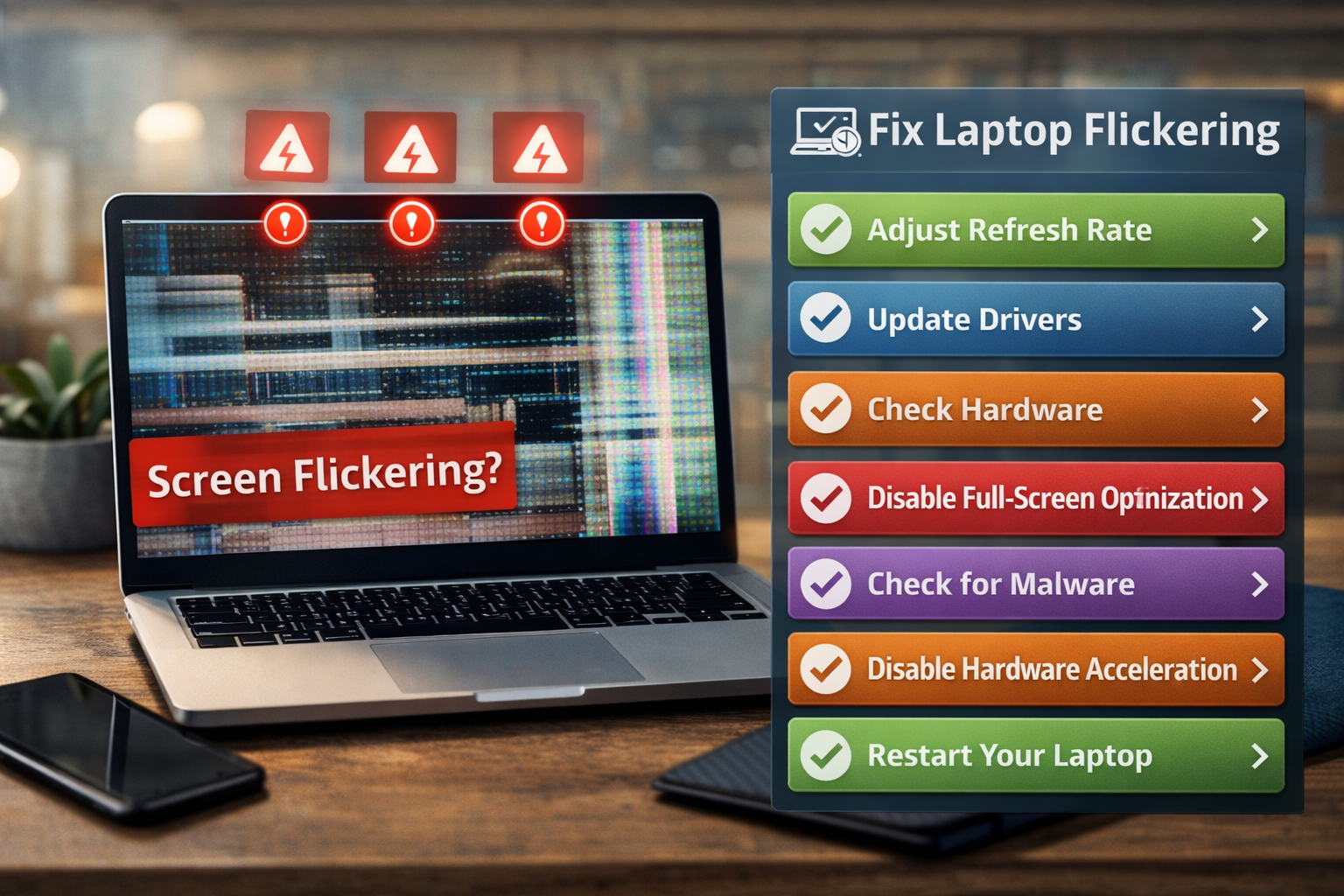
Fix 2: Update or Reinstall Display Drivers
Drivers control how your screen communicates with your system.
Steps:
- Right-click Start → Device Manager
- Expand Display adapters
- Right-click your GPU → Update driver
If problem persists:
- Uninstall driver
- Restart laptop (Windows reinstalls it)
Outdated or corrupted drivers are one of the top reasons for screen flickering.
Fix 3: Adjust Screen Refresh Rate
Refresh rate is how many times your screen updates per second.
Wrong settings can cause flickering.
Steps:
- Go to Settings → System → Display
- Click Advanced display
- Change refresh rate (try 60Hz or recommended)
Think of it like syncing video playback — if it’s out of sync, you see flickers.
Fix 4: Disable Hardware Acceleration in Apps
Some apps (like browsers) use GPU acceleration.
This can cause flickering.
Example (Chrome):
- Go to Settings → System
- Turn off Use hardware acceleration
This is a common hidden cause.
Fix 5: Check Display Cable (Hardware Issue)
For laptops:
- Internal cable may loosen over time
For external monitors:
- HDMI/DisplayPort cable may be faulty
Signs:
- Flickering when you move the screen
- Flickering only at certain angles
This indicates a hardware-related laptop screen flickering fix is needed.
Fix 6: Update Windows and System Drivers
Sometimes flickering happens after updates.
Fix:
- Go to Settings → Windows Update
- Install all updates
Also update:
- GPU drivers (Intel, AMD, NVIDIA)
- Chipset drivers
Manufacturers regularly release patches to fix display bugs.
Fix 7: Disable Windows Visual Effects
Animations can cause flickering on weaker systems.
Steps:
- Press Win + R → sysdm.cpl
- Go to Advanced → Performance Settings
- Select Adjust for best performance
This reduces strain on your GPU.
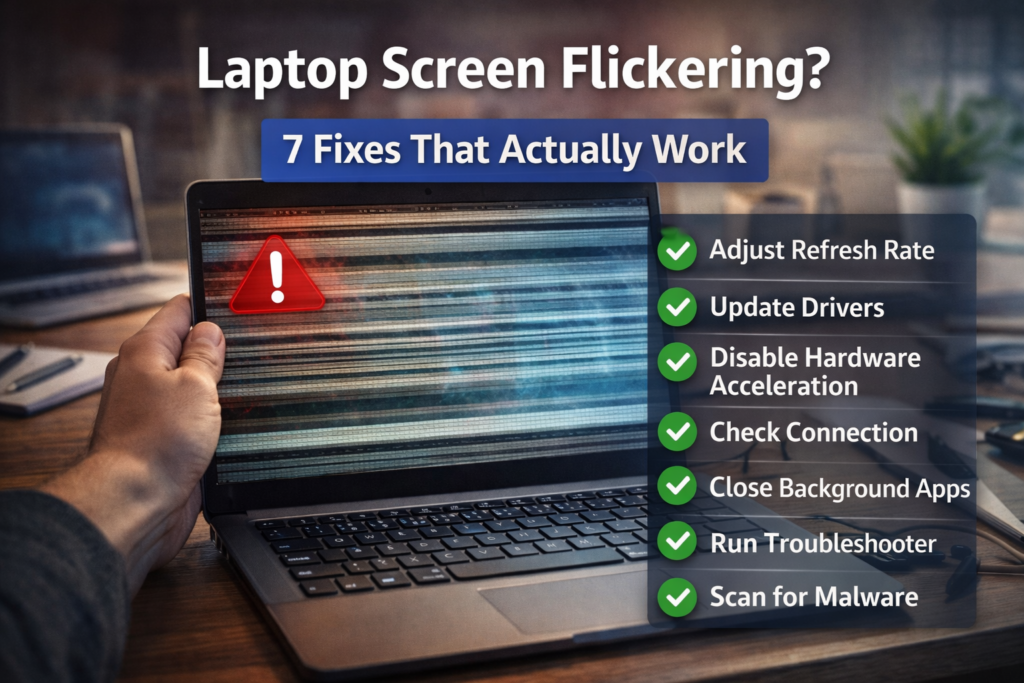
🔎 Quick Diagnosis Guide
| Symptom | Likely Cause |
|---|---|
| Flickers constantly | Driver issue |
| Flickers when moving screen | Loose cable |
| Only certain apps flicker | Software conflict |
| Flickers after update | Driver/Windows issue |
🛠️ Key Takeaway Box
Most laptop screen flickering issues are software-related — updating drivers and adjusting settings usually fix the problem without hardware repair.
When Is It a Hardware Problem?
Your laptop screen flickering fix may require repair if:
- Screen flickers even in BIOS
- Flickering worsens over time
- Display shows lines or color distortion
- External monitor works fine
👉 This usually means:
- Faulty screen panel
- Damaged internal cable
Real-World Example
A user experienced flickering during Zoom calls.
Fix applied:
- Disabled hardware acceleration
- Updated GPU driver
Result:
- Flickering completely resolved within minutes
How to Prevent Screen Flickering
- Keep drivers updated
- Avoid installing unknown apps
- Don’t force open/close laptop aggressively
- Use stable power supply
- Avoid overheating
Preventive maintenance reduces future issues.
Frequently Asked Questions (FAQ)
1. Why is my laptop screen flickering randomly?
Usually due to driver issues, refresh rate mismatch, or software conflicts.
2. Can overheating cause flickering?
Yes, high temperatures can affect GPU performance.
3. How do I fix flickering after Windows update?
Update or reinstall display drivers.
4. Is screen flickering a serious issue?
Not always — most cases are software-related and fixable.
5. Should I replace my screen?
Only if hardware damage is confirmed.