
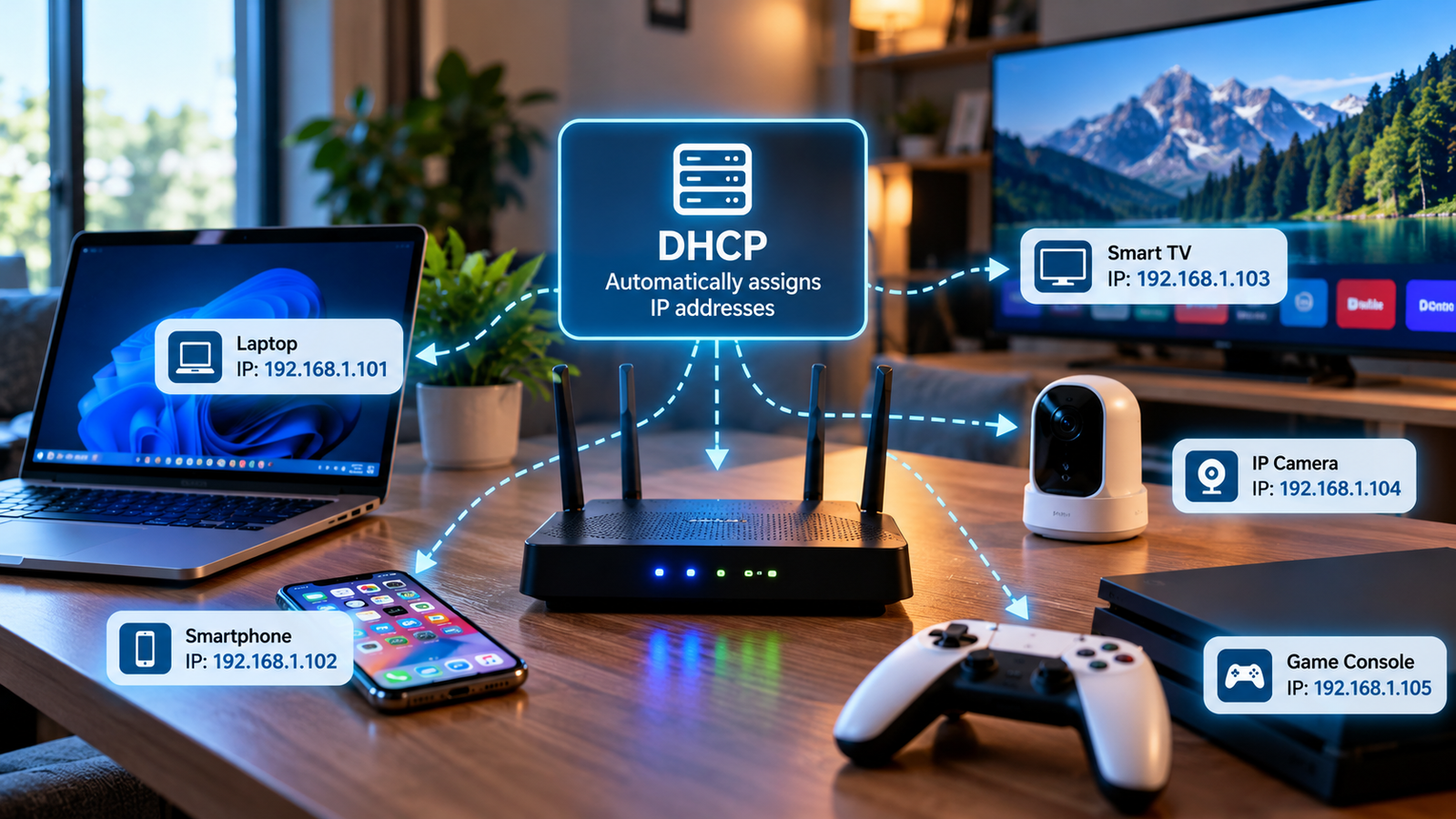
Ever wondered how your phone connects to your home Wi-Fi and starts working almost instantly? You type in the Wi-Fi password, connect, and suddenly you can browse websites, watch YouTube, or send messages.
But behind that simple process, your router performs an important job.
It automatically gives your device a network address so it knows how to communicate with other devices and reach the internet.
That process is handled by DHCP.
If you have ever experienced a device showing “Connected, no internet,” an IP address conflict, or a connection that works on one device but not another, DHCP might be part of the problem.
Understanding what is DHCP can help you troubleshoot common home networking problems without needing advanced IT knowledge.
Key Takeaway Box
DHCP is like a receptionist assigning room numbers to guests at a hotel. Every device joining your network receives an IP address automatically, allowing devices to communicate without you manually entering network settings. For most households, DHCP should remain enabled on the main router.
What Is DHCP?
DHCP stands for Dynamic Host Configuration Protocol.
It is a networking system that automatically provides devices with the information they need to communicate on a network.
Think of your home network as a neighbourhood.
Every house needs an address so deliveries can reach the correct location. Similarly, every connected device needs an IP address so information can travel to the right destination.
Without DHCP, you would often need to manually configure an IP address and other settings for each device.
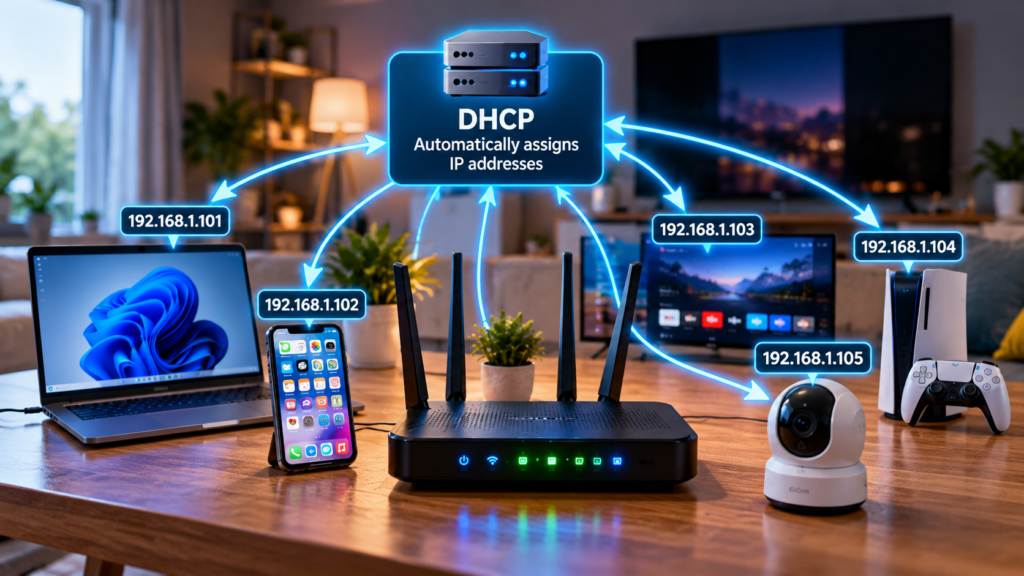
For example, imagine a home containing:
- Two smartphones
- Three laptops
- One smart television
- Two security cameras
- One gaming console
- Several smart home devices
Every device needs suitable network settings to communicate.
DHCP handles most of this work automatically.
According to Microsoft’s networking documentation, DHCP automatically assigns IP addresses when the network supports it, reducing the need to configure TCP/IP settings manually.
How Does DHCP Work?
When a device joins your home network, it needs an IP address before it can communicate normally using IPv4.
Your router typically runs a DHCP server that manages this process.
The basic process has four stages, commonly called DORA.
How a device receives an IP address
DORA process
Your device
Newly connected to Wi-Fi
1
Discover
Device: Is there a DHCP server?
2
Offer
Router: You can use 192.168.1.105
3
Request
Device: I’d like that address
4
Acknowledge
Router: Confirmed. It’s yours for the lease
Connected to the network
IP settings assigned by router
Illustrative DHCPv4 exchange. The actual addresses and messages depend on your network.
Step 1: Discover
Your device connects to the Wi-Fi network and broadcasts a request asking whether a DHCP server is available.
Step 2: Offer
The DHCP server, usually your router, offers an available IP address and relevant network settings.
Step 3: Request
Your device requests the offered address.
Step 4: Acknowledge
The router confirms the assignment, and your device can begin using its new network settings.
This process follows the DHCP specification described in RFC 2131, the technical standard defining DHCP for IPv4.
What Information Does DHCP Give Your Devices?
DHCP does more than assign an IP address.
It can provide several settings that help your device communicate properly.
| Network setting | What it does | Example |
|---|---|---|
| IP address | Identifies your device on the local network | 192.168.1.105 |
| Subnet mask | Helps identify which addresses are on the local network | 255.255.255.0 |
| Default gateway | Tells your device where to send traffic outside the local network | 192.168.1.1 |
| DNS server | Helps translate website names into IP addresses | 192.168.1.1 |
| Lease time | Determines how long the device can use the assigned address | 24 hours |
These examples represent a typical home network. Your actual values may be different.
The default gateway is particularly important because it is normally your router’s local IP address.
For example, when you open a website, your computer sends traffic toward the router, which forwards it toward the internet.
The DNS server helps your device locate websites by converting names such as google.com into network addresses.
Why Does Your Home Network Need DHCP?
Most homes have more connected devices than people realise.
Apart from computers and smartphones, modern homes may contain smart speakers, televisions, doorbells, printers, security cameras, robot vacuum cleaners, and home automation systems.
DHCP makes managing these devices significantly easier.
1. Automatic network configuration
You do not need to enter IP addresses every time you connect a new device.
Your router handles the configuration automatically.
2. Reduces IP address conflicts
An IP address conflict happens when two devices accidentally use the same address on the same network.
Properly configured DHCP helps avoid this problem by tracking which addresses have been assigned.
However, conflicts can still occur if manually configured devices use addresses within the DHCP allocation range.
3. Makes switching networks easier
Your laptop may connect to your home network, office network, and a hotel Wi-Fi network.
Each location may use different IP address ranges and network settings.
DHCP automatically provides suitable settings for each location.
4. Simplifies smart home setup
When you install a new smart television or security camera, the device can obtain its network settings automatically.
You usually only need to connect it to Wi-Fi or plug in an Ethernet cable.
5. Reduces maintenance
As devices join and leave your network, DHCP helps manage available IP addresses.
You do not need to maintain a manual address list for every phone, laptop, or temporary guest device.
What Is a DHCP Lease?
A DHCP lease is the period during which a device is allowed to use an assigned IP address.
For example, your router might provide your laptop with this information:
- IP address: 192.168.1.105
- Gateway: 192.168.1.1
- Lease duration: 24 hours
This does not mean your internet connection stops after 24 hours.
Your device normally attempts to renew its lease before it expires.
If the DHCP server approves the renewal, your device can continue using the address.
If the lease expires and the device cannot obtain valid configuration, network connectivity may become unavailable.
Does your IP address change after every lease?
Not necessarily.
A DHCP server will often assign the same address again, especially when the previous address is still available.
However, DHCP does not guarantee that your device will always receive the same address.
For devices such as printers, security cameras, and home servers, a consistent IP address may be more convenient.
This is where DHCP reservation becomes useful.
What Is DHCP Reservation?
DHCP reservation tells your router to assign a particular IP address to a particular device.
The router identifies the device using its network identifier, commonly its MAC address.
For example:
| Device | Reserved IP address |
|---|---|
| Living room TV | 192.168.1.110 |
| Network printer | 192.168.1.120 |
| Security camera | 192.168.1.130 |
| Home NAS | 192.168.1.140 |
These addresses are illustrative and must match your router’s subnet and reservation rules.
Reservations make devices easier to find on your home network.
For example, if your printer uses the same IP address every day, computers and printing applications are less likely to lose track of it because its address changed.
Pro Tip Box
Use normal DHCP for smartphones, tablets, laptops, and guest devices. Consider DHCP reservations for network printers, NAS storage, security cameras, and other devices that benefit from having a consistent local IP address.
DHCP vs Static IP: What Is the Difference?
DHCP and static IP configuration are two ways of assigning network addresses.
| Feature | DHCP | Static IP |
|---|---|---|
| Address assignment | Automatic | Manually configured |
| Setup difficulty | Easy | Requires network knowledge |
| Address consistency | May change | Remains fixed until changed |
| Best for | Phones, laptops, general home devices | Special devices requiring fixed addresses |
| Maintenance | Low | Higher |
| Conflict risk | Lower with correct configuration | Higher if managed incorrectly |
For most households, DHCP is the better default.
If you need a fixed address, a router-managed DHCP reservation is often easier than manually setting a static IP address on the device.
What Happens If DHCP Stops Working?
When DHCP fails, devices may connect to Wi-Fi but fail to obtain valid network settings.
You might encounter:
- Connected to Wi-Fi but no internet
- Unable to obtain IP address
- IP configuration failure
- Unidentified network
- Self-assigned IP address
- Limited connectivity
On some Windows networks, a device that cannot obtain an IPv4 address may assign itself an address beginning with 169.254.
This is known as an Automatic Private IP Addressing (APIPA) address.
It often indicates that the computer failed to obtain an IPv4 address from DHCP, although other networking problems can also be involved.
How to fix common DHCP problems
Try these steps in order.
- Restart your device and reconnect to Wi-Fi.
- Check whether other devices can connect successfully.
- Restart your router if several devices are affected.
- Confirm that DHCP is enabled on your main router.
- Check whether the DHCP address range has available addresses.
- Make sure you do not have another router incorrectly providing DHCP on the same network.
- Check whether your device is configured to obtain an IP address automatically.
If only one device has problems, the issue may involve that device’s settings, wireless connection, or network adapter rather than the router’s DHCP server.
Renew DHCP on Windows
If you use Windows, you can request a new DHCP lease using Command Prompt.
Open Command Prompt and run:
ipconfig /release
ipconfig /renew
The first command releases the current IPv4 configuration for applicable adapters.
The second requests updated configuration from the DHCP server.
Be aware that releasing your IP address temporarily interrupts network connectivity. Do not perform this on a remote computer if losing the connection could prevent you from reconnecting.
Should DHCP Be Enabled on Your Router?
For most households, yes.
A typical home network should have one main device responsible for providing DHCP addresses within each local subnet.
This is normally the primary router.
You can often find its DHCP settings under:
Router Administration → LAN Settings → DHCP Server
The exact menu depends on your router manufacturer.
Common settings include:
- Enable DHCP server
- Starting IP address
- Ending IP address
- Lease duration
- DHCP reservation
- DNS server options
For example, your router might use:
| Setting | Example |
|---|---|
| Router IP | 192.168.1.1 |
| Subnet mask | 255.255.255.0 |
| DHCP starting address | 192.168.1.100 |
| DHCP ending address | 192.168.1.200 |
| Lease time | 24 hours |
This configuration allows the router to distribute addresses within the specified range.
Avoid changing DHCP settings unless you understand their purpose, especially if other household members depend on the connection.
What about mesh Wi-Fi and additional routers?
If you install another router or wireless access point, you should understand whether it operates in router mode or access point mode.
An additional device working as an access point on the same network normally should not provide a separate DHCP service.
Otherwise, two DHCP servers may distribute conflicting network information.
However, a second router serving its own separate network may legitimately run its own DHCP server.
The correct setup depends on how your network is designed.
Is DHCP Secure?
DHCP is convenient, but it does not authenticate every device or guarantee network security.
A malicious or incorrectly configured DHCP server could potentially distribute misleading settings, such as an unexpected gateway or DNS server.
For a home network, practical precautions include securing your Wi-Fi password, keeping your router updated, disabling unnecessary administration access, and reviewing unfamiliar connected devices.
Also remember that DHCP itself does not encrypt internet traffic.
HTTPS, Wi-Fi encryption, and VPNs serve different security purposes.
One additional detail: DHCP as described above mainly concerns IPv4. IPv6 networks may use DHCPv6, Stateless Address Autoconfiguration (SLAAC), or both to configure devices.
FAQ
What is DHCP in simple terms?
DHCP automatically gives devices IP addresses and other network settings. It allows phones, laptops, and smart devices to join a network without requiring manual IP configuration.
Is DHCP necessary for Wi-Fi?
DHCP is not technically required for Wi-Fi itself, but it makes network configuration much easier. Devices can use manually configured IP addresses, although DHCP is normally preferable for home networks.
Does DHCP make the internet faster?
No. DHCP does not directly increase internet speed. It automatically configures network addresses. A DHCP problem can prevent connectivity, but changing DHCP settings will not normally improve download speed.
Should I disable DHCP on my router?
Usually not. Keep DHCP enabled on your main router unless another properly configured device is responsible for address assignment. Disabling it without an alternative can prevent devices from obtaining usable IP settings.
Can two devices have the same IP address?
Two devices on the same subnet should not use the same IPv4 address simultaneously. Doing so can create an IP address conflict and cause communication problems. DHCP helps prevent accidental duplicate assignments.
Is DHCP the same as DNS?
No. DHCP assigns IP addresses and network settings, while DNS translates domain names into IP addresses. DHCP can also tell devices which DNS servers to use.
Final Thoughts: Why DHCP Matters
Understanding what is DHCP helps explain one of the most important processes happening behind your home internet connection.
Every time a device joins your network, DHCP can automatically provide the information it needs to communicate.
It reduces manual configuration, helps manage IP addresses, and makes modern home networks easier to maintain.
For most households, the best approach is simple: leave DHCP enabled on your primary router, use automatic IP configuration on everyday devices, and consider DHCP reservations for equipment that needs a consistent address.
You do not need to become a networking expert to benefit from DHCP. Understanding its purpose is already a useful first step toward troubleshooting common connection problems.