

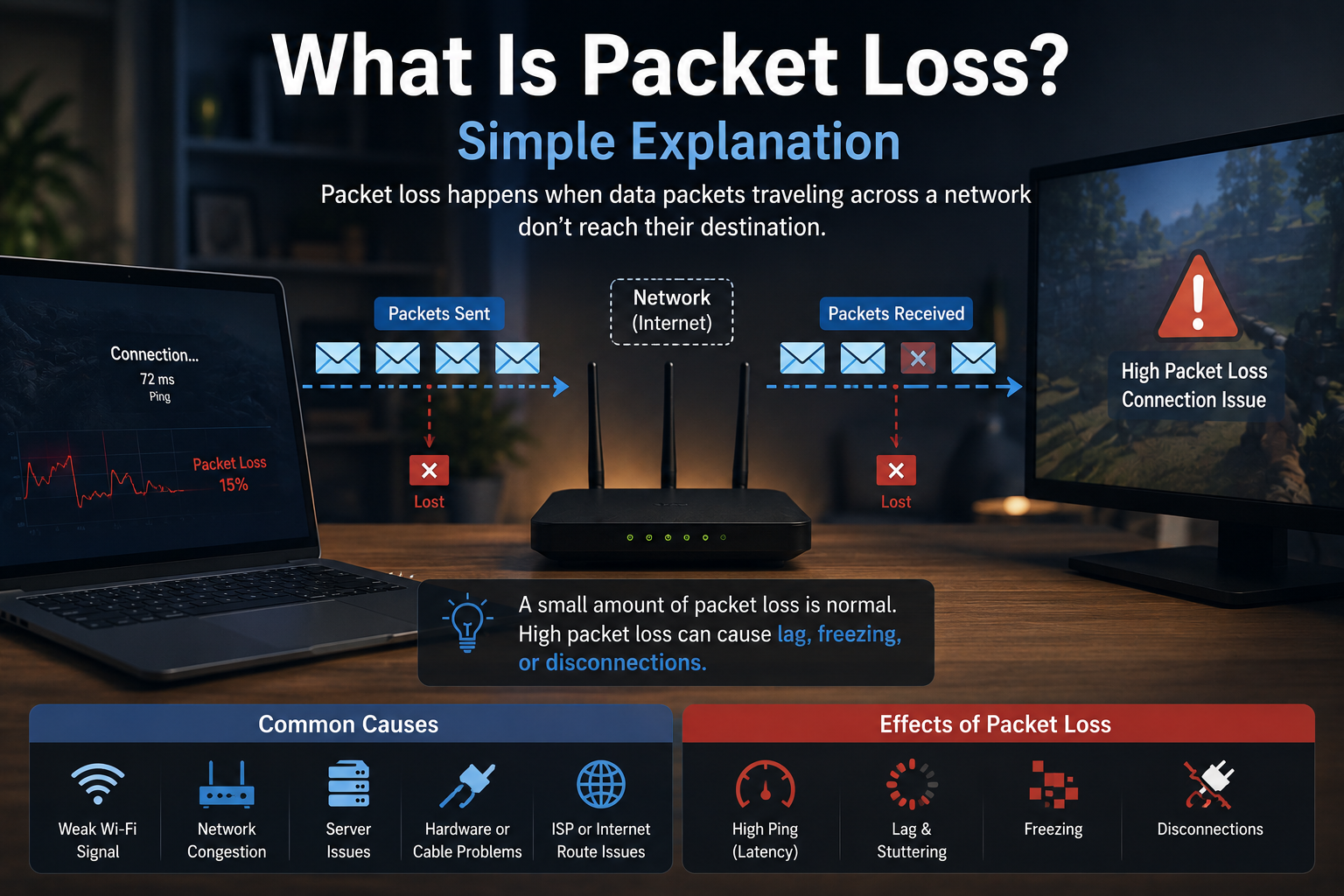
If your internet speed test looks fine but your Zoom call freezes, your online game lags, or your video keeps buffering, the problem may not be “slow internet.” It may be packet loss. In this Packet loss explained guide, we’ll break it down in plain English so you can understand what is happening without needing to be a network engineer.
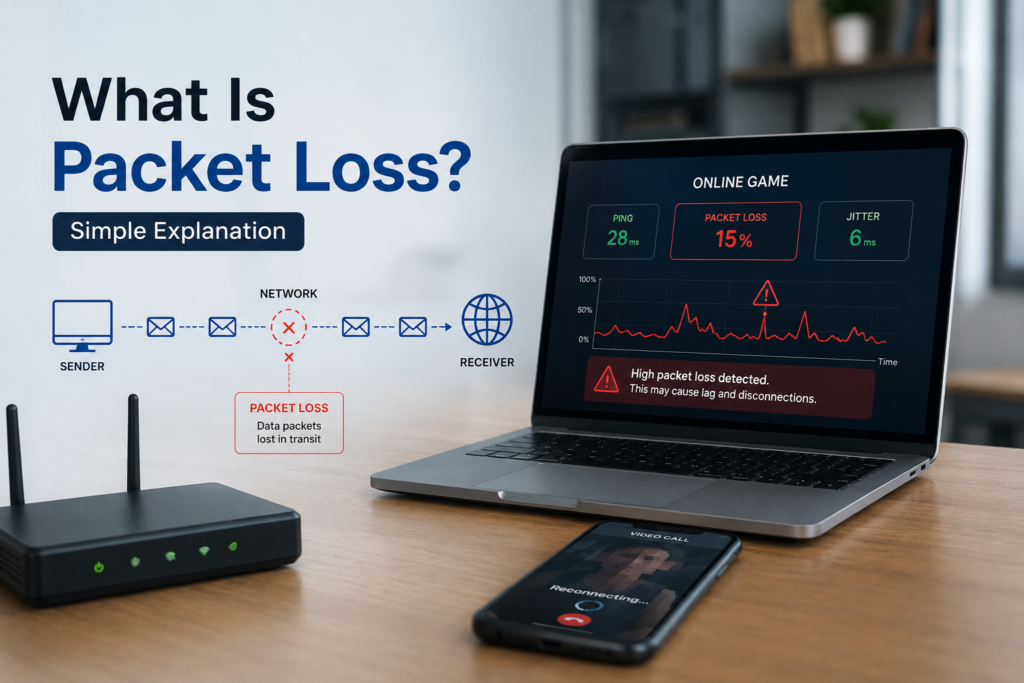
Think of the internet like a delivery service. Every message, video, website, or voice call is split into tiny “packages” of data. These packages travel from one place to another. When some of those packages go missing along the way, that is packet loss.
According to IEEE Technology Navigator, packet loss is when one or more data packets fail to reach their intended destination, which can cause incomplete data delivery and reduce application performance.
Definition Box
Packet loss means some pieces of internet data do not arrive where they are supposed to go. When too many pieces are lost, you may notice lag, robotic voice, frozen video, slow loading, or disconnections.
What Does Packet Loss Explained Mean?
To understand packet loss, you first need to understand what a “packet” is.
A packet is a small piece of data sent across a network. When you open a website, stream Netflix, join a Teams call, or play an online game, your device does not send everything in one big chunk. Instead, it breaks the data into many small packets.
Think of it like moving house.
Instead of sending your entire house in one giant box, you pack items into many smaller boxes. Each box has a label saying where it should go. If all boxes arrive, everything is complete. If some boxes go missing, something is missing at the destination.
That is how data works online.
When all packets arrive correctly, your internet feels smooth. When some packets disappear, your device may need to request the missing data again, guess what is missing, or continue without it. This is why packet loss can feel different depending on what you are doing.
For example:
| Online Activity | What Packet Loss Feels Like |
|---|---|
| Video call | Frozen video, robotic voice, audio cuts |
| Online gaming | Lag, rubber-banding, delayed movement |
| Streaming | Buffering or quality dropping |
| Web browsing | Pages load slowly or fail |
| File download | Slower download or retry errors |
| VoIP phone call | Broken voice or dropped call |
Packet Loss Explained in Real Life
Imagine you are talking to someone on a phone call.
You say:
“Can you send me the report before lunch?”
But the other person hears:
“Can you ___ me the ___ before lunch?”
Some words are missing. They might still guess what you mean, but the conversation becomes unclear.
Packet loss works the same way.
During normal web browsing, missing packets can often be resent. You may only notice a small delay. But during live activities like gaming, video calls, and voice calls, there is no time to wait. The data needs to arrive immediately.
That is why packet loss is more annoying in real-time activities.
A website can wait an extra second. A live call cannot.
Microsoft Teams Support describes received packet loss as the percentage of audio data packets not received by your system, and poor network connection can directly affect call quality.
Why Packet Loss Matters
Packet loss matters because it can make your internet feel broken even when your speed looks good.
This is where many people get confused.
They run a speed test and see:
- Download speed: 500 Mbps
- Upload speed: 100 Mbps
- Ping: acceptable
Then they wonder why their Teams call is still bad.
The reason is simple: speed is not the whole story.
Internet quality also depends on:
- Packet loss
- Latency
- Jitter
- Wi-Fi signal quality
- Router performance
- Network congestion
- ISP stability
- Device performance
Packet loss vs internet speed
Internet speed is like the size of a road.
Packet loss is like cars falling off the road before reaching the destination.
You can have a big highway, but if cars keep disappearing, the delivery still fails.
This is why someone with 1 Gbps internet can still have bad video calls if the connection is unstable.
Packet loss vs latency
Latency means delay.
It is the time taken for data to travel from your device to another server and back.
High latency feels like delay. Packet loss feels like missing information.
In online gaming, high latency means your action takes longer to register. Packet loss means your action may not register properly at all.
Packet loss vs jitter
Jitter means inconsistent delay.
If packets arrive at uneven timing, your call or video may stutter.
Microsoft Learn explains that jitter measures variation in packet delay for a data stream, and high round-trip time can cause audio latency in meetings and calls.
Packet Loss Explained: Common Causes
Packet loss can happen for many reasons. The good news is that some causes are easy to fix.
Weak Wi-Fi signal
This is one of the most common reasons at home.
If you are far from the router, behind thick walls, upstairs, or near interference, your device may struggle to maintain a stable wireless connection.
Common Wi-Fi problems include:
- Too far from router
- Thick concrete walls
- Router hidden inside cabinet
- Too many devices connected
- Interference from neighbours’ Wi-Fi
- Old router
- Weak laptop or phone Wi-Fi adapter
If your internet works better when you stand near the router, your problem is likely Wi-Fi quality, not your internet plan.
Network congestion
Congestion happens when too many devices are trying to use the same connection at once.
For example:
- Someone is downloading a large game
- Another person is streaming 4K video
- Your phone is backing up photos
- Your laptop is updating Windows
- Your smart TV is streaming
- You are trying to join a video call
All of this traffic competes for space.
When the network becomes too busy, packets may be delayed or dropped.
Bad cables
If you use a LAN cable, do not assume the cable is always fine.
A damaged Ethernet cable can cause packet loss. This may happen if the cable is bent, crushed, old, low quality, or not properly clicked into the port.
Signs of a cable issue include:
- Connection randomly drops
- Speed changes between fast and slow
- Packet loss happens only on wired connection
- Router port light keeps blinking strangely
- Replacing the cable improves the issue
Router overload
Your router is like the traffic controller for your home network.
If it is old, cheap, overheating, or handling too many devices, it may start dropping packets.
This is common when people upgrade to faster internet but keep using an old router that cannot properly handle the load.
A router restart may temporarily help, but if the issue keeps coming back, the router may need replacement.
ISP problems
Sometimes the issue is not inside your home.
Your internet service provider may have:
- Line issues
- Routing problems
- Area congestion
- Maintenance work
- Faulty fibre equipment
- Damaged outdoor cable
- International routing issues
If many people in your area complain at the same time, it may be an ISP-side problem.
VPN or firewall issues
A VPN can sometimes cause packet loss if the VPN server is far away, overloaded, or poorly routed.
Firewalls can also cause problems if they inspect too much traffic, block certain packets, or are misconfigured.
In offices, packet loss can also happen because of overloaded switches, bad VLAN configuration, QoS issues, or WAN problems.
Microsoft Learn notes that Quality of Service, or QoS, can prioritize real-time network traffic that is sensitive to delays, helping reduce issues such as delays, dropped packets, and jitter when configured correctly.
How to Know If You Have Packet Loss
You do not need advanced tools to suspect packet loss.
Look for these signs:
- Video calls freeze even with good speed
- Online games lag or teleport
- Voice sounds robotic
- Streaming suddenly drops quality
- Websites randomly fail to load
- Downloads pause or restart
- Remote desktop feels unstable
- WhatsApp or VoIP calls break up
- Microsoft Teams says poor network quality
Simple test using ping
On Windows, you can test packet loss using Command Prompt.
Open Command Prompt and type:
ping google.com -n 50
After the test finishes, look for packet loss percentage.
If it says:
Lost = 0
That means no packet loss was detected in that short test.
If it says:
Lost = 5
That means some packets failed.
On Mac, you can use Terminal:
ping google.com
Let it run for a while, then stop it using Control + C.
What percentage of packet loss is bad?
For normal browsing, a tiny amount may not be noticeable.
For video calls and gaming, even small packet loss can be annoying.
A practical beginner-friendly guide:
| Packet Loss Level | What It Usually Means |
|---|---|
| 0% | Excellent |
| Below 1% | Usually acceptable |
| 1%–2% | May affect calls or gaming |
| 3%–5% | Noticeable problems likely |
| Above 5% | Serious connection issue |
| Above 10% | Very poor and unstable |
Do not panic from one test. Run several tests at different times before deciding.
Quick Fixes for Packet Loss
Quick Fix Box
Start simple: restart your router, move closer to Wi-Fi, test using a LAN cable, stop large downloads, and check whether packet loss happens on all devices or only one device.
1. Restart your router
This sounds basic, but it works surprisingly often.
Turn off your router for 30 seconds, then turn it back on. This clears temporary issues and refreshes the connection.
2. Move closer to the router
If you are on Wi-Fi, test near the router.
If packet loss disappears, the problem is likely weak Wi-Fi coverage.
You may need:
- Better router placement
- Mesh Wi-Fi
- Wi-Fi extender
- Powerline adapter
- LAN cable for important devices
3. Use a LAN cable
For gaming, video calls, work laptops, and streaming boxes, wired connection is usually more stable than Wi-Fi.
If packet loss disappears on LAN, your internet line is probably fine. Your Wi-Fi is the problem.
4. Stop heavy downloads
Pause downloads, cloud backups, game updates, and video uploads.
Then test again.
If the problem improves, your connection may be congested.
5. Replace old cables
Try a different Ethernet cable.
Use at least Cat5e or Cat6 cable for modern home internet. You do not need expensive “gaming cables,” but you do need a proper working cable.
6. Update router firmware
Router firmware is the software inside your router.
Manufacturers sometimes release updates to fix bugs, improve stability, and patch security issues.
Check your router’s admin page or mobile app.
7. Change Wi-Fi band
If your device supports it, try switching between 2.4 GHz and 5 GHz.
Simple rule:
| Wi-Fi Band | Best For |
|---|---|
| 2.4 GHz | Longer distance, better through walls |
| 5 GHz | Faster speed, better for nearby devices |
| 6 GHz | Very fast, but shorter range |
If you are near the router, 5 GHz is usually better. If you are far away, 2.4 GHz may be more stable.
8. Contact your ISP
If packet loss happens even when connected directly by LAN cable, on multiple devices, after restarting your router, the issue may be with your ISP.
Tell them clearly:
- You are experiencing packet loss
- It happens on wired connection
- It happens on multiple devices
- You already restarted the router
- You tested at different times
- Ask them to check the line and routing
This gives support a clearer picture and reduces the chance of getting a basic scripted answer.
Packet Loss at Home vs Office
Packet loss at home is usually caused by Wi-Fi, router problems, device issues, or ISP instability.
Office causes may include:
- Switch errors
- Bad network cable
- Firewall overload
- VPN routing issue
- Misconfigured QoS
- WAN congestion
- Too many users sharing bandwidth
- Faulty access point
- Poor roaming between Wi-Fi access points
For business environments, packet loss is especially important because it affects voice calls, video meetings, cloud apps, remote desktop, and customer support systems.
If your company relies heavily on Microsoft Teams, Zoom, VoIP, cloud ERP, or remote work, monitoring packet loss should be part of normal IT health checks.
Common Mistakes People Make
Mistake 1: Buying a faster internet plan immediately
A faster plan does not always fix packet loss.
If your router, Wi-Fi, cable, or ISP line is unstable, upgrading from 300 Mbps to 1 Gbps may not solve the real issue.
Mistake 2: Blaming the app
Sometimes people blame Teams, Zoom, WhatsApp, Netflix, or online games.
But if multiple apps have problems, the network is more likely the cause.
Mistake 3: Testing only once
Packet loss can come and go.
Test during different times:
- Morning
- Afternoon
- Night
- Peak hours
- During video calls
- While others are using the internet
This helps you find patterns.
Mistake 4: Ignoring Wi-Fi placement
A powerful router placed inside a cabinet, behind a TV, near metal objects, or in a corner may perform badly.
Place your router in an open area, preferably central in the home.
FAQ
What is packet loss in simple words?
Packet loss means some pieces of internet data fail to reach their destination. When that happens, your internet may lag, freeze, buffer, or disconnect.
Is packet loss the same as slow internet?
No. Slow internet means your connection has limited speed. Packet loss means some data goes missing. You can have fast internet and still suffer from packet loss.
Is 1% packet loss bad?
For normal browsing, 1% may not feel serious. For gaming, video calls, and VoIP calls, even 1% packet loss can cause noticeable problems.
Can Wi-Fi cause packet loss?
Yes. Weak Wi-Fi signal, interference, distance from the router, old routers, and crowded wireless networks can all cause packet loss.
Can a VPN cause packet loss?
Yes. A VPN can cause packet loss if the VPN server is overloaded, too far away, or using a poor route. Try disconnecting the VPN and testing again.
How do I fix packet loss quickly?
Restart your router, move closer to Wi-Fi, use a LAN cable, pause large downloads, replace old cables, update your router, and contact your ISP if the issue continues.
Final Thoughts
Packet loss explained simply means this: your internet data is being sent, but some of it is not arriving properly.
That small missing data can cause big problems, especially with video calls, online gaming, VoIP calls, streaming, and remote work.
The good news is that packet loss is often fixable. Start with simple checks: Wi-Fi signal, router restart, LAN cable test, heavy downloads, and device comparison. If the problem continues across multiple devices on a wired connection, contact your ISP and ask them to check the line.
You do not always need faster internet. Sometimes you just need a cleaner, more stable connection.



[…] other problems can make your internet feel bad: packet loss and […]